Canva is where many teams make everything, and video came along for the ride: a multi-layer drag-and-drop timeline, trending hook templates, one-click captions, Magic Video (drop in clips plus a prompt and AI assembles the edit), a video background remover, resizing for every channel and brand kits. On 23 November 2026, Canva MCP became generally available, so Claude and ChatGPT can turn a brief into an editable Canva video.
But the video editor is still a design tool's editor: motion is template-level, premium AI tools share a monthly allowance, and Trustpilot reviewers (Canva rates 4.0 from 8,695 reviews) describe paywalled features and surprise renewals. The 15 alternatives below go deeper on video, from an AI agent that designs the motion for your brand to motion design tools, simple template editors, full video editors and AI video generators.
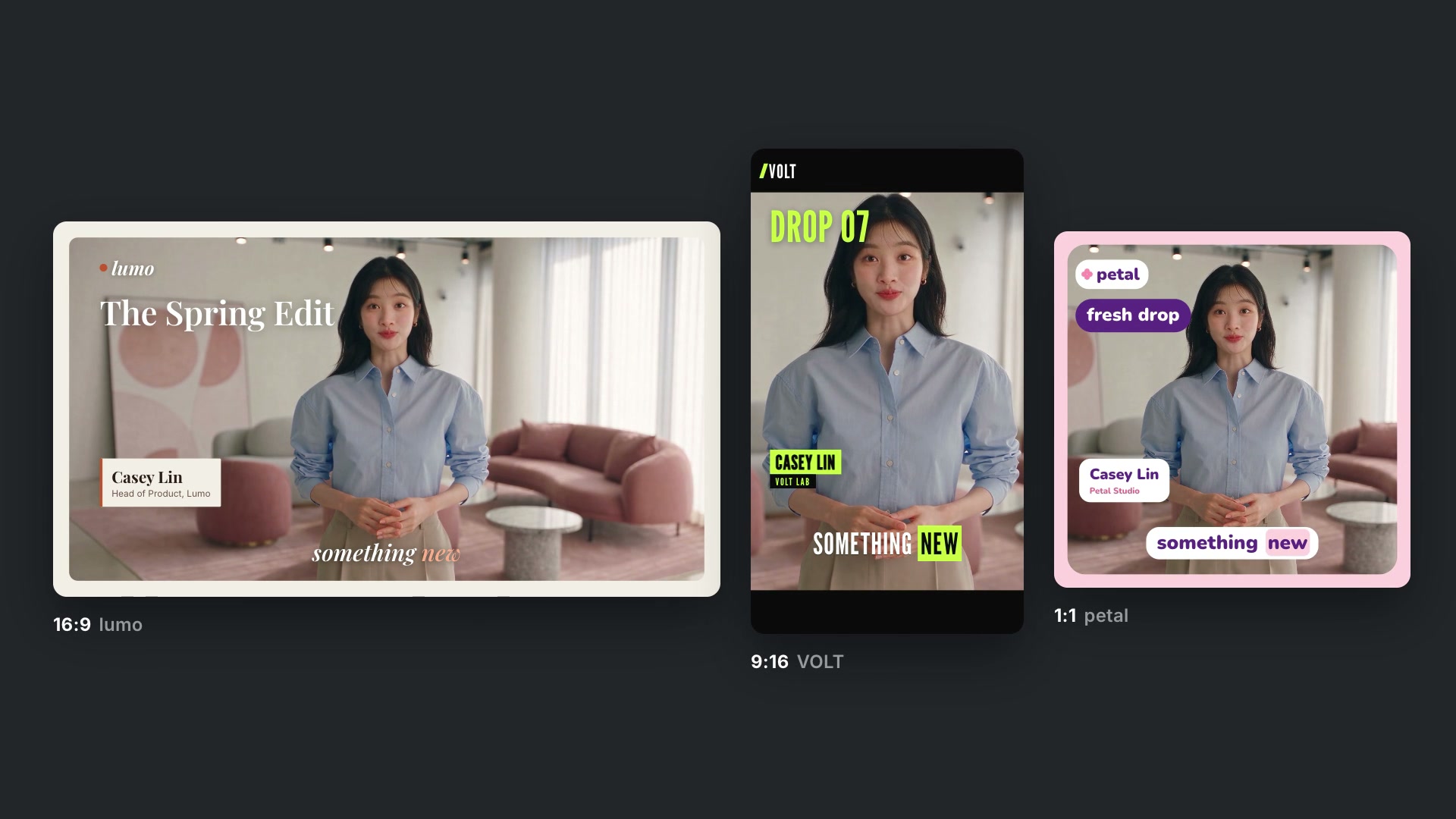
One short promo restyles into three brand looks and three formats. Made with HyperFrames for this page.
Why look for a Canva alternative?
Why teams look past Canva for video, from its pricing pages, its own help articles and recent reviews:
Template-level motion
Canva animates layers with preset effects. That is fine for a social post, but a product launch, an explainer with a chart, or a title sequence needs motion designed for the content.
Template sameness, in our view
Canva's 1.6M+ templates are shared by everyone, so the popular video templates show up across thousands of brands. That's our judgment, not a review quote.
A shared AI allowance
Premium AI tools draw from a monthly allowance that varies by plan, and advanced tools use more of it; Canva's own article puts the free plan at up to 20 Standard or Premium AI uses.
Paywalled assets and brand kits
The free plan includes 1 brand kit with 3 colours; premium templates and 141M+ premium assets need Pro at $18 a month (or $12 billed yearly).
Billing and uploads
Two Trustpilot reviewers (November 2026) report unwanted subscription charges and refused refunds. Another says uploading a file changed its layout and placements.
Quick comparison: the best Canva alternatives
Fifteen alternatives at a glance, with Canva last for reference.
Tool | Best for | Our rating | Free plan | Starting price |
|---|---|---|---|---|
HyperFrames | Branded videos with designed motion | 4.7/5 | Yes, unlimited local exports | Free to start |
Jitter | Hands-on motion design in the browser | 4.1/5 | Yes, 3 files, 720p, watermark | $19/mo per editor |
Cavalry | Free pro motion design from Canva itself | 4.0/5 | Yes, fully free for individuals | Free |
Adobe Express | Adobe templates and safe AI | 4.3/5 | Yes, limited AI | $9.99/mo |
Clipchamp | Free template editing with no watermark | 4.5/5 | Yes, 1080p, no watermark | Free; M365 $9.99/mo |
FlexClip | Cheap templates with AI extras | 4.2/5 | Yes, 720p | $19.99/mo |
Animoto | The simplest drag-and-drop video | 4.0/5 | Yes, 720p, watermark | $19/mo |
Visme | Presentations, infographics and video in one design tool | 3.7/5 | Yes, Visme logo | $29/mo ($59 for video) |
CapCut | Free editing with trends | 4.3/5 | Yes | $19.99/mo |
VEED | Subtitles and brand kits in the browser | 4.1/5 | Yes, watermark | $25/mo per editor |
Kapwing | Team video with dubbing | 3.9/5 | Yes, 720p, watermark | $24/mo |
invideo | AI-generated video with an agentic editor | 3.8/5 | Free manual editor | $20/mo per seat |
Higgsfield | AI reels and product ads from many video models | 3.7/5 | Yes, no credits | $19/mo |
Renderforest | Intros and logo animations | 4.1/5 | Yes, 720p, watermark | $9/mo yearly |
Powtoon | Animated explainers and presentations | 3.8/5 | Yes, 720p, watermark | $15/mo yearly |
Canva (for reference) | Template videos inside a design tool | Not rated | Yes, limited AI | $18/mo |
Ratings average our three scores (fit, ease of use, value); see How we compared. Monthly list prices on 26 November 2026; Canva showed a first-months promo, and invideo and Renderforest Black Friday sales.
Why trust us? HeyGen makes HyperFrames and publishes this page, so we compete with the tools below. Every rival's price, plan and feature comes from its own pricing page, help center or changelog, read on 25 and 26 November 2026. User complaints are quoted from public review sites and linked in How we checked. HyperFrames claims come from its pricing page and from the Studio app's current build. Where a rival is the better pick, we say so.
Make a branded video with real motion, free
Best Canva alternatives for branded video with motion
For videos that should feel designed for your brand, not picked from a library. HyperFrames designs the motion when you ask; Jitter and Cavalry are for a designer who animates by hand.
#1 HyperFrames: Best for branded videos with designed motion
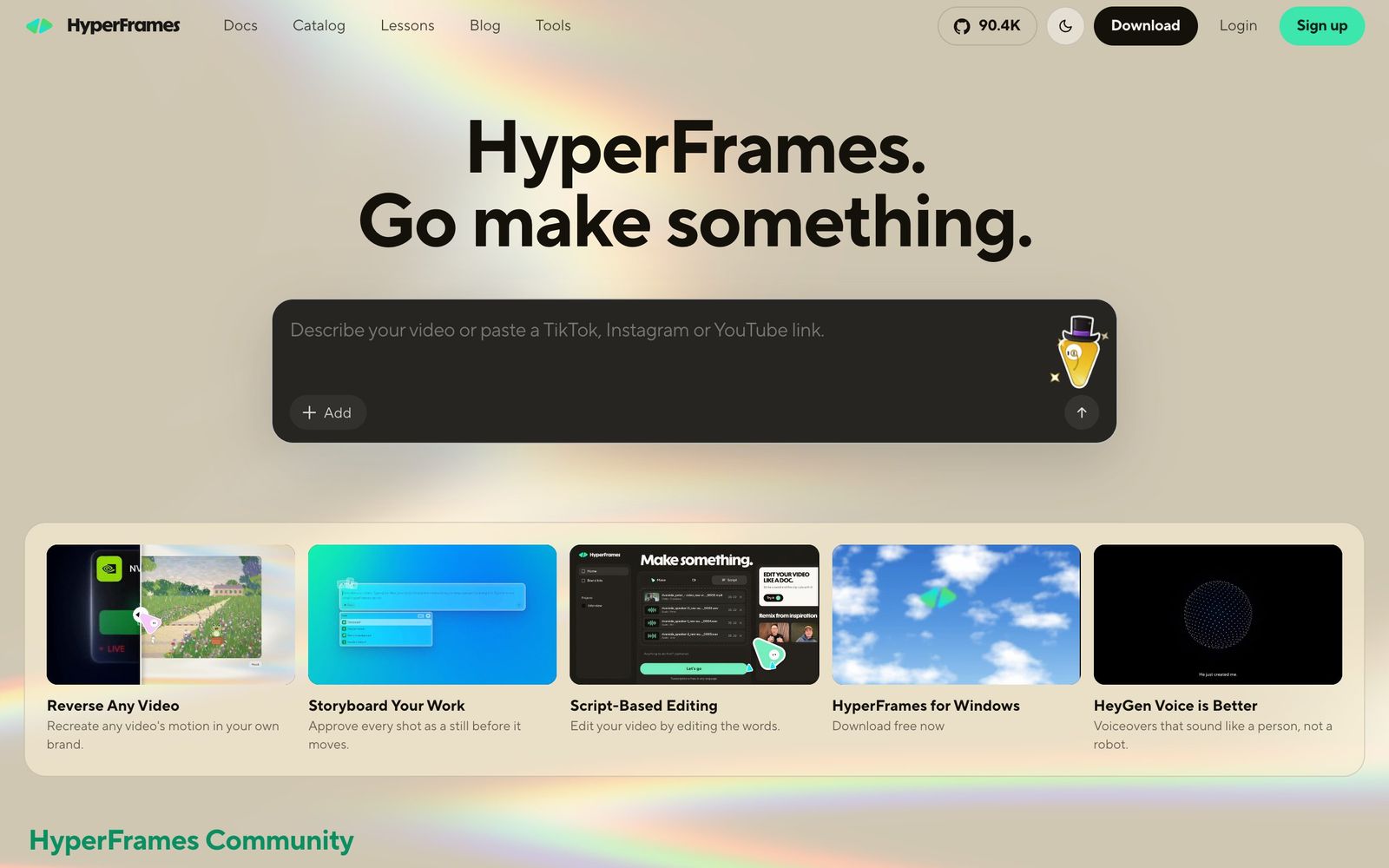
Our rating: 4.7/5. Fit for this job 4.7/5, ease of use 4.5/5, value for money 4.9/5.
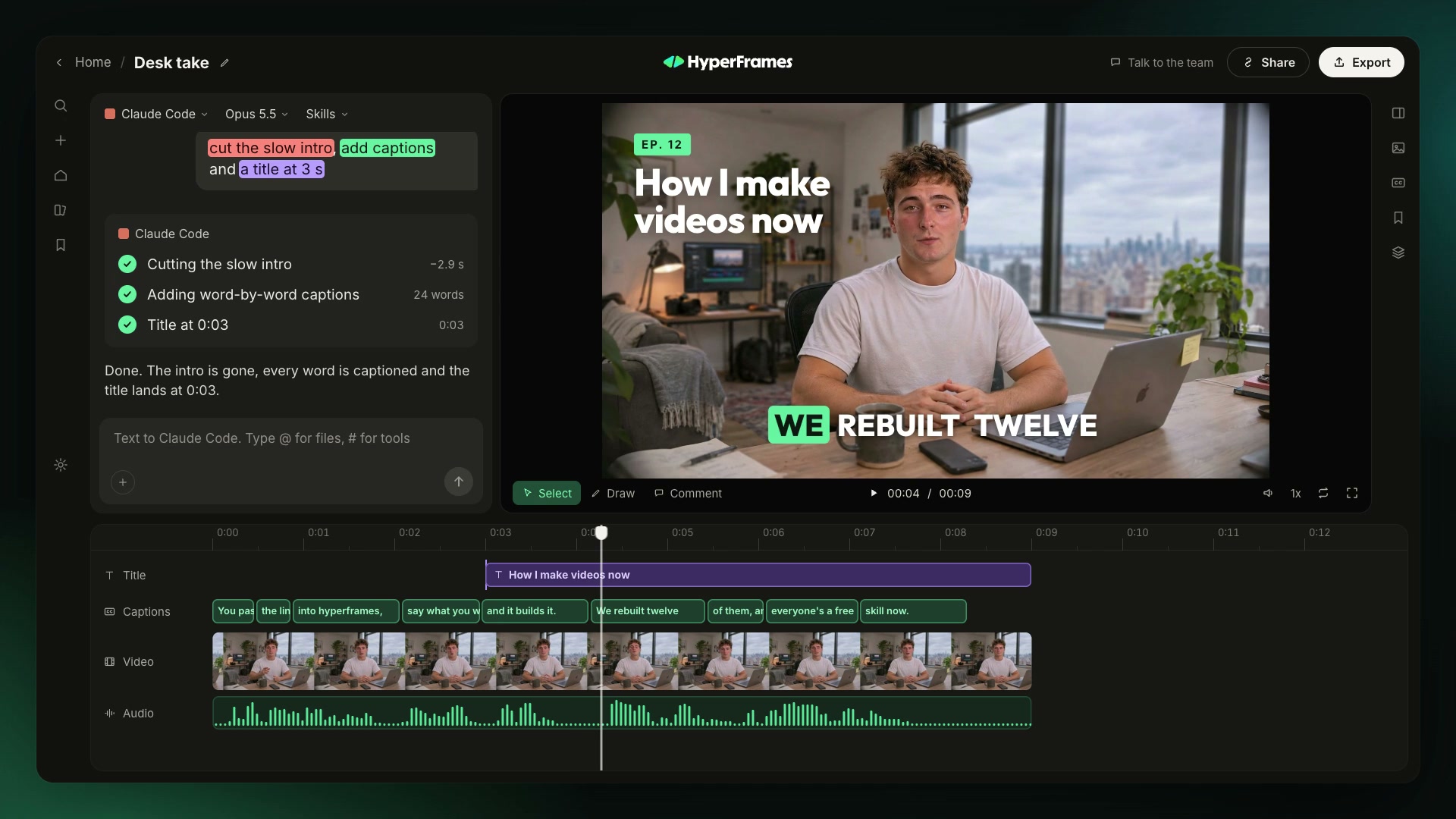
Canva is where many teams already make everything, and its templates get a branded post out fast. It stops at the template: the motion is preset, the popular looks show up across thousands of brands, and it can't take a video that's working and hand you its edit. In HyperFrames Studio you paste the TikTok, Instagram or YouTube video that's taking off and get the same hook, pace and cuts back in your colours, fonts and logo. When it works, make twenty versions: ten hooks to test, every placement, every product, with only the footage and words changing. Then point at one word, colour or scene and only that changes. It's free to start, brand kit included, with unlimited exports on your computer.
Set up your brand kit once (colours, fonts, logo; it's free) and ask the AI agent: "a 20-second product announcement: headline slams in, three features with icons, a price card, our logo at the end." It designs the motion for that content, adds sound, and renders it in your brand. Every layer stays editable: change a word, swap a colour or retime one scene, and the aspect-ratio switch turns the same project vertical, square or widescreen for Reels, LinkedIn and YouTube.
It edits real footage too: captions in dozens of styles, words set behind the speaker with background removal, titles and lower thirds, and a cleanup pass that cuts ums and pauses. Like Canva's connector, the HyperFrames connector makes videos inside Claude, ChatGPT (Business, Enterprise and Edu) and Grok. Turn your website into a promo with website to video, or browse the AI motion graphics page and the brand kits guide.
Standout feature: Remake what's working: paste a video that's taking off and get its hook, pace and cuts in your brand, then make twenty versions with only the footage changing.
What's the difference between HyperFrames and Canva? Canva fills templates with your brand and animates them at template level. HyperFrames Studio remakes a video that's working in your brand, with motion designed for it, and every layer stays editable.
HyperFrames pros:
- Free to start, brand kit included, with unlimited local exports
- Paste a video that's working and get its hook, pace and cuts in your brand
- One winner, twenty versions: hooks, placements and products
- Change one word, colour or scene and the rest stays
HyperFrames cons:
- Video only: for posters, decks and print, keep a design tool
- No stock template library to browse: you describe the video or start from an inspiration
Pricing: Free to start: a free download for Mac, Windows and Linux, or start in your browser, with exports on your computer and no watermark.
Choose HyperFrames if: your videos should look designed for your brand, not picked from a library.
What's new in HyperFrames: In November 2026 the aspect-ratio switch reached the Studio app: one branded project becomes vertical, square and widescreen versions without a rebuild.
Available for: Mac, Windows and Linux (the Studio app), the web, and inside Claude, ChatGPT and Grok through the HyperFrames connector
One winner, twenty versions. When a video works, its hook, pace and cuts carry over. Only the footage changes.
Make a branded video free
#2 Jitter: Best for hands-on motion design in the browser
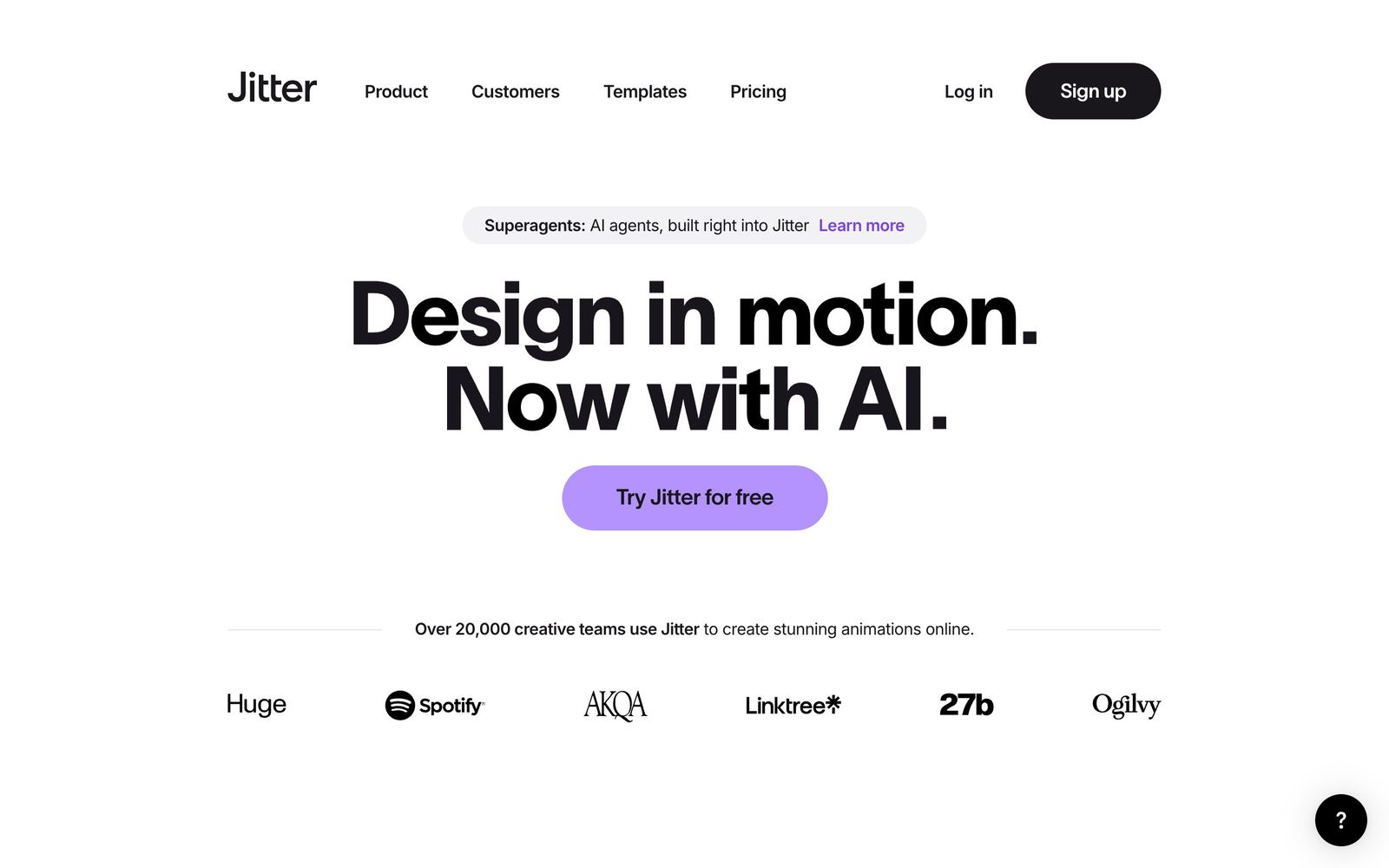
Our rating: 4.1/5. Fit for this job 4.2/5, ease of use 4.3/5, value for money 3.9/5.
Jitter is collaborative browser motion design for UI, social and brand graphics. It has a pen tool, morphing, gradients, 400+ templates and auto-resize, plus AI agents that turn a described idea into editable animations. It exports to video, GIF and Lottie, and Jitter MCP (beta, 20 October 2026) lets Claude or ChatGPT create and edit files.
Transparent and 4K export need the Max plan. Brand Kits arrived in beta on 10 November 2026.
Standout feature: Browser motion design for UI and brand graphics, with AI agents that turn an idea into editable animations.
What's the difference between Jitter and Canva? Jitter gives designers keyframe-level motion. Canva gives everyone templates.
Jitter pros:
- Fast, friendly browser motion design
- 400+ free templates and 1,500+ fonts
- Exports video, GIF and Lottie
- Jitter MCP (beta) for Claude and ChatGPT
Jitter cons:
- Transparent, batch and 4K export need Max ($35+ per editor a month yearly)
- A Product Hunt reviewer asked for true 3D (X/Y/Z) moves; Jitter says it's on the roadmap
Pricing: Free plan with 3 files, 720p exports and a watermark. Pro is $19 per editor a month, or $15 billed yearly.
Choose Jitter over Canva if: a designer on your team wants to animate by hand.
What's new in Jitter: Layer search (24 November 2026), Brand Kits in beta (10 November) and Jitter MCP in beta (20 October).
Available for: Web
#3 Cavalry: Best for free pro motion design from Canva itself
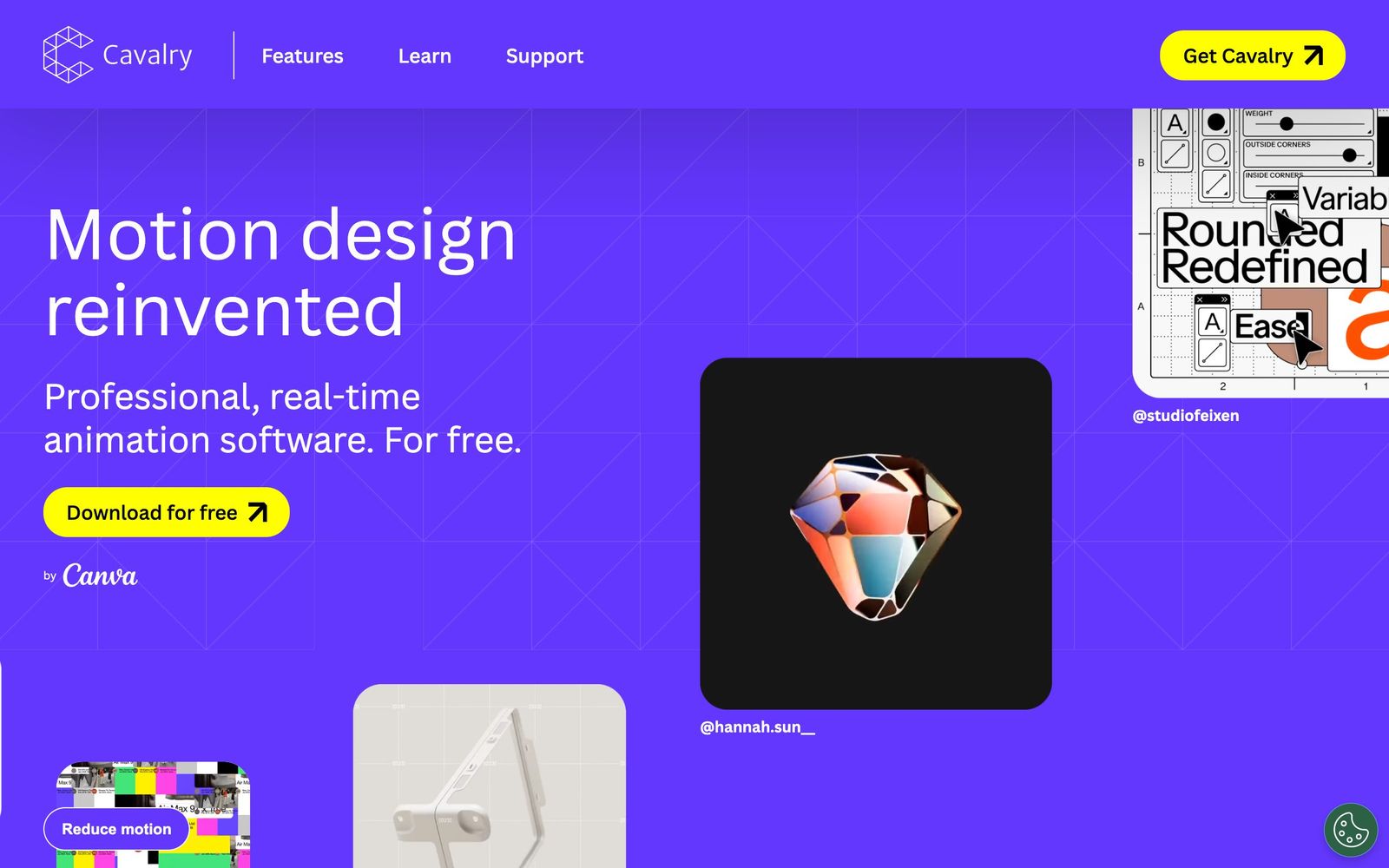
Our rating: 4.0/5. Fit for this job 3.9/5, ease of use 3.3/5, value for money 4.8/5.
Cavalry is a professional procedural 2D animation app for Mac and Windows: rigs, duplicators, falloffs, data-driven sequences from spreadsheets, and a real-time viewport with no preview lag. Canva bought it in February 2026 and, on 16 April 2026, made the full app free for individuals, commercial work included.
It needs a free Canva account since version 2.7, and studios that want SSO and admin controls go through Canva Enterprise. It is desktop only and has a real learning curve, so it suits motion designers, not casual Canva users.
Standout feature: Procedural motion design (rigs, duplicators, data-driven sequences) in a real-time viewport.
What's the difference between Cavalry and Canva? Cavalry is Canva-owned pro motion design, free but hard to learn. Canva's video editor is easy but template-level.
Cavalry pros:
- The full app is free for individuals
- Procedural and data-driven animation
- Real-time playback
Cavalry cons:
- Desktop only
- Needs a Canva account since version 2.7
Pricing: Free for individuals, commercial work included, with a free Canva account. Studios go through Canva Enterprise.
Choose Cavalry over Canva if: you have motion design skills and want pro tools free.
What's new in Cavalry: Canva bought Cavalry in February 2026 and made it free for individuals on 16 April 2026.
Available for: Mac and Windows
Best simple Canva alternatives for template video
If you like Canva's simplicity and want templates for video specifically. Adobe Express and Visme are all-in-one design tools like Canva; the other three are simple video editors with templates.
#4 Adobe Express: Best for Adobe templates and safe AI
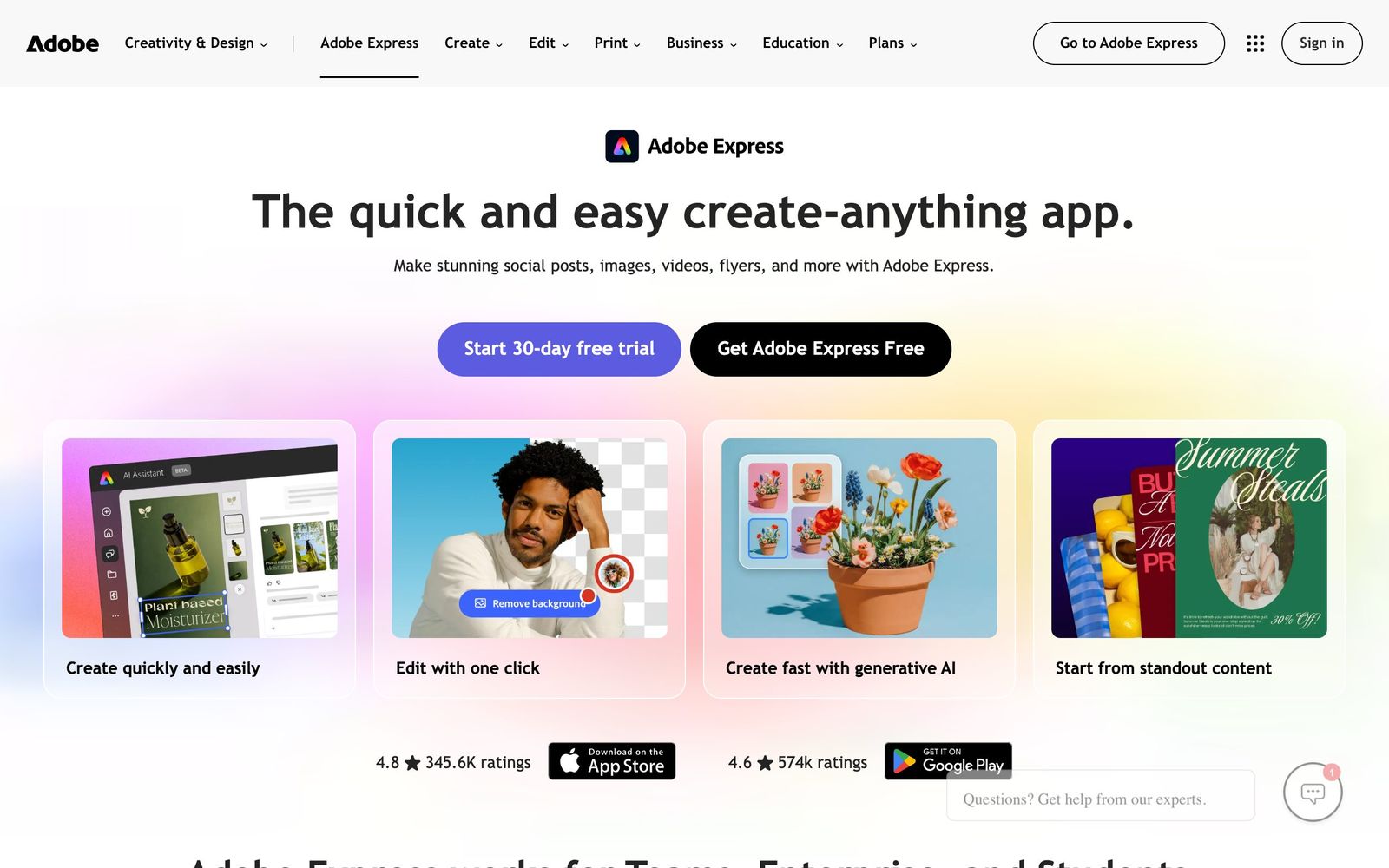
Our rating: 4.3/5. Fit for this job 4.1/5, ease of use 4.6/5, value for money 4.3/5.
Adobe Express is Canva's closest twin: 345,000+ free static and video templates, 1M+ royalty-free Adobe Stock assets, commercially safe Firefly AI, brand kits on Premium, and scheduling to social networks, on the web, iPhone and Android.
Premium is cheaper than Canva Pro, with 250 generative credits a month, all premium templates and Remove Video Background. The iPhone app rates 4.8 from 370,459 ratings, but one recent App Store reviewer reports lag and crashes, and another says the free background remover moved behind the paywall.
Standout feature: A huge free template and stock library with commercially safe Firefly AI.
What's the difference between Adobe Express and Canva? Adobe Express is Canva's closest twin, cheaper on Premium. Canva has more templates and its connector for Claude and ChatGPT.
Adobe Express pros:
- 345,000+ free templates
- Commercially safe Firefly AI
- Web, iPhone and Android
- Rated 4.8 from 370,000 US App Store ratings
Adobe Express cons:
- Video editing is basic
- One recent paid App Store reviewer reports daily bugs, lag and crashes
Pricing: Free plan with 345,000+ templates and limited AI credits. Premium is $9.99 a month.
Choose Adobe Express over Canva if: you want a cheaper Canva-style tool with Adobe Stock.
What's new in Adobe Express: iOS 31.3.0 shipped on 20 November 2026; no dated 2026 video feature announcement found.
Available for: Web, iPhone and Android
#5 Clipchamp: Best for free template editing with no watermark
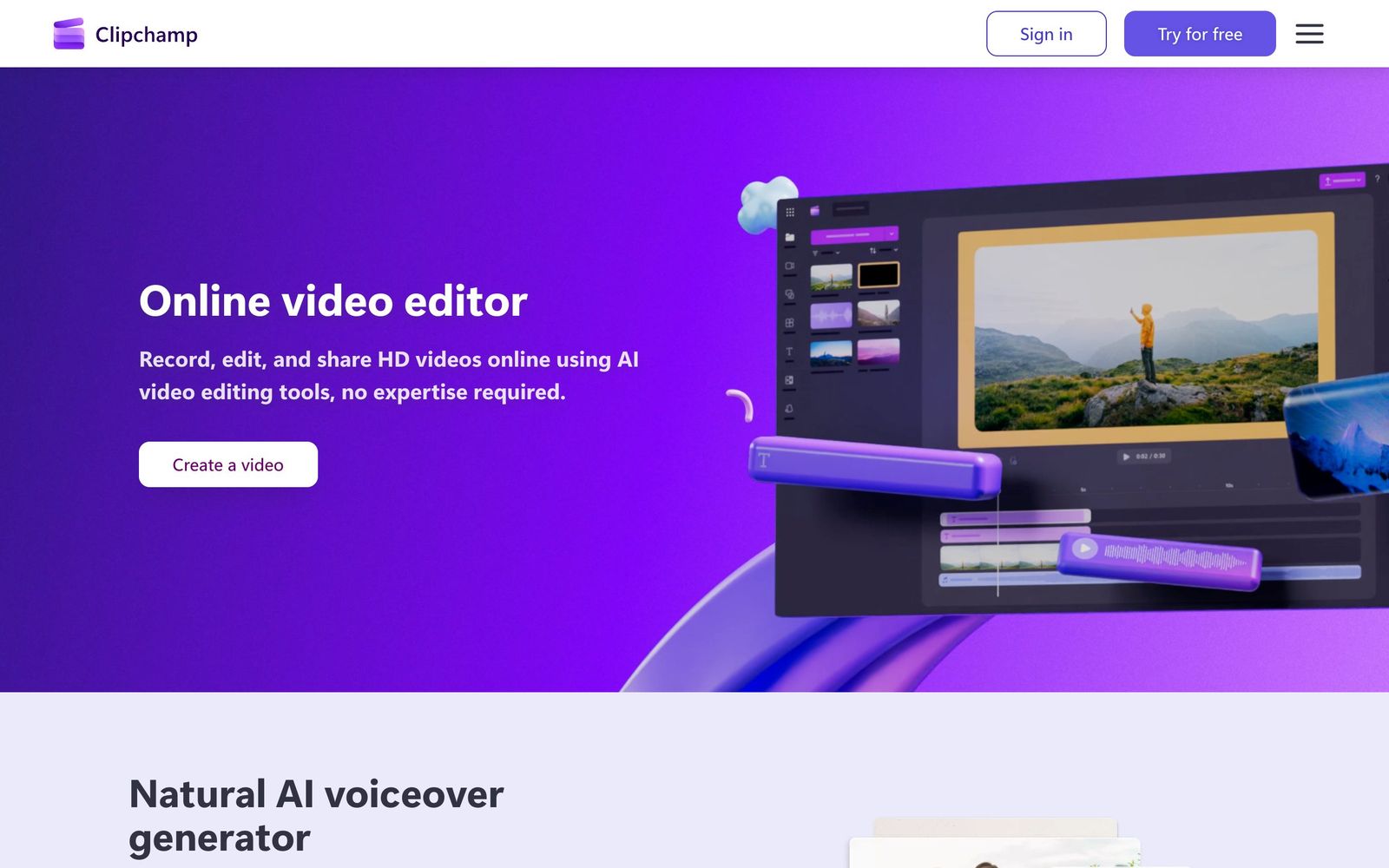
Our rating: 4.5/5. Fit for this job 4.1/5, ease of use 4.6/5, value for money 4.8/5.
Microsoft Clipchamp is free with a personal Microsoft account and exports up to 1080p with no watermark. It has AI editing tools, free stock, filters and colour correction, and new text and shape animations (September 2026).
4K, premium stock and a brand kit come with Microsoft 365. It runs in the browser and on Windows, and rates 4.8 on Trustpilot from 7,616 reviews.
Standout feature: Watermark-free 1080p exports on the free plan, with Microsoft's AI editing tools included.
What's the difference between Clipchamp and Canva? Clipchamp is a video-first editor, free with no watermark. Canva is a design tool with video.
Clipchamp pros:
- Free 1080p exports with no watermark
- Simple timeline in the browser or on Windows
- Copilot video creation and text animations
- Trustpilot 4.8 from 7,616 reviews
Clipchamp cons:
- 4K needs Microsoft 365
- One recent Trustpilot reviewer wants more text options, transitions and a BPM grid
Pricing: Free with a personal Microsoft account, with watermark-free 1080p exports. 4K and premium stock come with Microsoft 365 Personal ($9.99 a month).
Choose Clipchamp over Canva if: you want free video editing with no watermark.
What's new in Clipchamp: New text and shape animations launched (September 2026), with Copilot video creation from the Clipchamp start page.
Available for: Web and Windows
#6 FlexClip: Best for cheap templates with AI extras
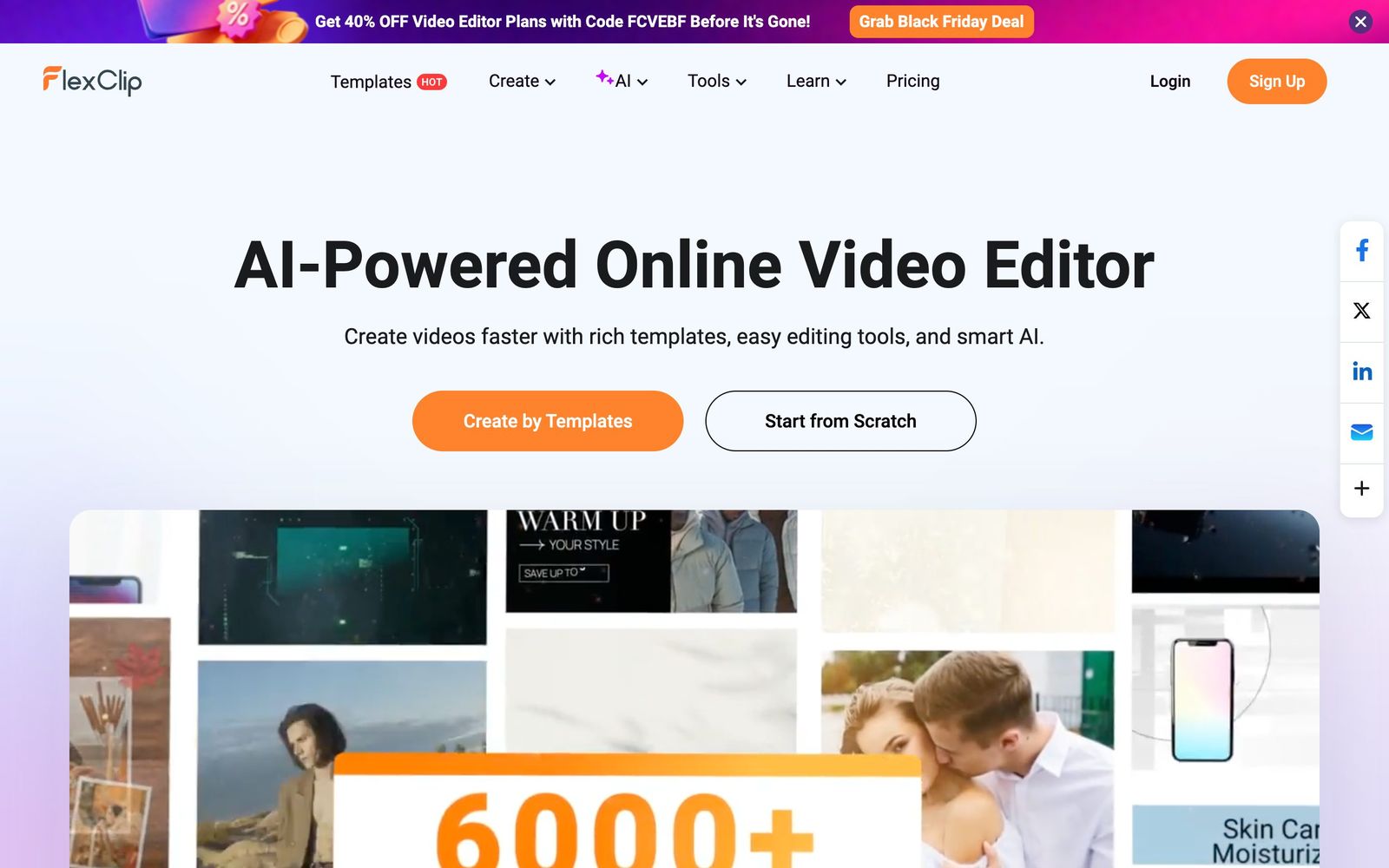
Our rating: 4.2/5. Fit for this job 3.9/5, ease of use 4.5/5, value for money 4.3/5.
FlexClip is a browser video editor with templates, stock media, a brand kit and custom fonts, plus AI extras: AI Avatar with lip-sync, AI Long to Shorts and AI Logo Animation Maker. It rates 4.5 on Trustpilot from 2,606 reviews.
4K export needs the Business plan.
Standout feature: A cheap template editor with AI extras like avatars, long-to-shorts and logo animation.
What's the difference between FlexClip and Canva? FlexClip is video-only and cheap. Canva covers every format.
FlexClip pros:
- Cheap and simple
- AI avatars, long-to-shorts and logo animation
- Trustpilot 4.5 from 2,606 reviews
FlexClip cons:
- Tight stock limits per project
- 4K only on Business
Pricing: Free plan with 720p and 10-minute videos. Plus is $19.99 a month, or $11.99 billed yearly.
Choose FlexClip over Canva if: you want cheap video templates with AI extras.
What's new in FlexClip: AI Avatar launched in June 2026.
Available for: Web
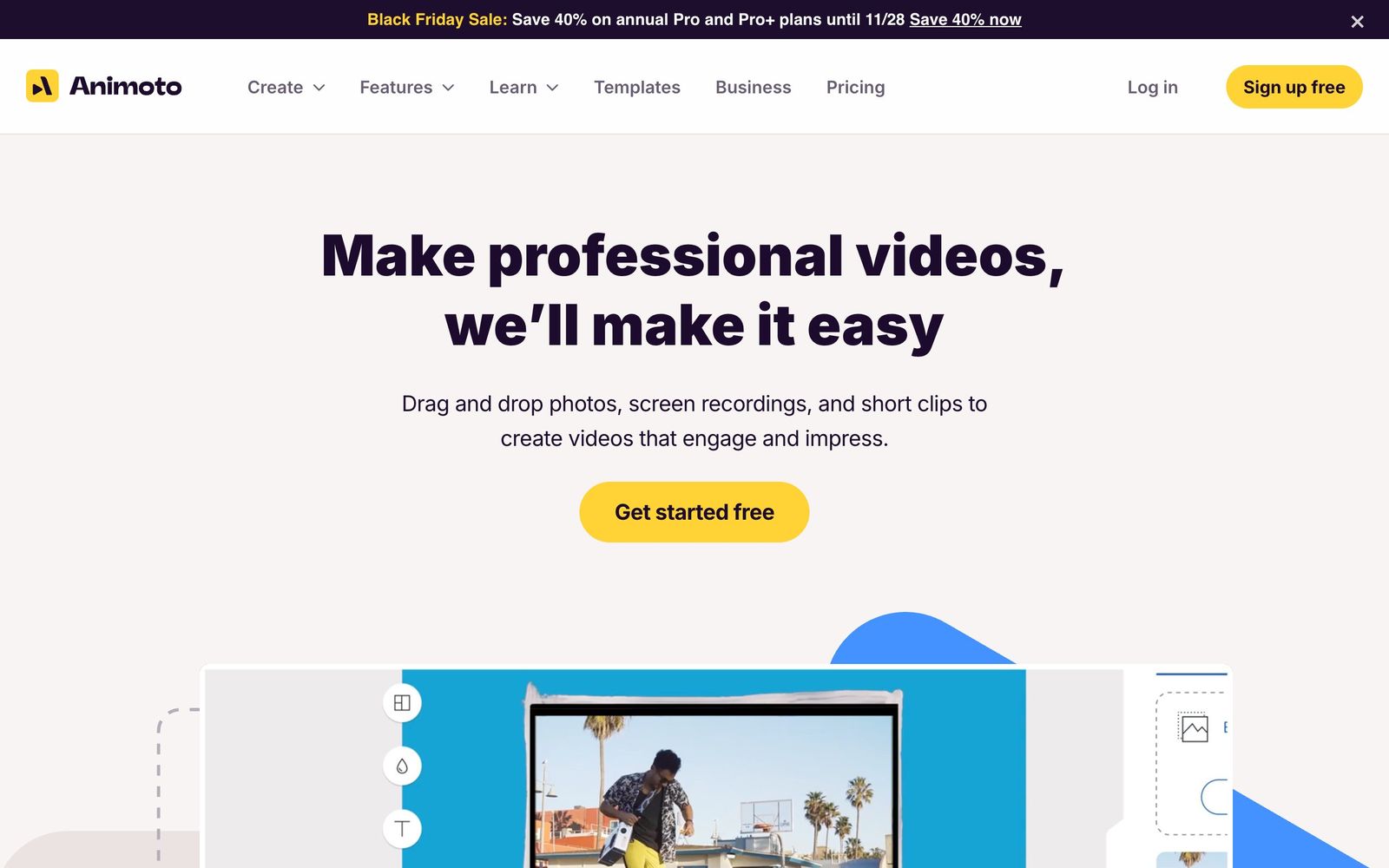
#7 Animoto: Best for the simplest drag-and-drop video
Our rating: 4.0/5. Fit for this job 3.7/5, ease of use 4.6/5, value for money 3.8/5.
Animoto is a drag-and-drop video maker with templates, screen and webcam recording, licensed music and Getty Images stock (1M+ on Professional, 100M+ on Professional Plus).
Your logo and colours, 4K and Getty stock need Professional. Trustpilot gives 3.8 from 1,115 reviews; one October 2026 reviewer says all their stored videos were deleted.
Standout feature: A simple template editor with Getty Images stock.
What's the difference between Animoto and Canva? Animoto is simpler and video-only, with Getty stock. Canva does every format.
Animoto pros:
- Very simple drag-and-drop
- Getty Images stock on higher plans
- Screen and webcam recording
Animoto cons:
- Free videos carry a watermark
- Trustpilot reviewers report deleted videos and auto-renewals
Pricing: Free plan with 720p and a watermark. Basic is $19 a month, or $9 billed yearly.
Choose Animoto over Canva if: you want the simplest possible video maker.
What's new in Animoto: No dated update found; the pricing page marks 4K and video analytics as new (undated).
Available for: Web
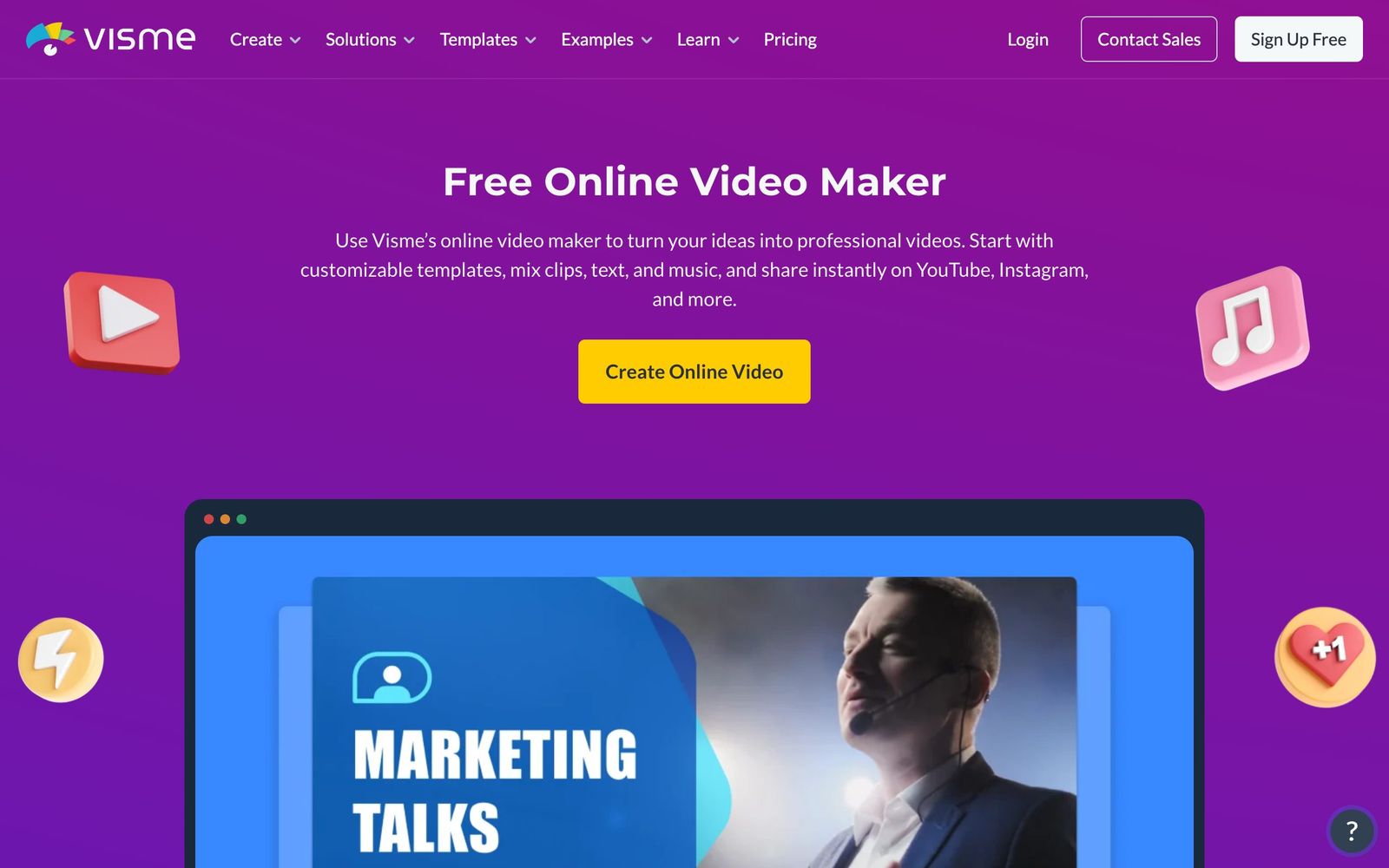
#8 Visme: Best for presentations, infographics and video in one design tool
Our rating: 3.7/5. Fit for this job 3.6/5, ease of use 4.3/5, value for money 3.3/5.
Visme is the other all-in-one design tool: presentations, documents, infographics, charts, forms, microsites and animated videos in one editor, sharing the same templates and brand kit. Its video maker uses templates, transitions, animated text, AI text-to-speech narration and background music, and brand kits can lock templates so a team stays on brand.
The catch for video is the plan: Starter downloads only JPG, PNG and PDF, so MP4 needs Business. Trustpilot gives 3.1 from 264 reviews; one November 2026 reviewer says the paywall appeared only after hours of work on a template.
Standout feature: One editor for presentations, documents, infographics, charts, forms and animated videos, all sharing the same templates and brand kit.
What's the difference between Visme and Canva? Visme is a design tool like Canva, with charts and data widgets, but its video downloads need Business.
Visme pros:
- Many formats from one editor
- Template videos with transitions and animated text
- AI voice narration and background music
- Brand kit with locked templates
Visme cons:
- MP4 and GIF downloads need Business
- A design tool first, not a footage editor or AI video generator
Pricing: Free Basic plan with a Visme logo, limited templates and limited downloads. Starter is $29 a month, or $12.25 a month billed yearly, per person, but downloads only JPG, PNG and PDF; video needs Business at $59 a month, or $24.75 a month billed yearly.
Choose Visme over Canva if: charts, reports and presentations matter as much as video.
What's new in Visme: Visme AI Creation Studio is listed as the newest release (28 October 2026); comments in the editor and 24 new templates came on 29 September.
Available for: Web and a desktop app
Best Canva alternatives for real video editing
If you need a proper timeline: cutting footage, captions, effects and dubbing.
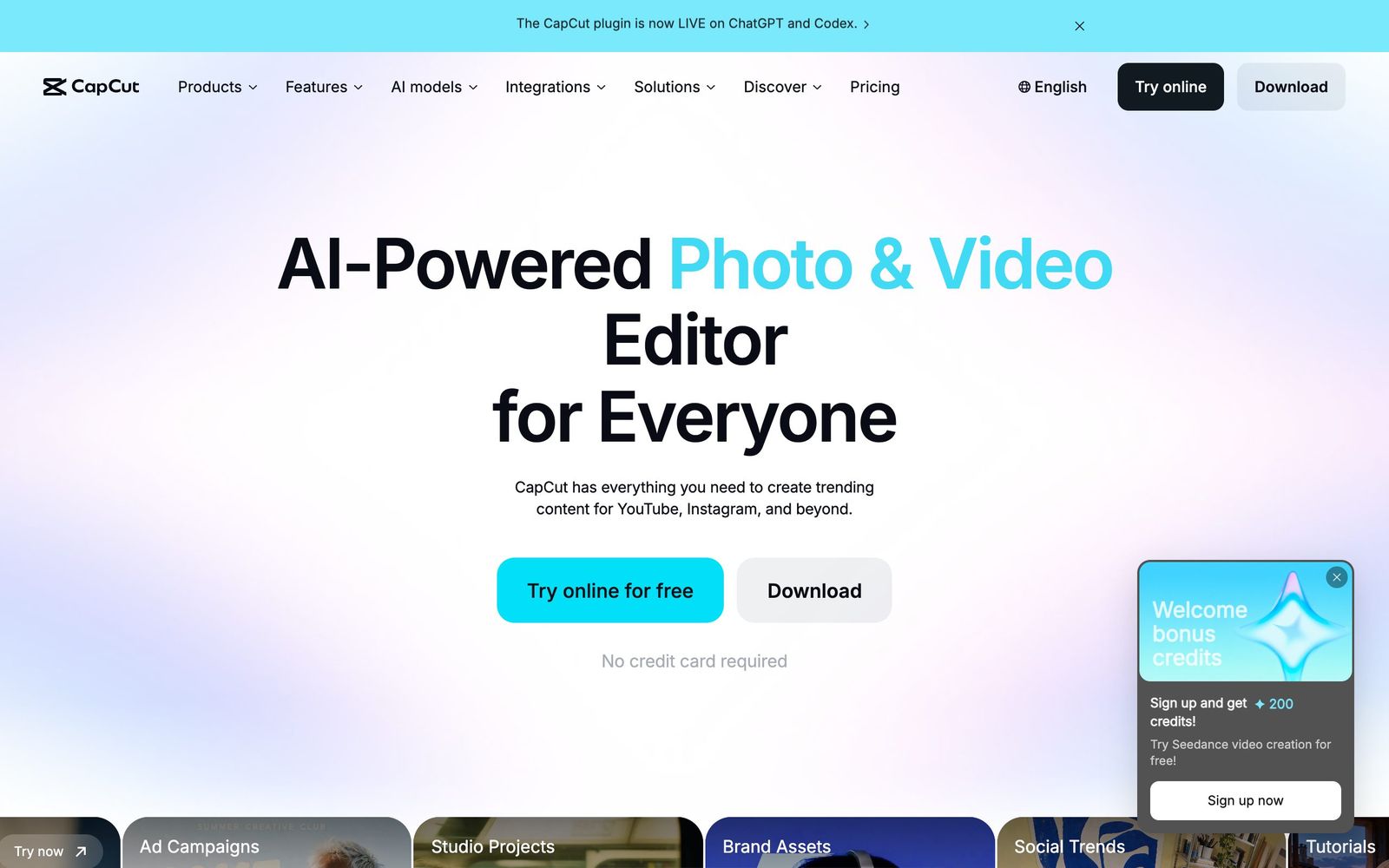
#9 CapCut: Best for free editing with trends
Our rating: 4.3/5. Fit for this job 4.0/5, ease of use 4.6/5, value for money 4.3/5.
CapCut is free on the web, Windows, Mac, iPhone and Android, with a full timeline, a huge template library, trending effects, auto captions, text to speech, a background remover and Seedance AI video generation. For short-form video it goes much deeper than Canva's editor.
Its Trustpilot score is 1.2 from 1,416 reviews, mostly billing after cancelling and paywalls at export.
Standout feature: Templates and ByteDance's own AI models, with Seedance generation included in Pro credits.
What's the difference between CapCut and Canva? CapCut is a full video editor with trends. Canva is template-first and design-led.
CapCut pros:
- Free, fast and familiar on phone and desktop
- Templates for trends
- Auto captions, text to speech and background remover
- Plugin for ChatGPT and Codex
CapCut cons:
- Pro paywalls can appear at the export screen
- Trustpilot score of 1.2 (1,416 reviews); the low reviews we read mention charges after cancelling
Pricing: Free plan with basic editing and free templates. Pro is $19.99 a month on the web; the app stores sell other plans.
Choose CapCut over Canva if: you edit short-form video seriously.
What's new in CapCut: The CapCut plugin is live in ChatGPT and Codex, and iOS 20.3.0 (24 November 2026) improved trimming.
Available for: Web, Windows, Mac, iPhone and Android
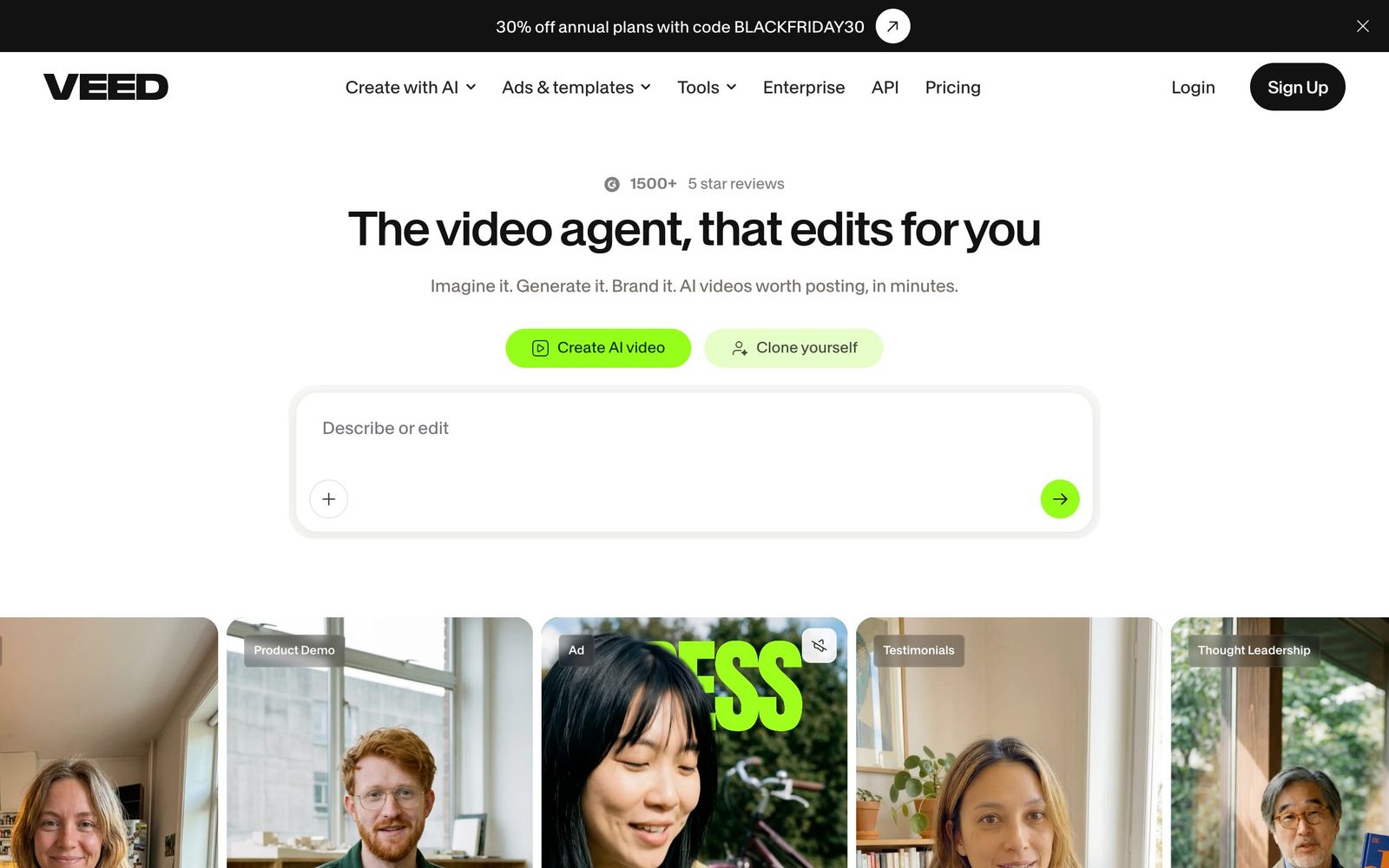
#10 VEED: Best for subtitles and brand kits in the browser
Our rating: 4.1/5. Fit for this job 4.0/5, ease of use 4.5/5, value for money 3.9/5.
VEED is a video-first editor with strong automatic subtitles, brand kits, AI avatars, dubbing, and VEED AI (18 November 2026), an agent that edits uploaded footage into a social video.
It is priced per editor and rates 4.2 on Trustpilot from 3,961 reviews.
Standout feature: VEED AI (18 November 2026): upload footage or describe an idea and its agent edits a social video.
What's the difference between VEED and Canva? VEED is a video editor first, with better subtitles. Canva is a design tool first.
VEED pros:
- Easy browser editor with strong subtitles
- Avatars, dubbing and eye contact fix
- Brand kits
- iPhone and Android apps
VEED cons:
- Priced per editor, so teams pay per seat
- AI credits and translation minutes don't roll over
Pricing: Free plan with watermarked videos and 50 AI credits a month. Creator is $25 a month, or $12 a month billed yearly, per editor.
Choose VEED over Canva if: subtitles and talking-head videos are your main job.
What's new in VEED: VEED AI, a video editing agent for social videos, launched on 18 November 2026.
Available for: Web, iPhone and Android
#11 Kapwing: Best for team video with dubbing
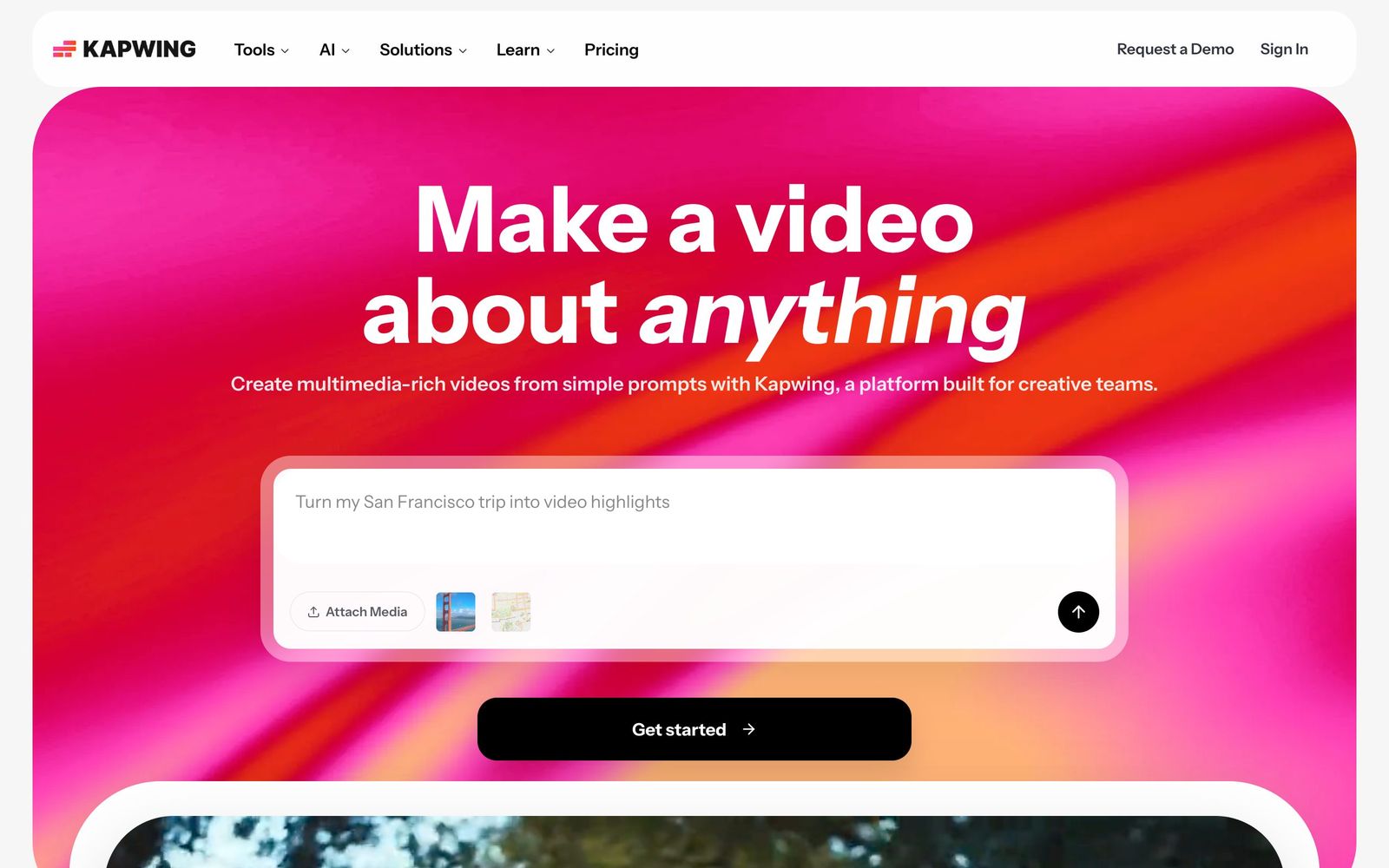
Our rating: 3.9/5. Fit for this job 3.8/5, ease of use 4.3/5, value for money 3.6/5.
Kapwing has a collaborative browser timeline, auto subtitles, translation and dubbing into 40+ languages, Repurpose Studio for social clips, and Kai, an AI agent that runs multi-step edits with an autonomous mode.
Trustpilot gives 1.8 from 1,375 reviews, mostly credits and refunds.
Standout feature: Kai, an AI agent inside the browser editor that runs multi-step jobs, plus an MCP connection for Claude and ChatGPT.
What's the difference between Kapwing and Canva? Kapwing edits video more deeply and dubs. Canva designs more formats.
Kapwing pros:
- Full browser timeline with team collaboration
- Subtitles, translation and dubbing into 40+ languages
- Repurpose Studio for social clips
- Kai agent and MCP connector
Kapwing cons:
- Free exports are watermarked, 720p and 4 minutes at most
- Trustpilot score of 1.8 (1,375 reviews); the low reviews we read mention credits lost on failed AI jobs and refused refunds
Pricing: Free plan with a watermark, 720p and videos up to 4 minutes. Pro is $24 a month, or $16 a month billed yearly.
Choose Kapwing over Canva if: you need dubbing or team video editing.
What's new in Kapwing: Kapwing MCP 1.1.0 (27 October 2026) lets Kai generate images and video with reference media; August added Kai autonomous mode and Seedance 2.5.
Available for: Web
Best Canva alternatives for AI video and template libraries
If you use Canva's Magic Video and AI tools to make videos from a prompt, or need a big library of video-specific templates.
#12 invideo: Best for AI-generated video with an agentic editor
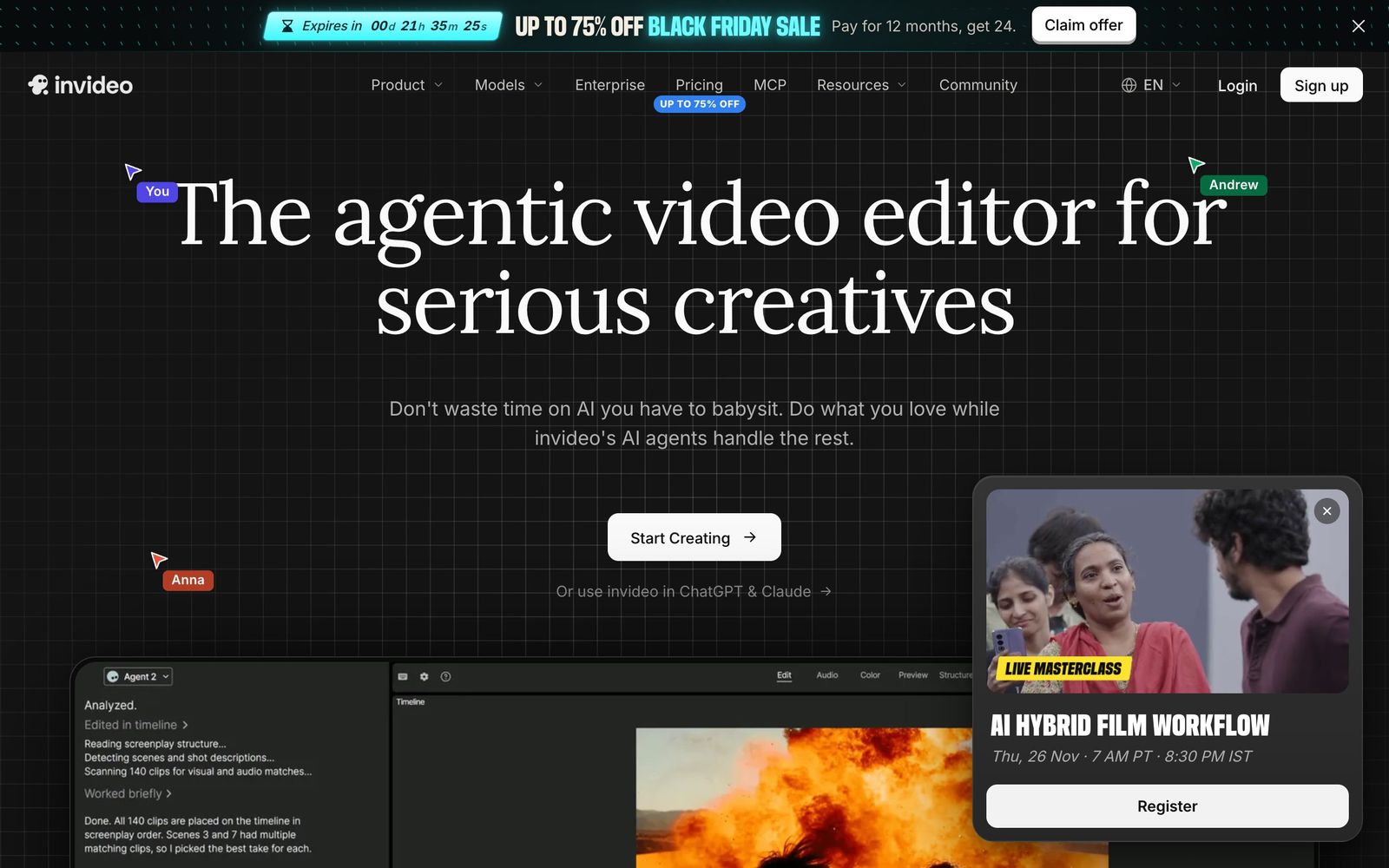
Our rating: 3.8/5. Fit for this job 3.8/5, ease of use 4.1/5, value for money 3.4/5.
invideo pairs Agent Two, which applies plain-language edits on a multitrack timeline, with many generative models (Seedance 2.5, Kling 4.0, Veo 3.1 and more), multiplayer editing and a connector for Claude and ChatGPT. Projects export to Premiere, Final Cut and Resolve, and the manual editor is free.
Credits don't roll over. Trustpilot gives 1.8 from 1,032 reviews, mostly credits and refunds.
Standout feature: Agent Two and an agentic timeline: plain-language edits and many generative video models in one editor.
What's the difference between invideo and Canva? invideo generates and edits video with an agent. Canva assembles templates and clips.
invideo pros:
- Plain-language edits on a multitrack timeline
- Many generative models (Seedance 2.5, Kling 4.0, Veo 3.1 and more)
- invideo MCP for Claude and ChatGPT
- Exports editable projects to Premiere, Final Cut and Resolve
invideo cons:
- Credits don't roll over, and generation is charged at model prices
- Trustpilot score of 1.8 (1,032 reviews); the low reviews we read mention credits and refunds
Pricing: Starter is $20 per seat a month with 400 credits; the manual editor is free. Credits don't roll over.
Choose invideo over Canva if: you want AI to generate the footage itself.
What's new in invideo: Agentic Extend (6 October 2026), after the invideo Editor launch (1 September) and invideo MCP (30 September).
Available for: Web, iPhone and Android
#13 Higgsfield: Best for AI reels and product ads from many video models
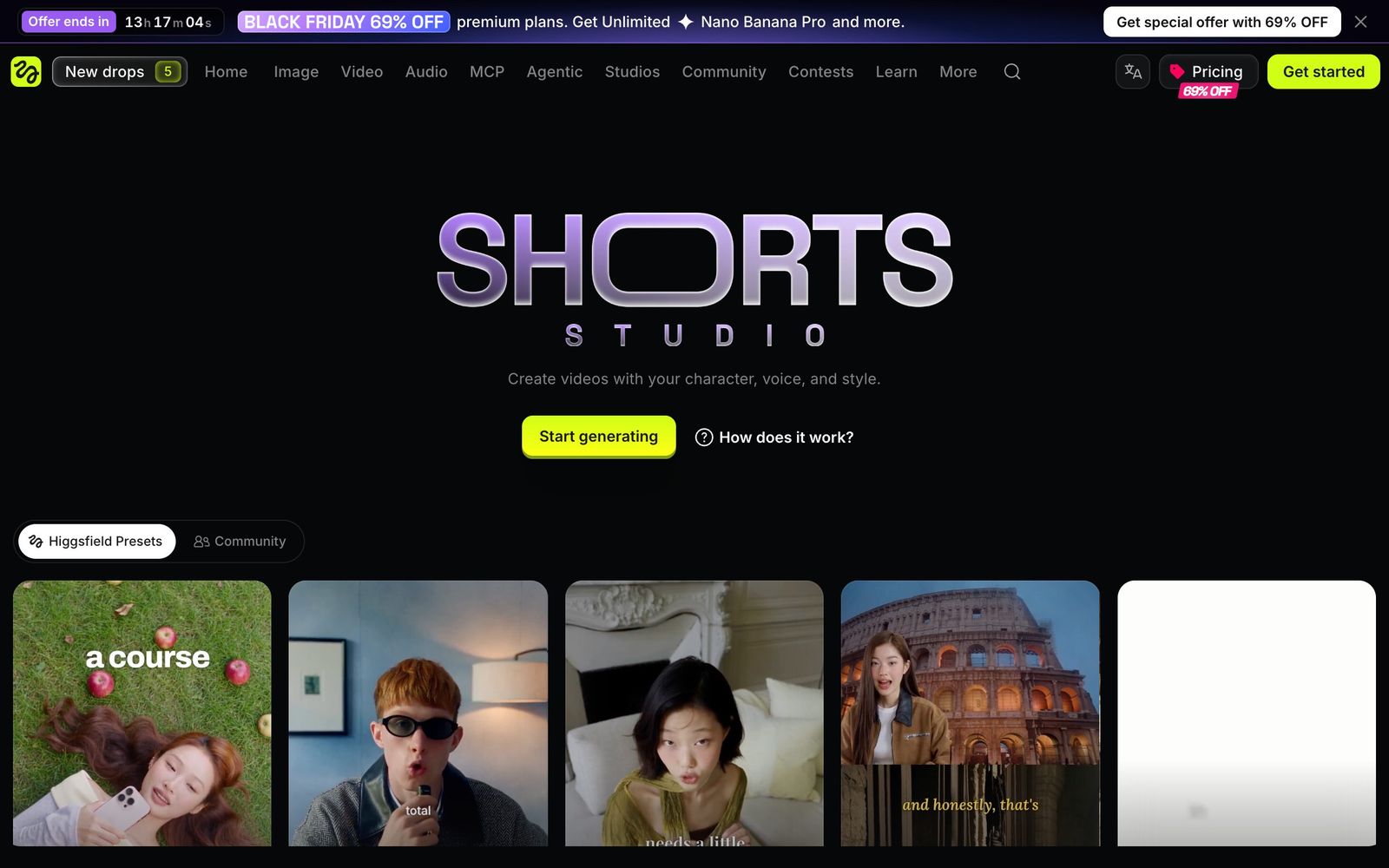
Our rating: 3.7/5. Fit for this job 3.4/5, ease of use 4.0/5, value for money 3.6/5.
Higgsfield is a web AI suite for people who use Canva's Magic Video and want the footage itself generated. It runs many video models in one place (Seedance 2.5 up to 4K, Kling 4.0 and its own exclusive MAGI-2), and adds studios: Shorts Studio (3 November 2026) makes vertical reels with an AI avatar host, and Ads Studio turns your website into product ads with your brand kit.
Trustpilot gives 4.0 from 5,678 reviews, though recent reviewers report charges after cancelling and credits spent on unusable results.
Standout feature: Shorts Studio makes vertical reels of 10 seconds to 2 minutes with an AI avatar host, writing the script from a topic and copying motion from a reference or trending video.
What's the difference between Higgsfield and Canva? Higgsfield generates footage and ads with AI models. Canva assembles templates and your own clips.
Higgsfield pros:
- Many video models in one place, including Seedance 2.5, Kling 4.0 and its own exclusive MAGI-2
- Ads Studio and Marketing Studio make product ads from your website
- Editing Room swaps the person, angle, location or lighting in your own clip
- MCP for Claude, an API, a command-line tool and an After Effects plugin
Higgsfield cons:
- Free plan has no credits, and Starter covers selected models only
- Unlimited and free generations work only on the website, not through its connector or command-line tool
Pricing: Free plan with 0 credits and selected models only. Starter is $19 a month with 270 credits, the same billed monthly or yearly; Plus is $59 a month.
Choose Higgsfield over Canva if: you want AI-generated reels and product ads.
What's new in Higgsfield: Shorts Studio (3 November 2026) added avatar-hosted vertical reels; Editing Room followed on 20 November and MAGI-2 on 24 November.
Available for: Web, plus an API, a command-line tool, MCP for Claude and an After Effects plugin
#14 Renderforest: Best for intros and logo animations
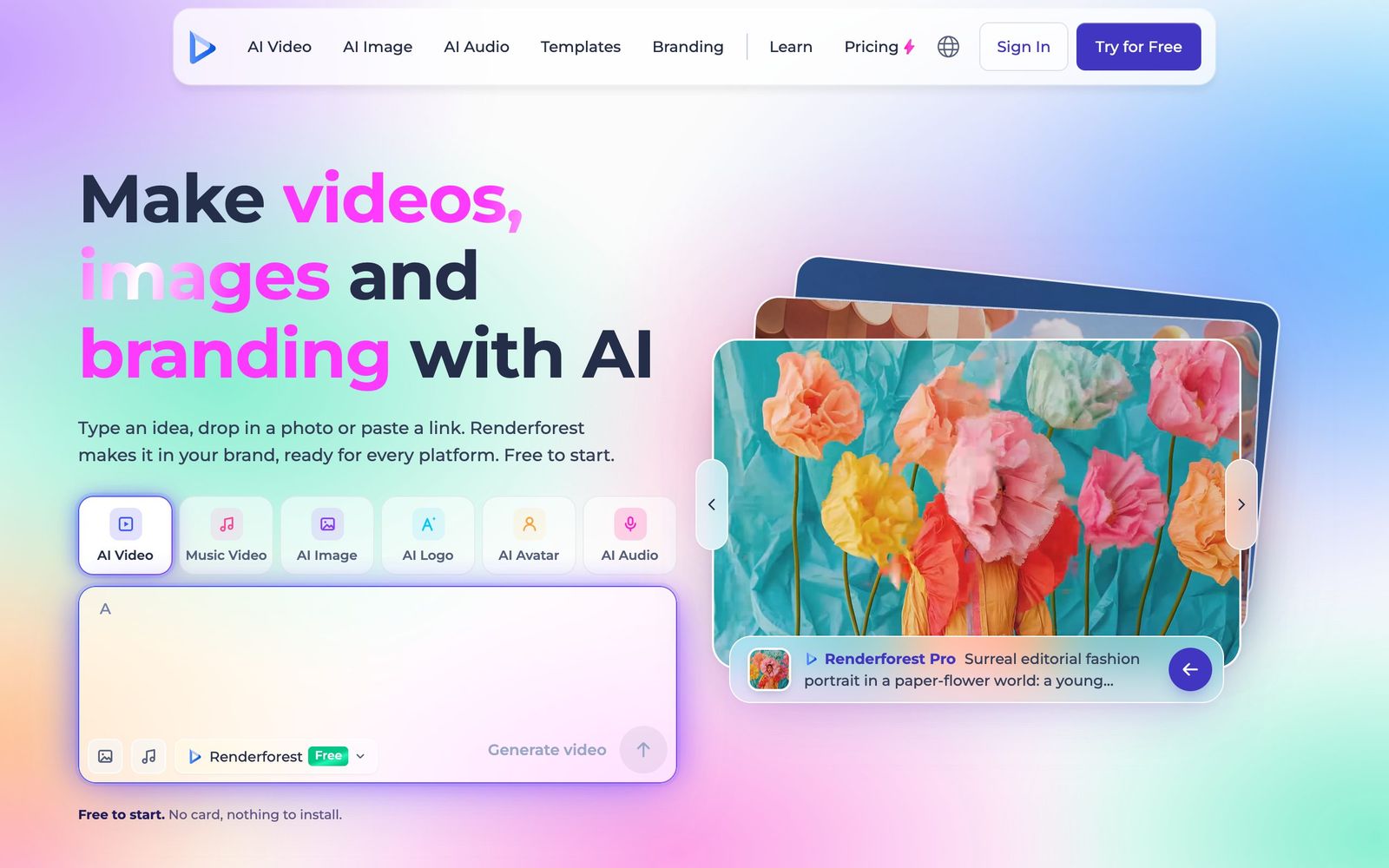
Our rating: 4.1/5. Fit for this job 3.8/5, ease of use 4.5/5, value for money 4.0/5.
Renderforest has 1,200+ video templates for intros, logo animations, explainers and promos, a logo maker, mockups and a website builder, plus AI video models (Seedance 2.5, MiniMax H3) on paid plans and AI voiceovers.
Lite allows 5 template exports a month. Trustpilot gives 4.0 from 669 reviews, with renewal complaints.
Standout feature: 1,200+ templates for intros, logos, explainers and promos, plus AI video models in one subscription.
What's the difference between Renderforest and Canva? Renderforest is built around video intro and logo templates. Canva covers more formats.
Renderforest pros:
- 1,200+ ready templates
- Logo maker, mockups and a website builder
- Seedance 2.5 and other AI video models on paid plans
- Web, iPhone and Android
Renderforest cons:
- Lite allows 5 template exports a month at 720p
- Trustpilot reviewers report full-price auto-renewals and credits lost on cancel
Pricing: Free plan with 720p watermarked template videos for personal use. Lite is $9 a month and Pro $19 a month, both billed yearly.
Choose Renderforest over Canva if: you need an intro or logo animation fast.
What's new in Renderforest: Seedance 2.5 went live on Renderforest from 16 July 2026.
Available for: Web, iPhone and Android
#15 Powtoon: Best for animated explainers and presentations
Our rating: 3.8/5. Fit for this job 3.5/5, ease of use 4.4/5, value for money 3.5/5.
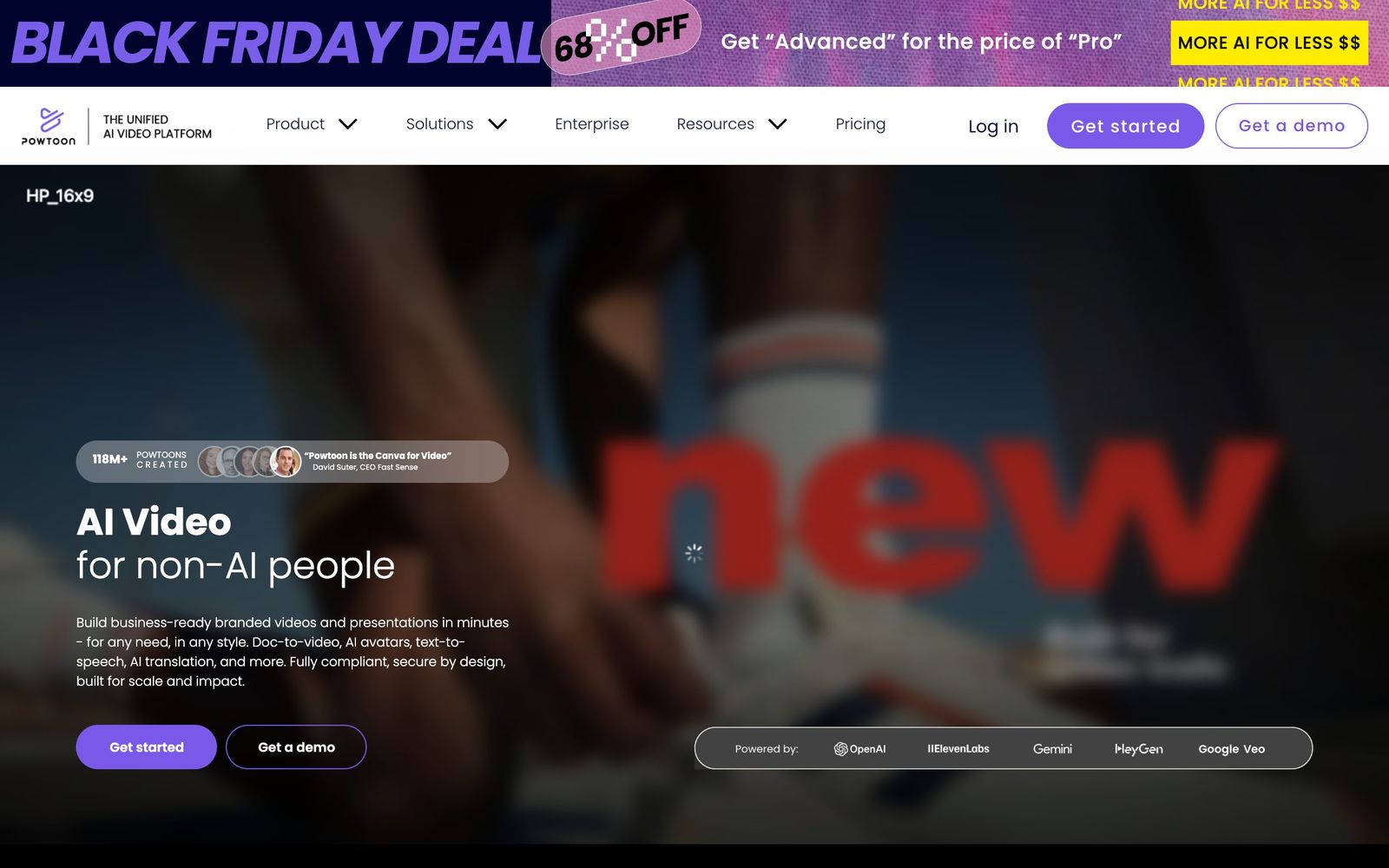
Powtoon makes cartoon-style animated videos and presentations from templates and characters, with screen recording and built-in third-party AI: HeyGen avatar lip-syncs, Veo clips, ElevenLabs voices and Nano Banana images under one credit system.
Lite removes the watermark for only 5 exports a month. Trustpilot gives 3.7 from 1,677 reviews.
Standout feature: Cartoon characters and templates, with HeyGen avatars, Veo and ElevenLabs built in.
What's the difference between Powtoon and Canva? Powtoon is built for animated explainers. Canva is built for designs that happen to move.
Powtoon pros:
- Easy cartoon-style explainers
- Screen recording included
- Third-party AI models in one editor
Powtoon cons:
- Lite removes the watermark for only 5 exports a month
- Small AI credit allowance
Pricing: Free plan with 720p, 3-minute videos and a watermark. Lite is $15 a month billed yearly.
Choose Powtoon over Canva if: you make animated explainers or presentations.
What's new in Powtoon: Powtoon previewed three AI workflows for corporate knowledge sharing in April 2026.
Available for: Web
How to choose the best Canva video editor alternative
Canva is a design tool that does video. The right alternative depends on whether you need more video, more motion, or just a cheaper Canva. If you also edit in CapCut, we compared the CapCut alternatives the same way.
Templates or designed motion?
If templates are enough, Adobe Express, Clipchamp, FlexClip and Animoto are as easy as Canva. If the video should feel designed for your content, ask HyperFrames Studio's agent, or animate it yourself in Jitter or Cavalry.
How much real editing do you do?
Cutting footage, captions, dubbing and effects need a timeline. CapCut is the free choice, VEED is strongest on subtitles, and Kapwing on dubbing and teams. HyperFrames Studio does both footage editing and motion design in one project.
Does your brand need to stay consistent?
HyperFrames Studio includes brand kits free. Adobe Express Premium, Clipchamp with Microsoft 365, VEED, FlexClip, Animoto Professional and Jitter (beta) put them on paid plans, and Canva's free plan has one brand kit with 3 colours.
Do you want AI to make the video from a prompt?
Canva's connector and Magic Video assemble from your clips and a brief. HyperFrames Studio's agent designs the motion and edits footage, and works in Claude, ChatGPT and Grok through its connector. invideo, Higgsfield and Renderforest generate footage with models such as Seedance 2.5.
How we compared
Every tool on this list was scored on three things:
- Video depth. Timeline editing, motion design, captions, effects and how far you can go beyond a template.
- Brand. Brand kits, fonts and colours, and how easily videos look like you and nobody else.
- Value. Free plan, watermarks, AI limits and the monthly price.
User complaints. We read recent reviews on Trustpilot, Product Hunt and the App Store and say when a complaint comes from a single review, with its date when it is old. Some review sites (G2, Capterra) blocked automated reading, so their scores are not quoted.
Ratings. Each tool gets three scores out of 5: fit for the job this page is about, ease of use, and value for money (free plan, entry price, watermarks and caps). The overall rating is their average. The scores are our judgment from the sources above, not a lab benchmark.
Canva's AI allowance. The free plan's AI uses come from Canva's own Learn article on plans; Canva's pricing page showed a first-three-months promo on the day we checked. Canva's acquisition of Cavalry comes from TechCrunch (23 February 2026).
Conclusion
For brands that want to remake what's working, HyperFrames Studio is the strongest Canva video editor alternative: paste a video that's taking off and get its hook, pace and cuts in your brand, make twenty versions, and change any one layer by asking, with brand kits and local exports free.
If you want Canva's simplicity at a lower price, Adobe Express is its closest twin and Clipchamp is free with no watermark. If you need a real timeline, CapCut is free and deep, VEED wins on subtitles and Kapwing on dubbing, and a designer who animates by hand will like Jitter or Cavalry. Keep Canva for posters, decks and quick social graphics, and move video somewhere built for it: start with HyperFrames Studio free and the lessons.
Make your next branded video free
Frequently asked questions
What is the best Canva video editor alternative?
HyperFrames Studio is the best Canva video editor alternative for branded video, because it remakes the videos that are working in your brand, makes twenty versions of each, and every layer stays editable. Adobe Express and Clipchamp are the best simple template tools, and CapCut the best free video editor.
What are some free alternatives to Canva for video editing?
Clipchamp (free 1080p with no watermark), CapCut, and DaVinci Resolve for professional editing. HyperFrames Studio is free to start, with brand kits and unlimited local exports. Adobe Express has a free plan with 345,000+ templates.
Is CapCut or Canva better for video editing?
CapCut is better for video editing: it has a full timeline, trend effects and auto captions on every device. Canva is better when video is one format among posters, decks and social graphics made by the same team.
Who is Canva's biggest competitor for video?
Adobe Express is Canva's closest twin, with templates, Adobe Stock and Firefly AI, and Visme competes on presentations and infographics. For video specifically, CapCut, VEED and Clipchamp compete hardest, and HyperFrames Studio competes on designed motion.
Does Canva have a video editor?
Yes. Canva's video editor has a multi-layer drag-and-drop timeline, trending hook templates, one-click captions, Magic Video, Highlights, a video background remover and resizing for every channel.
Is Canva good for video editing?
For simple social and marketing videos from templates, yes. For motion designed around your content, long footage edits, dubbing or detailed captions, a dedicated video tool goes further.
Can I make Canva-style videos from Claude or ChatGPT?
Yes. Canva's connector (Canva MCP, generally available since 23 November 2026) makes editable Canva videos from a brief in Claude and ChatGPT. HyperFrames' hosted connector makes videos in Claude, ChatGPT (Business, Enterprise and Edu, on the web) and Grok, in beta.
Which Canva alternatives have a free brand kit?
HyperFrames Studio includes brand kits free. Canva's free plan has 1 brand kit with 3 colours; Adobe Express, Clipchamp, VEED, FlexClip and Animoto put brand kits on paid plans.
Can I self-host a Canva alternative?
HyperFrames is open source (Apache 2.0): you can render videos on your own computer, from JSON data, or on your own AWS Lambda. Cavalry and Shotcut also run locally on your machine.
Which Canva alternative has the best motion graphics?
HyperFrames Studio if you want an AI agent to design the motion, Jitter for hands-on motion in the browser, and Cavalry for professional procedural animation. See AI motion graphics.
How much does Canva Pro cost?
Canva Pro is $18 a month month-to-month, or $12 a month billed yearly ($144 a year). Canva Business is $25 per person a month, or $20.83 billed yearly.
Can I move my Canva videos to another tool?
Download the finished MP4s before you change plans. Your brand colours, fonts and logo can be set up again as a brand kit in the new tool; HyperFrames Studio's is free.
Is HyperFrames free?
Yes, free to start: HyperFrames Studio is a free download, and the open-source engine behind it is free, with 90,000+ GitHub stars. Pro is $25 a month for more (pricing).

Written by Ular Kimsanov
Ular Kimsanov works on HyperFrames at HeyGen, the free, open-source tool where AI agents make videos, and writes about making videos with AI agents. Prices and plans on this page were checked on 26 November 2026.