VEED made browser video editing friendly: upload, subtitle, trim, add your brand, export. Around that core it has grown into an AI video platform with avatars, lip sync, dubbing, Eye Contact AI, an AI clip generator and a Gen-AI studio. It scores a solid 4.2 from 3,961 Trustpilot reviews, and on 18 November 2026 it launched VEED AI, an agent that edits social videos from footage or an idea.
People still switch, usually over money: VEED is priced per editor, free exports are watermarked, AI credits and translation minutes don't roll over, and a recurring complaint is editing a video, then hitting a paywall at download. These 11 veed.io alternatives cover subtitles, branding, AI features, avatars and screen recording without those catches, from free browser editors to AI-powered tools that edit videos with you.
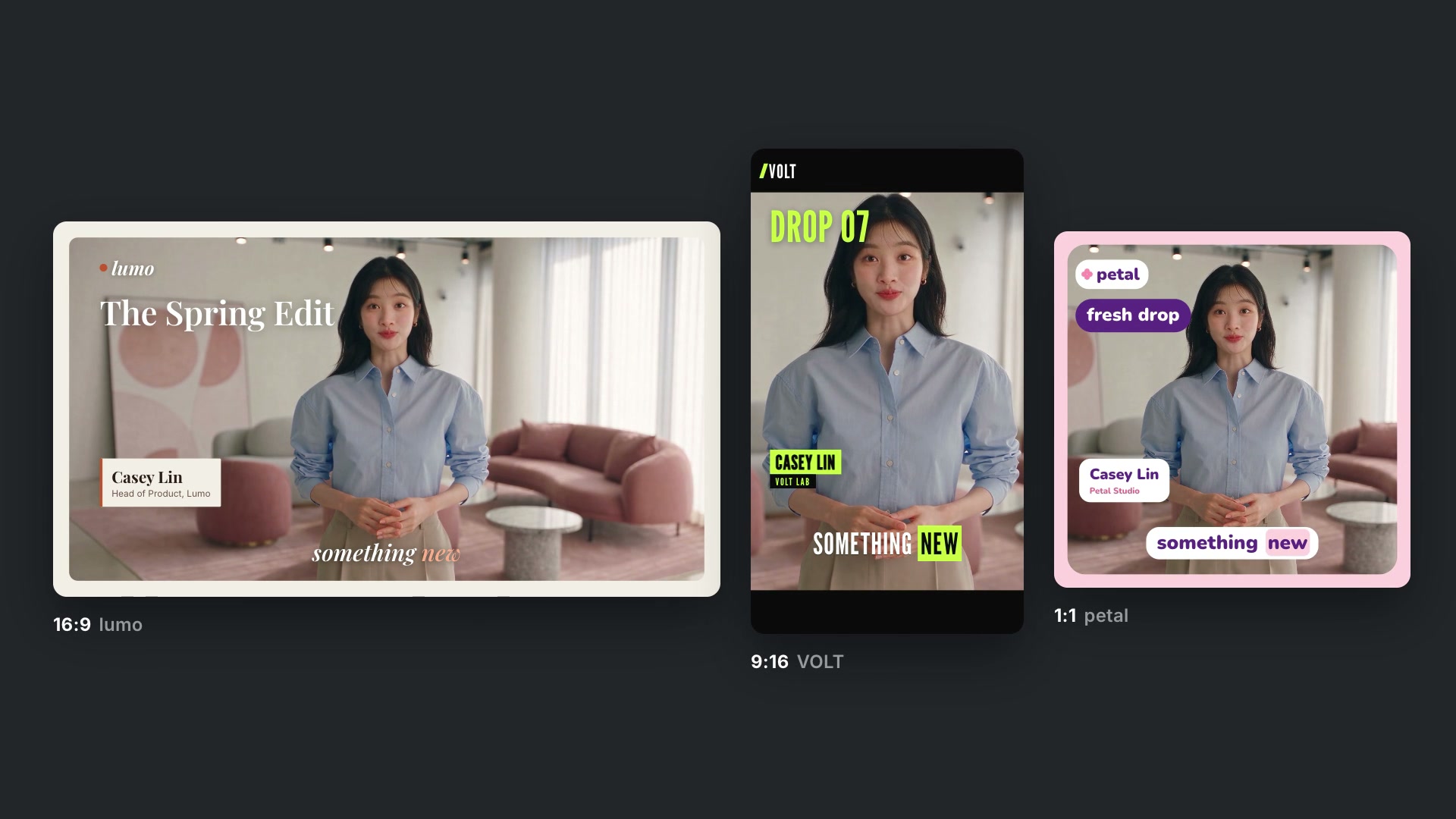
One short promo restyles into three brand looks and three formats. Made with HyperFrames for this page.
Why look for a VEED alternative?
Why consider a VEED alternative? Here is what VEED users say, and what its pricing page shows:
Paywall at download
"I Signed Up Cause I Had No Option. Still It Asked Me to Pay To Download," one Trustpilot reviewer wrote on 25 November 2026. An App Store reviewer of VEED Lite spent 30 minutes on a video "only to find out at the end" that a watermark-free export costs money. The free plan says watermarked videos up front, but people miss it.
Per-seat pricing
Creator is $25 a month per editor ($12 billed yearly), and Pro is $45 ($22 yearly). A team of four pays four times, and there is no free trial below Enterprise, which needs 3 users.
Credits that expire
The free plan gives 50 AI credits a month and 10 minutes of subtitles. On every plan, AI credits and translation minutes don't roll over, and credit add-ons run up to $145 a month on Pro.
Failed AI still costs
An App Store reviewer says a generation "said Generation Failed. Took my credits" (August 2026). On a per-credit system, every failed attempt is paid for.
Yearly charges and support
One Trustpilot reviewer couldn't get a refund right after a yearly charge, another calls customer service "the worst", and a VEED Lite user says a "free trial" charged $32 at once. These are a minority next to the 4.2 average, but they cluster around billing.
Quick comparison: the best VEED alternatives
Eleven alternatives at a glance, with VEED last for reference.
Tool | Best for | Our rating | Free plan | Starting price |
|---|---|---|---|---|
HyperFrames | Subtitles, brand looks and edits by asking | 4.7/5 | Yes, unlimited local exports | Free to start |
Clipchamp | Free browser editing | 4.5/5 | Yes, 1080p, no watermark | Free; M365 $9.99/mo |
Kapwing | Team editing with dubbing | 4.0/5 | Yes, 720p, watermark | $24/mo |
Canva | Templates and brand kits for teams | 4.3/5 | Yes, limited AI | $18/mo |
Descript | Long talks edited by transcript | 4.1/5 | Yes, 1 hr/mo, 720p | $24/mo |
invideo | Generated footage with an agent | 3.8/5 | Free manual editor | $20/mo per seat |
Synthesia | AI presenters for training | 3.9/5 | Yes, watermark | $19/mo |
Higgsfield | Avatar reels and generated video | 3.7/5 | Yes, no credits | $19/mo |
Loom | Quick screen videos for work | 3.9/5 | Yes, 25 videos, 5 min | $18/mo per user |
CapCut | Free editing on every device | 4.3/5 | Yes | $19.99/mo |
Adobe Premiere | Professional editing | 3.5/5 | No, 7-day trial | $22.99/mo (annual) |
VEED (for reference) | Browser editing with subtitles and avatars | Not rated | Yes, watermark | $25/mo per editor |
Ratings average our three scores (fit, ease of use, value); see How we checked. Monthly list prices on 26 November 2026; VEED shows yearly prices by default.
Why trust us? HeyGen makes HyperFrames and publishes this page, so we compete with the tools below. Every rival's price, plan and feature comes from its own pricing page, help center or changelog, read on 25 and 26 November 2026. User complaints are quoted from public review sites and linked in How we checked. HyperFrames claims come from its pricing page and from the Studio app's current build. Where a rival is the better pick, we say so.
Subtitle and brand your next video, free
Best all-around VEED alternatives for subtitles and browser editing
For VEED's most common jobs: captioned, branded social videos made in a browser tab, with a different price, plan or way of working.
#1 HyperFrames: Best for subtitles, brand looks and edits by asking
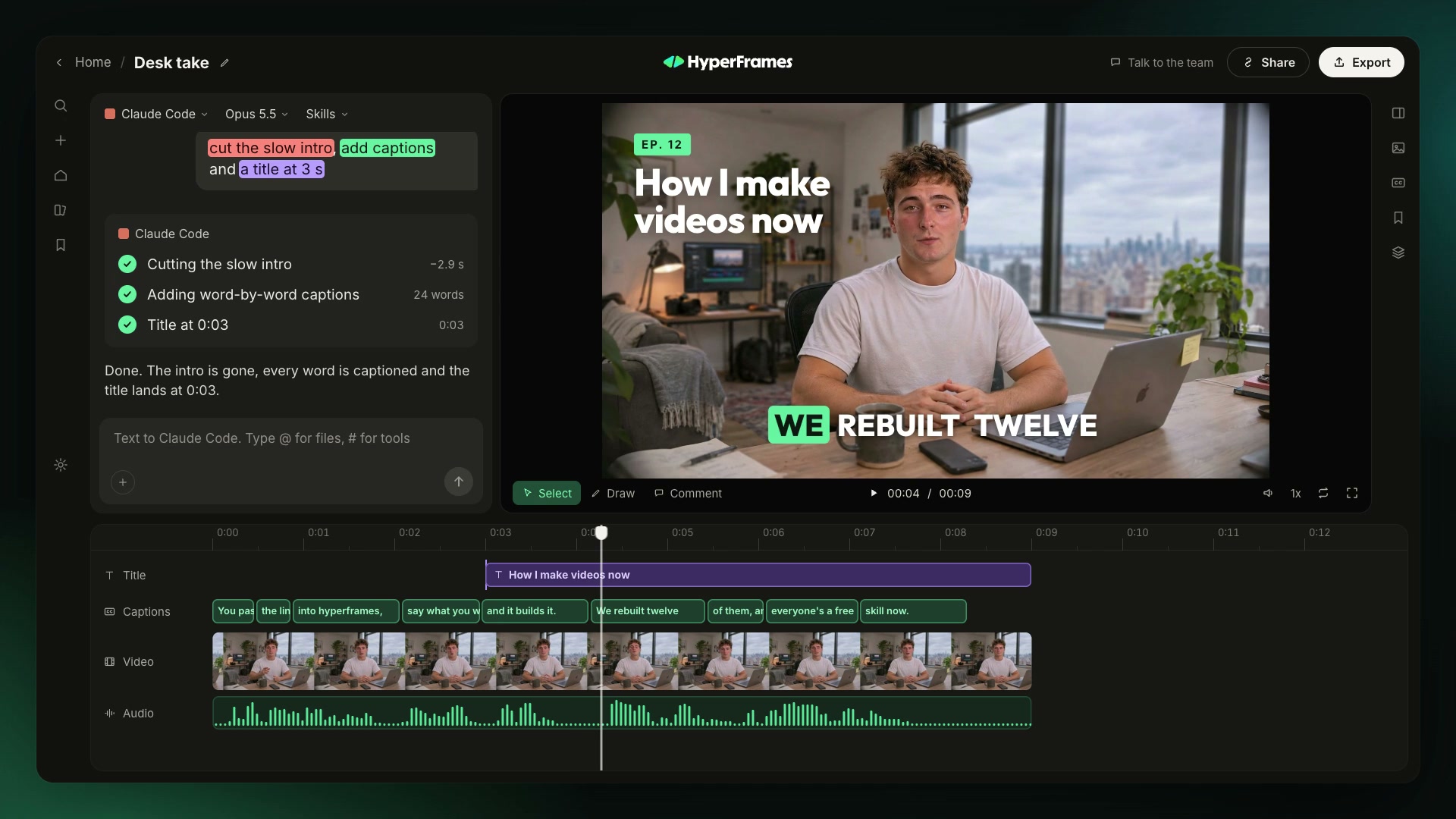
A captions film made with HyperFrames by the HyperFrames team: word-by-word lines and type that reads with the sound off.
Our rating: 4.7/5. Fit for this job 4.7/5, ease of use 4.5/5, value for money 4.9/5.
VEED made subtitling in a browser friendly, and it adds avatars and dubbing on top. HyperFrames goes further on two things a social team does every week. Your look: paste your website and the agent takes its colours, logo and fonts and puts them on every subtitle, title and cut, and once it has seen a few of your videos, every new edit starts in your style. Your winners: when a video works, make twenty versions of it, ten hooks to test, a 9:16 for Reels and a square for LinkedIn, with no reshoot. Fix one word or one caption and only that changes. It is free to start, with no watermark and no per-seat price on your computer.
HyperFrames Studio does VEED's core jobs with an AI agent. Drop in your video and ask: "subtitles word by word, our brand font and green, a lower third for each speaker, and a 9:16 version for Reels." The agent transcribes, times every word, applies your brand kit and builds each version, with captions in dozens of styles, HeyGen's included. Every subtitle word, title and cut stays editable, so you keep full control: fix a name, recolour one keyword or move a caption above the product, by asking or by pointing at the frame.
Beyond subtitles, the agent cleans raw recordings (ums and pauses cut, sound and colour fixed), adds titles and lower thirds, charts and motion graphics, and turns your website into a launch or product video. Transcription with speaker names is free once you sign in, AI voiceovers include HeyGen Voice 1 and voice clones, and team review shares a link and brings comments back into Studio. Use the built-in agent, or bring Claude Code or Codex into the app.
Standout feature: Your brand look on every subtitle, title and cut, and twenty versions of a video that works, with no watermark on exports from your computer.
What's the difference between HyperFrames and VEED? VEED is a browser editor priced per editor, with watermarked free exports. HyperFrames Studio's AI agent subtitles, brands and edits your video by conversation, turns one winner into twenty versions, and is free to start with no watermark on your computer.
HyperFrames pros:
- No watermark on free local exports, and no surprise at download
- Brand kits built from your website, free
- Twenty versions of a winning video without reshooting
- Desktop app for Mac, Windows and Linux, plus the web
HyperFrames cons:
- No dubbing: you get captions and voiceovers in other languages instead
Pricing: Free to start: a free download for Mac, Windows and Linux, or start in your browser, with exports on your computer and no watermark.
Who it's for: Marketers and creators who make captioned, branded social videos and want no paywall at the end.
Choose HyperFrames if: you want branded, subtitled videos made by asking, without per-seat pricing.
What's new in HyperFrames: In November 2026, Edit my footage reached every current Studio app build, and team review now sends comments from a shared link back into Studio. The aspect-ratio switch reshapes one project for every network.
Available for: Mac, Windows and Linux (the Studio app), the web, and inside Claude, ChatGPT and Grok through the HyperFrames connector
One winner, twenty versions. When a video works, its hook, pace and cuts carry over. Only the footage changes.
Subtitle a video free in HyperFrames Studio
#2 Clipchamp: Best for free browser editing
Our rating: 4.5/5. Fit for this job 4.2/5, ease of use 4.6/5, value for money 4.8/5.
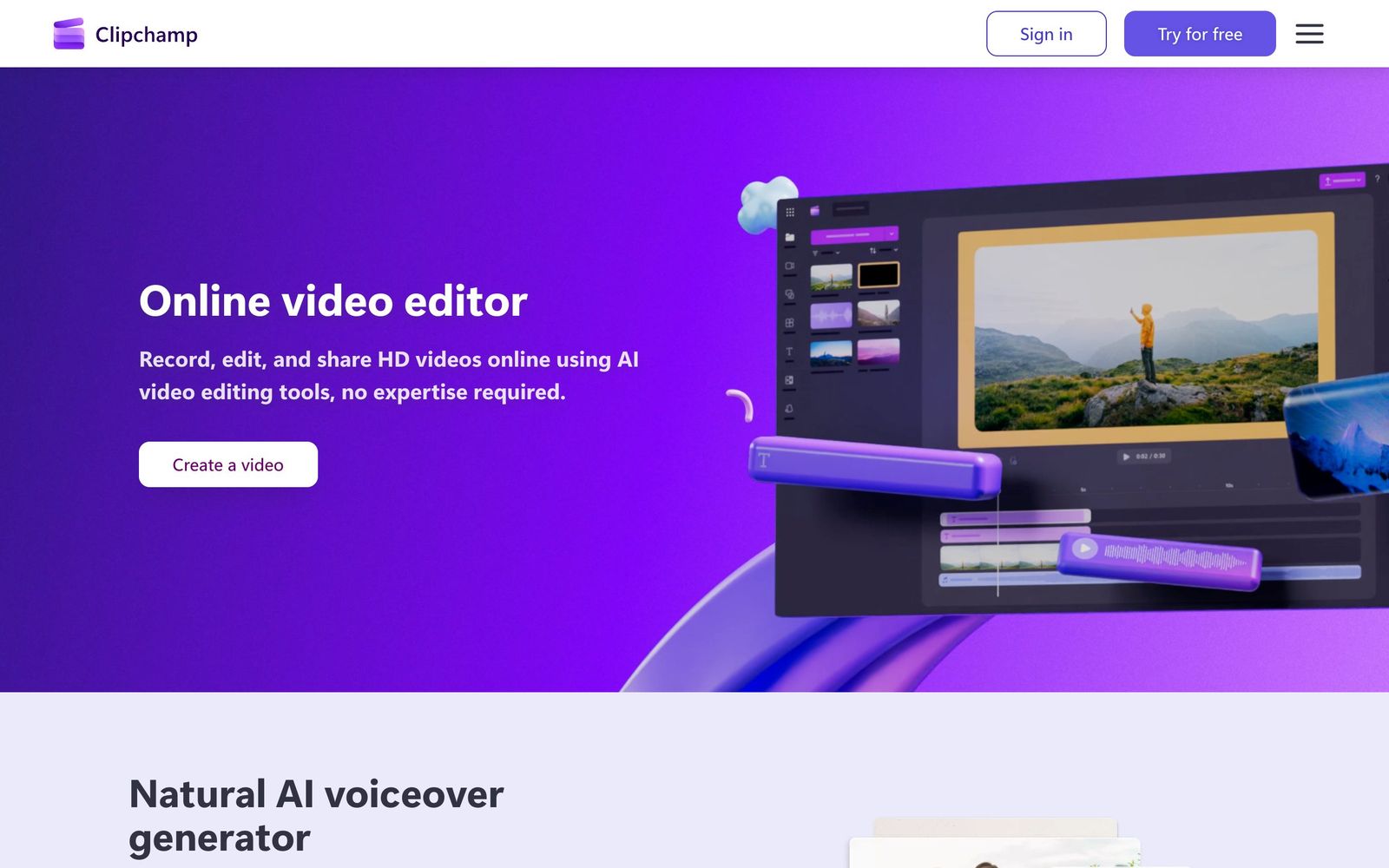
Clipchamp, from Microsoft, is free with a personal Microsoft account and, unlike VEED, exports 1080p with no watermark on its free plan. It runs in the browser and on Windows, with AI editing tools on the free plan, royalty-free stock, audio-only export and new text and shape animations (September 2026).
Premium is no longer sold on its own: 4K, the premium stock media library and the brand kit come with Microsoft 365 Personal or Family. Copilot can start a video from the Clipchamp home page, and Trustpilot shows 4.8 from 7,616 reviews, though one recent reviewer wants more text options and transitions.
Standout feature: Watermark-free 1080p exports on the free plan, with Microsoft's AI editing tools included.
What's the difference between Clipchamp and VEED? Clipchamp is free with no watermark at 1080p. VEED has more AI features, avatars and dubbing, but watermarks free exports.
Clipchamp pros:
- Free 1080p exports with no watermark
- Simple timeline in the browser or on Windows
- Copilot video creation and text animations
- Trustpilot 4.8 from 7,616 reviews
Clipchamp cons:
- 4K needs Microsoft 365
- One recent Trustpilot reviewer wants more text options, transitions and a BPM grid
Pricing: Free with a personal Microsoft account, with watermark-free 1080p exports. 4K and premium stock come with Microsoft 365 Personal ($9.99 a month).
Who it's for: Anyone who wants a free browser editor without a watermark.
Choose Clipchamp over VEED if: you want a free browser editor with no watermark.
What's new in Clipchamp: New text and shape animations launched (September 2026), with Copilot video creation from the Clipchamp start page.
Available for: Web and Windows
#3 Kapwing: Best for team editing with dubbing
Our rating: 4.0/5. Fit for this job 4.1/5, ease of use 4.4/5, value for money 3.6/5.
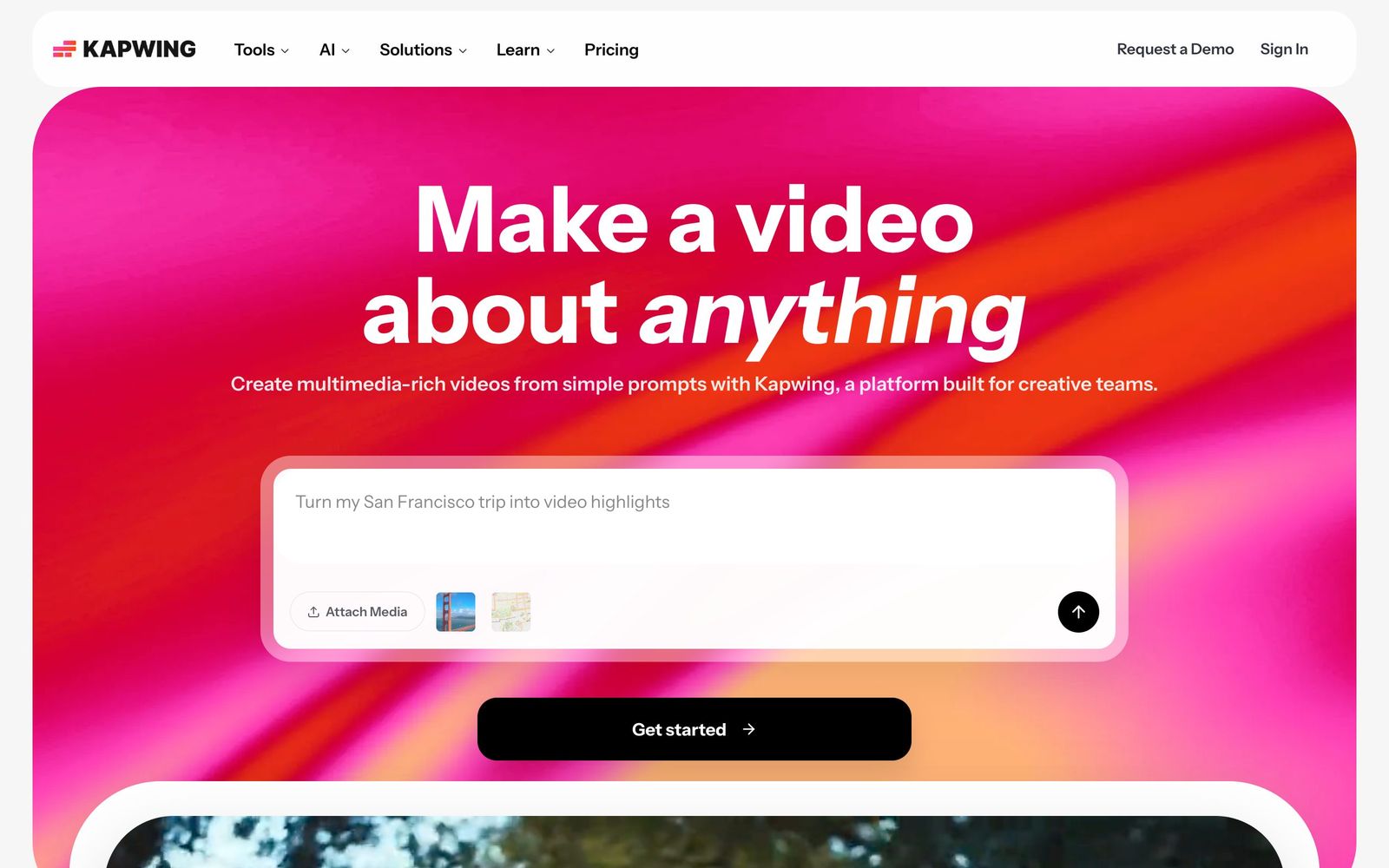
Kapwing is the closest alternative to VEED: a collaborative browser editor with subtitles, translation and dubbing into 40+ languages, Repurpose Studio for repurposing long videos into clips, and Kai, an agent with an autonomous mode. Claude and ChatGPT can drive it through MCP.
Teams who share one timeline get the most from it, and Pro exports 4K with projects up to 2 hours. Its free plan is tighter than VEED's (720p, a watermark and 4 minutes per video), and recent Trustpilot reviews (1.8 from 1,375) complain about credits lost on failed AI jobs.
Standout feature: Kai, an AI agent inside the browser editor that runs multi-step jobs, plus an MCP connection for Claude and ChatGPT.
What's the difference between Kapwing and VEED? Kapwing is very similar, with a shared team timeline and Kai. VEED has better reviews and phone apps.
Kapwing pros:
- Full browser timeline with team collaboration
- Subtitles, translation and dubbing into 40+ languages
- Repurpose Studio for social clips
- Kai agent and MCP connector
Kapwing cons:
- Free exports are watermarked, 720p and 4 minutes at most
- Trustpilot score of 1.8 (1,375 reviews); the low reviews we read mention credits lost on failed AI jobs and refused refunds
Pricing: Free plan with a watermark, 720p and videos up to 4 minutes. Pro is $24 a month, or $16 a month billed yearly.
Who it's for: Teams who edit together in a browser.
Choose Kapwing over VEED if: a team edits together and needs dubbing.
What's new in Kapwing: Kapwing MCP 1.1.0 (27 October 2026) lets Kai generate images and video with reference media; August added Kai autonomous mode and Seedance 2.5.
Available for: Web
#4 Canva: Best for templates and brand kits for teams
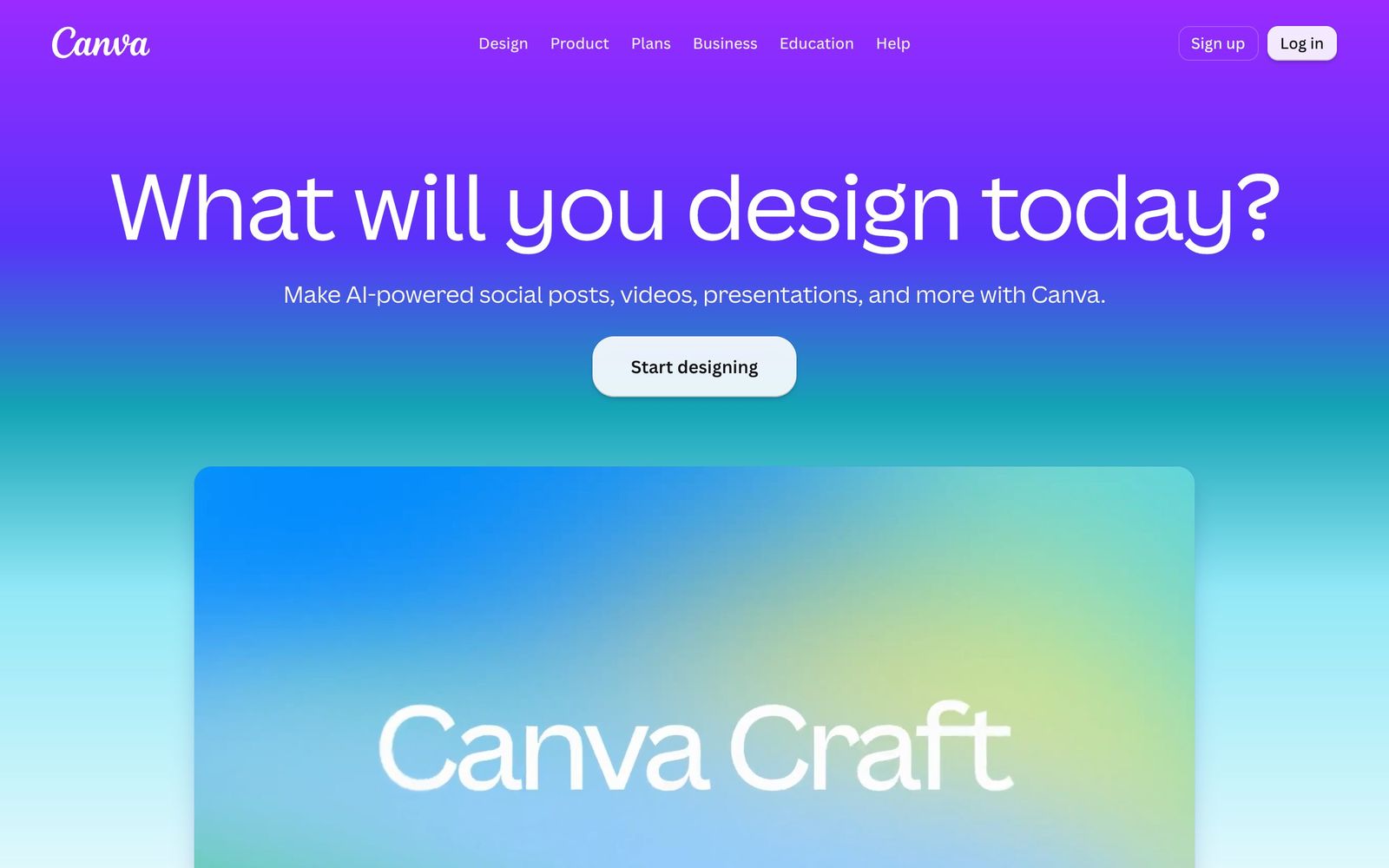
Our rating: 4.3/5. Fit for this job 4.0/5, ease of use 4.7/5, value for money 4.2/5.
Canva's video editor offers trending hook templates, one-click captions, Magic Video, Highlights, a background remover and resizing across multiple channels, inside the design tool many marketing teams already use for social media content creation. Canva MCP (23 November 2026) lets you create editable, on-brand videos from a brief inside Claude and ChatGPT.
The free plan includes the video editor, 1.6M+ templates and a small monthly AI allowance. Business is priced per person, like VEED, and premium AI tools share a monthly allowance. Trustpilot reviewers cite surprise renewals and a rigid editor, so treat it as a design tool that also does video.
Standout feature: Template-first video with trending hooks, one-click captions and Magic Video, inside the tool teams use for every other design.
What's the difference between Canva and VEED? Canva is template-first for every format. VEED is a deeper video editor with avatars and dubbing.
Canva pros:
- 1.6M+ templates and a huge media library
- One-click captions, Highlights and background remover
- Brand kits and resizing for every channel
- Canva MCP makes editable videos from a brief in Claude and ChatGPT
Canva cons:
- Premium AI tools share a monthly allowance
- Trustpilot reviewers cite surprise renewals and a rigid editor
Pricing: Free plan with templates and a small AI allowance. Canva Pro is $18 a month, or $12 a month billed yearly.
Who it's for: Marketing teams who already design in Canva.
Choose Canva over VEED if: your team designs everything else in Canva.
What's new in Canva: On 23 November 2026, Canva MCP became generally available, with brief-to-video generation inside Claude and ChatGPT.
Available for: Web, and Claude or ChatGPT through Canva MCP
Best VEED alternatives for long videos and AI editing
For long talks, podcasts and generated footage, where VEED's short-video focus runs out. Both of these edit by asking, in very different ways.
#5 Descript: Best for long talks edited by transcript
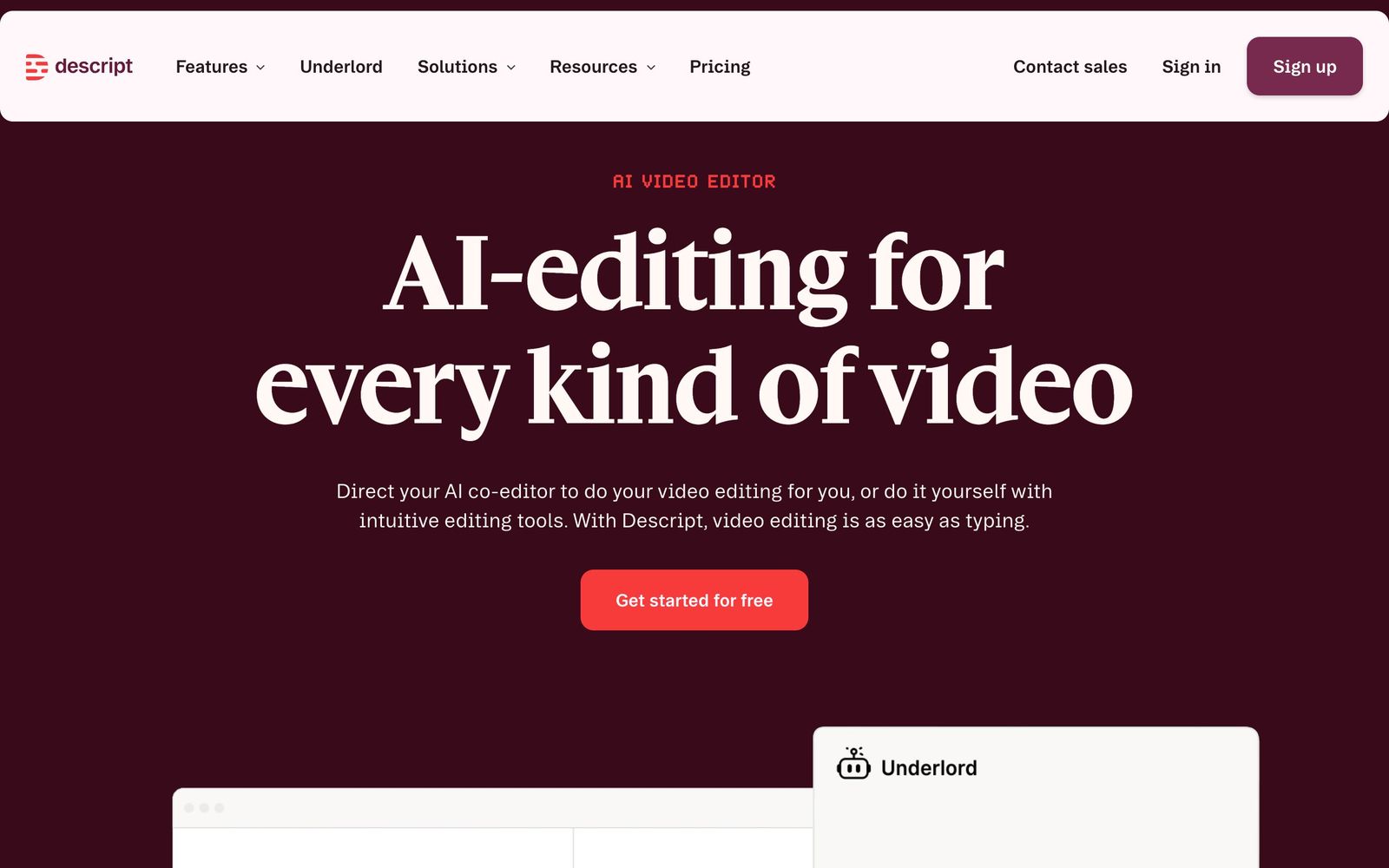
Our rating: 4.1/5. Fit for this job 4.1/5, ease of use 4.2/5, value for money 4.1/5.
Which is better, Descript or VEED? For podcasts and long talks, Descript: you edit by deleting words in the transcript, Underlord cuts a raw recording into shape (with reusable skills since November 2026), and it records screens and remote guests. Timelines export to Premiere, Resolve and Pro Tools.
VEED is better for short social videos with brand kits. Descript is priced per person too and caps media hours on every plan, its Rooms recorder now warns about dead mics, and its Trustpilot score is 2.4 from 301 reviews.
Standout feature: Long talks and podcasts edited by transcript, with remote recording.
What's the difference between Descript and VEED? Descript is built for long talks edited by text. VEED is built for short branded social videos.
Descript pros:
- Edit the video by editing its transcript
- Screen recording and remote recording (Rooms)
- Timeline export to Premiere, Resolve and Pro Tools
- Underlord skills save your own workflows
Descript cons:
- Paid plans cap media hours (10, 30 or 40 a month)
- Trustpilot score of 2.4 (301 reviews), with bugs and credits spent on weak AI results
Pricing: Free plan with 1 media hour a month and 720p exports. Hobbyist is $24 a month, or $16 a month billed yearly.
Who it's for: Podcasters and educators with long recordings.
Choose Descript over VEED if: your videos are long talks or podcasts.
What's new in Descript: November 2026 release: Underlord skills, brand layout packs, Rooms dead-mic warnings and native Premiere export in beta (changelog, 6 November).
Available for: Desktop app and web
#6 invideo: Best for generated footage with an agent
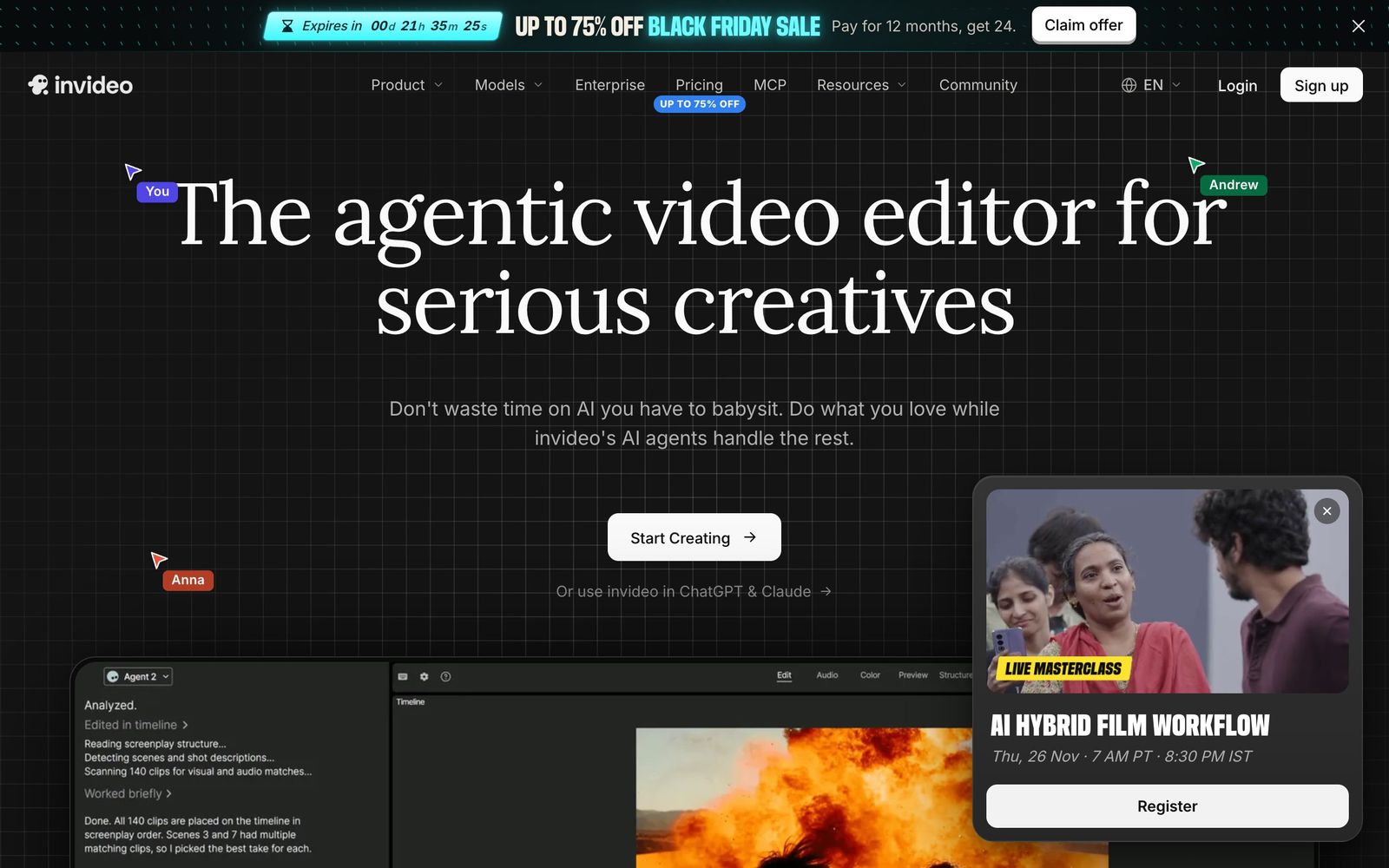
Our rating: 3.8/5. Fit for this job 3.8/5, ease of use 4.2/5, value for money 3.5/5.
How does invideo compare to VEED? Both now have agents, but invideo leans on generation: Agent Two edits a multitrack timeline in plain language, with live multiplayer cursors, and the editor generates shots with Seedance 2.5, Kling 4.0, Veo 3.1 and other models.
invideo MCP lets Claude and ChatGPT work on the same timeline, and projects export to Premiere, Final Cut and Resolve. invideo says its manual editor is free, with no limit on projects or footage; generation is what spends credits, and seats are priced per person, like VEED's. Trustpilot shows 1.8 from 1,032 reviews, the same score as Kapwing.
Standout feature: Agent Two and an agentic timeline: plain-language edits and many generative video models in one editor.
What's the difference between invideo and VEED? invideo generates footage with many models. VEED focuses on editing, subtitles and avatars.
invideo pros:
- Plain-language edits on a multitrack timeline
- Many generative models (Seedance 2.5, Kling 4.0, Veo 3.1 and more)
- invideo MCP for Claude and ChatGPT
- Exports editable projects to Premiere, Final Cut and Resolve
invideo cons:
- Credits don't roll over, and generation is charged at model prices
- Trustpilot score of 1.8 (1,032 reviews); the low reviews we read mention credits and refunds
Pricing: Starter is $20 per seat a month with 400 credits; the manual editor is free. Credits don't roll over.
Who it's for: Marketers who need generated footage, not only edits.
Choose invideo over VEED if: you need AI-generated shots.
What's new in invideo: Agentic Extend (6 October 2026), after the invideo Editor launch (1 September) and invideo MCP (30 September).
Available for: Web, iPhone and Android
Best VEED alternatives for avatars and screen recordings
VEED also sells avatars and screen recording. If avatars or screen videos are most of what you make, a specialist does more of that one job.
#7 Synthesia: Best for AI presenters for training
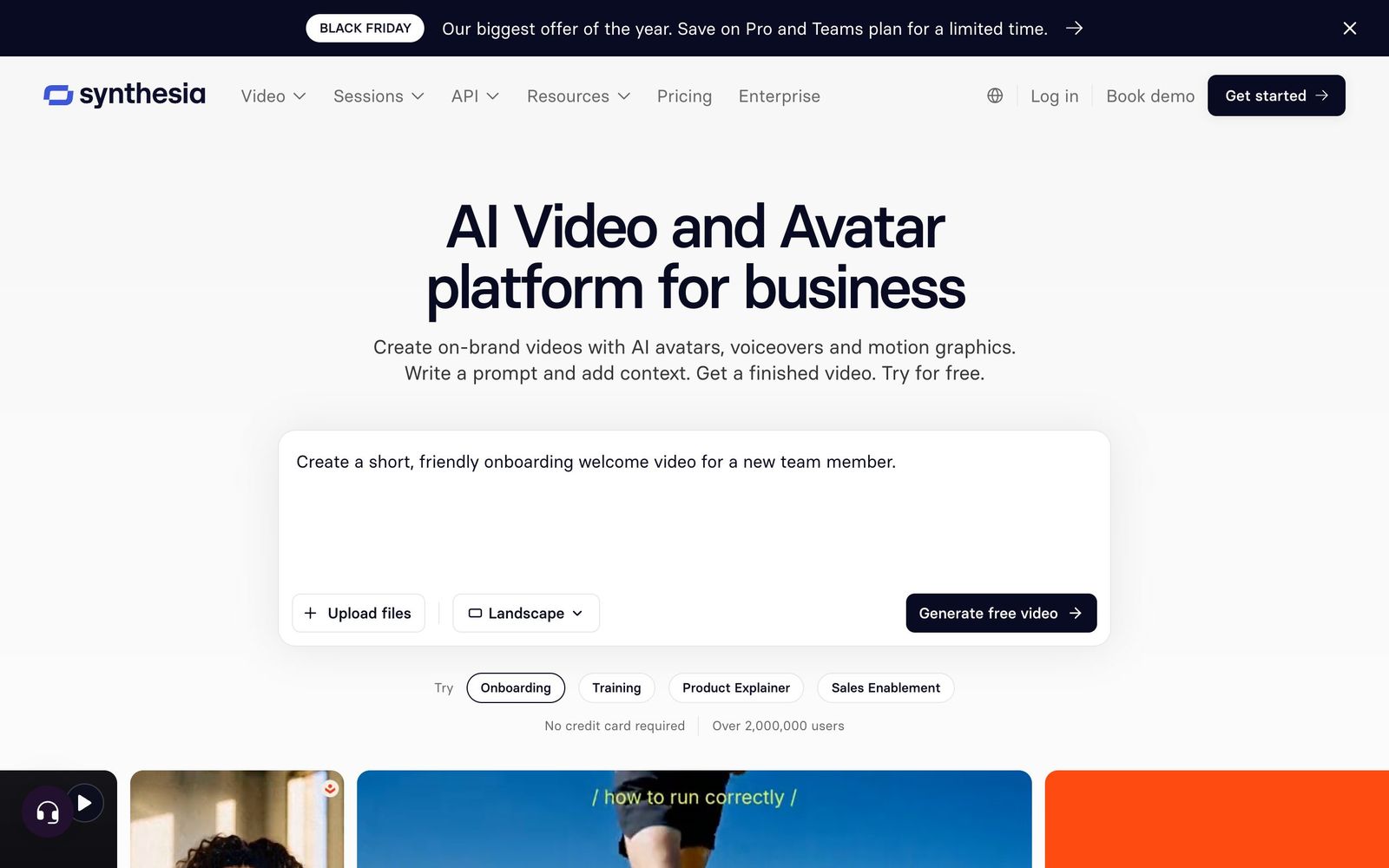
Our rating: 3.9/5. Fit for this job 3.7/5, ease of use 4.3/5, value for money 3.6/5.
Synthesia is the enterprise specialist for AI presenters: 180+ stock avatars, personal avatars, 140+ languages with 1-click translation, interactive videos, and Syren, a chat-driven video agent in beta. Since 18 November 2026 it works inside Claude.
It is built for training and corporate teams rather than social creators. The free plan gives 10 minutes of watermarked video a month, and it scores 3.8 from 1,835 Trustpilot reviews; one recent reviewer says a 30-second video used all their credits.
Standout feature: Studio-quality AI presenters in 140+ languages for enterprise training.
What's the difference between Synthesia and VEED? Synthesia is built for corporate avatar videos. VEED adds avatars to a general editor.
Synthesia pros:
- 180+ stock avatars and personal avatars
- 140+ languages
- Syren video agent and a Claude connector
Synthesia cons:
- One Trustpilot reviewer says a 30-second video used all their credits
- One reviewer calls the content moderation extreme
Pricing: Free plan with 10 minutes of watermarked video a month. Starter is $19 a month, or $14 billed yearly.
Who it's for: Training and comms teams who need presenters at scale.
Choose Synthesia over VEED if: AI presenters are your main use.
What's new in Synthesia: Synthesia brought its video agent into Claude on 18 November 2026.
Available for: Web, plus an API and a Claude connector
#8 Higgsfield: Best for avatar reels and generated video
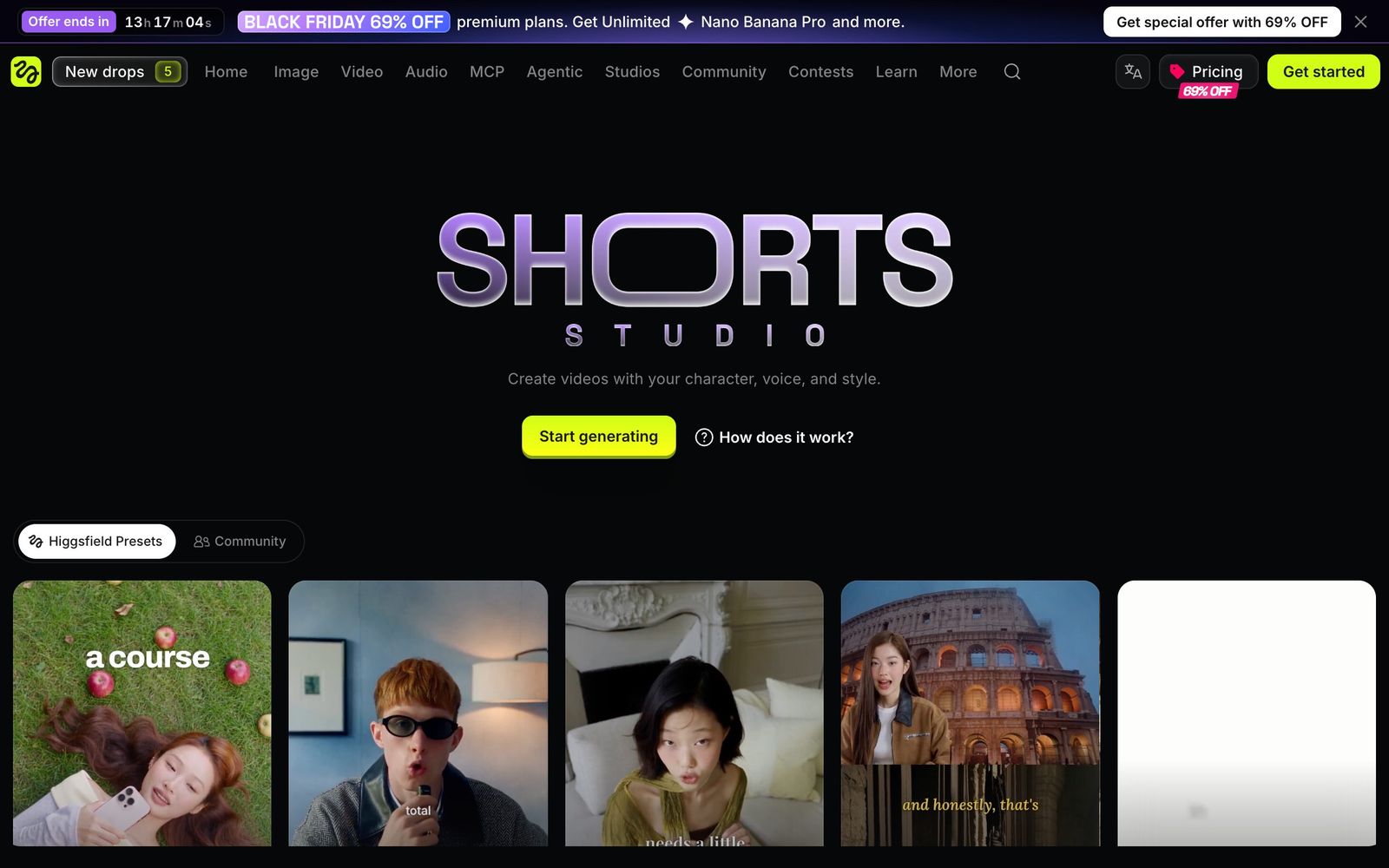
Our rating: 3.7/5. Fit for this job 3.5/5, ease of use 4.1/5, value for money 3.6/5.
VEED's Gen-AI Studio and avatars are one part of its editor. Higgsfield is built entirely around generation: Seedance 2.5, Kling 4.0 and its own MAGI-2 in one place, Shorts Studio for avatar-hosted vertical reels written from a topic (3 November 2026), Marketing Studio for UGC-style and TV-spot ads with 40+ avatars, and Editing Room for reworking a shot of your own (20 November).
It has no subtitle-first editor like VEED, Starter covers selected models only, and unlimited generations work only on its website. Trustpilot shows 4.0 from 5,678 reviews, close to VEED's 4.2, with complaints about renewals.
Standout feature: A generation studio with avatar reels and ad formats, not a subtitle editor.
What's the difference between Higgsfield and VEED? Higgsfield is a generation studio with avatars and ads. VEED is an editor with subtitles, brand kits and some generation.
Higgsfield pros:
- Many video models in one place, including Seedance 2.5, Kling 4.0 and its own exclusive MAGI-2
- Ads Studio and Marketing Studio make product ads from your website
- Editing Room swaps the person, angle, location or lighting in your own clip
- MCP for Claude, an API, a command-line tool and an After Effects plugin
Higgsfield cons:
- Free plan has no credits, and Starter covers selected models only
- Unlimited and free generations work only on the website, not through its connector or command-line tool
Pricing: Free plan with 0 credits and selected models only. Starter is $19 a month with 270 credits, the same billed monthly or yearly; Plus is $59 a month.
Who it's for: Marketers who want generated ads and avatar reels.
Choose Higgsfield over VEED if: generated video matters more than editing your own.
What's new in Higgsfield: Shorts Studio (3 November 2026) added avatar-hosted vertical reels; Editing Room followed on 20 November and MAGI-2 on 24 November.
Available for: Web, plus an API, a command-line tool, MCP for Claude and an After Effects plugin
#9 Loom: Best for quick screen videos for work
Our rating: 3.9/5. Fit for this job 3.4/5, ease of use 4.7/5, value for money 3.6/5.
VEED has a free browser screen recorder too, but if recording and sharing screen videos is the job, Loom is the specialist screen recorder: record screen and camera and share a link instantly, with comments and reactions, which suits a quick tutorial or product demo for a colleague. Loom AI adds summaries and filler-word removal, and an all-new native Mac app arrived on 7 October 2026.
Transcripts cover 50+ languages, and Record for agents turns a recording into steps for AI agents and Jira. Business is priced per user, like VEED. The free Starter plan allows 25 videos of up to 5 minutes, and Trustpilot shows 1.4 from 286 reviews, with complaints about forced logins and billing.
Standout feature: Instant shareable screen videos for work, now with Record for agents.
What's the difference between Loom and VEED? Loom records and shares in seconds with light editing. VEED edits more deeply.
Loom pros:
- Record and share in seconds
- Transcripts in 50+ languages
- Record for agents turns a video into steps for AI agents
- Rated 4.8 on the iPhone App Store
Loom cons:
- Free plan stops at 25 videos and 5 minutes
- Trustpilot score of 1.4 (286 reviews), with login and billing complaints
Pricing: Free Starter plan with 25 videos and 5-minute recordings. Business is $18 per user a month.
Who it's for: Teams who explain work with quick screen videos.
Choose Loom over VEED if: you mostly send screen videos to colleagues.
What's new in Loom: An all-new native Loom for Mac (7 October 2026) with automatic decluttering and Record for agents.
Available for: Mac, iPhone, and more apps from Atlassian
Best free and professional VEED alternatives
At either end of VEED: a free editor on every device, and the professional standard that client work often expects.
#10 CapCut: Best for free editing on every device
Our rating: 4.3/5. Fit for this job 3.9/5, ease of use 4.5/5, value for money 4.4/5.
Is VEED or CapCut better? CapCut is better for free editing on a phone and for trend templates: it runs on the web, Windows, Mac, iPhone and Android, with auto captions, text to speech and a background remover.
VEED is better for browser editing, subtitles and teams, and its 4.2 Trustpilot score is far above CapCut's 1.2, where reviewers describe charges after cancelling and a paywall at export. US users have contracted with TikTok USDS Joint Venture since January 2026.
Standout feature: Free editing and trend templates on every device.
What's the difference between CapCut and VEED? CapCut is free on every device and built around trend templates. VEED has avatars, dubbing and better reviews.
CapCut pros:
- Free, fast and familiar on phone and desktop
- Templates for trends
- Auto captions, text to speech and background remover
- Plugin for ChatGPT and Codex
CapCut cons:
- Pro paywalls can appear at the export screen
- Trustpilot score of 1.2 (1,416 reviews); the low reviews we read mention charges after cancelling
Pricing: Free plan with basic editing and free templates. Pro is $19.99 a month on the web; the app stores sell other plans.
Who it's for: Solo creators who edit on a phone.
Choose CapCut over VEED if: you want a free editor everywhere.
What's new in CapCut: The CapCut plugin is live in ChatGPT and Codex, and iOS 20.3.0 (24 November 2026) improved trimming.
Available for: Web, Windows, Mac, iPhone and Android
#11 Adobe Premiere: Best for professional editing
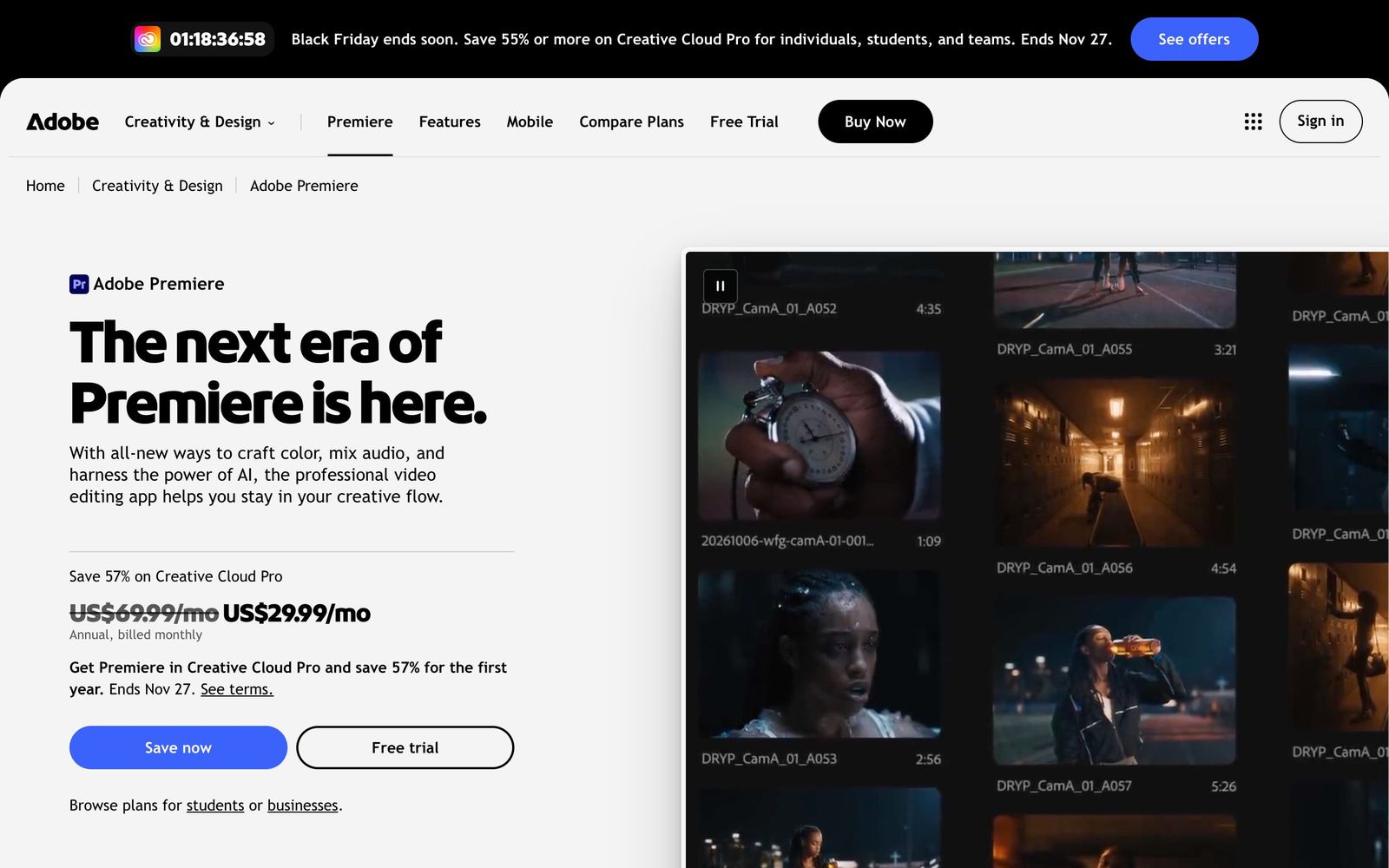
Our rating: 3.5/5. Fit for this job 3.5/5, ease of use 3.6/5, value for money 3.5/5.
When VEED's timeline runs out, Adobe Premiere is the professional standard, with text-based editing, captions translated into 20+ languages, and Generative Extend to fill missing frames. Its AI Assistant panel sorts media and assembles rough cuts.
There is no free plan, it comes with 25 generative credits a month, and one Trustpilot reviewer (Adobe-wide, November 2026) reports an early termination fee. Adobe dropped "Pro" from the name in January 2026, so older guides call it Premiere Pro.
Standout feature: The industry-standard timeline, now with Generative Extend, an AI Assistant panel and a Color Mode grading workspace.
What's the difference between Adobe Premiere and VEED? Premiere is a professional desktop editor on an annual plan. VEED is a browser editor anyone can use.
Adobe Premiere pros:
- Industry standard, with every pro feature
- Text-based editing and captions in 20+ languages
- Color Mode and one-click subject masking
- Generative Extend fills missing frames
Adobe Premiere cons:
- Annual commitment; full refund only within 14 days, and one reviewer reports an early termination fee
- Only 25 generative credits a month on the Premiere plan
Pricing: No free plan, a 7-day trial. The Premiere plan is $22.99 a month on an annual plan; Creative Cloud Pro adds 20+ apps.
Who it's for: Editors who deliver professional work.
Choose Adobe Premiere over VEED if: you need professional depth.
What's new in Adobe Premiere: Premiere 27.0 (10 November 2026) added Color Mode, the AI Assistant panel and Separate Crosstalk. Adobe dropped "Pro" from the name in January 2026.
Available for: Windows, Mac and phones
How to choose the best VEED alternative
To find the best VEED alternative, start with what you use VEED for most, then with who pays for how many seats.
What is the main job?
Subtitles and branding: HyperFrames Studio. Quick browser edits: tools like Clipchamp, Kapwing or Canva. Long talks and podcasts: Descript. Generated footage: invideo. Avatars: Synthesia or Higgsfield. Screen videos and product demos: Loom. If you do several of these, pick the tool for the job you do every week and add a free one for the rest.
How many seats do you need?
VEED charges per editor, so a team of four on Creator pays for four seats. For a team, compare the per-seat price (Canva Business, Descript and invideo are also per person) against free tools: Clipchamp and CapCut cost nothing per person to start. HyperFrames Studio uses review links instead of seats.
Where are the watermarks and paywalls?
Free with no watermark: Clipchamp (1080p) and HyperFrames Studio (local exports). Free with a watermark: VEED, Kapwing and Synthesia. Check before you edit, not at download: VEED's free plan says watermarked up front, but reviewers still miss it.
Does AI cost you per try?
If failed generations cost you on VEED, look at how each tool bills a retry. Credits that don't roll over (VEED, invideo) punish experiments; in HyperFrames Studio, manual edits and local exports are free, and a fix touches one piece. Before you buy a yearly plan anywhere, ask what happens to your credits when a job fails.
Do you rely on avatars or dubbing?
Synthesia (140+ languages) and Higgsfield cover avatars, and Kapwing dubs into 40+ languages. HyperFrames Studio adds HeyGen avatars, your own or HeyGen's, but doesn't dub: it makes captions and voiceovers in multiple languages. If dubbing is the main reason you pay for VEED, Kapwing is the closest swap; if avatars are, Synthesia.
How long are your videos?
Short social clips suit VEED, CapCut and Clipchamp. Hour-long talks need an editor built for them: Descript edits by transcript, HyperFrames Studio edits long recordings with no hour cap on your computer. Kapwing's paid plan handles projects up to 2 hours. Check free-plan limits too: Kapwing's free plan stops at 4 minutes per video and exports 720p with a watermark, while Clipchamp's free plan exports 1080p with none.
Will you make many versions of each video?
If a video that works becomes ten hooks, a 9:16 for Reels and a square for LinkedIn, pick a tool that keeps every version editable. HyperFrames Studio turns one winner into twenty versions in your brand and changes only what you point at, while Kapwing's Repurpose Studio suits cutting clips from one long video, and CapCut is the free pick for quick edits on a phone, a desktop or the web.
How we compared
Every tool on this list was scored on three things:
- Subtitles and branding. Accurate captions, filler removal, styles, brand kits and short-form social formats for content creators.
- Editing and AI. Manual editing depth, AI voiceovers and avatars, and how well AI edits can be fixed.
- Value. Watermark-free exports, free plan, per-seat cost and price.
User complaints. We read recent reviews on Trustpilot, Product Hunt and the App Store and say when a complaint comes from a single review, with its date when it is old. Some review sites (G2, Capterra) blocked automated reading, so their scores are not quoted.
Ratings. Each tool gets three scores out of 5: fit for the job this page is about, ease of use, and value for money (free plan, entry price, watermarks and caps). The overall rating is their average. The scores are our judgment from the sources above, not a lab benchmark.
VEED's watermark. Its plans page says free videos are watermarked, while its VEED AI launch post says VEED AI's free exports have no watermark; we describe both.
VEED's monthly prices ($25 and $45) come from VEED's own plans page; its pricing page shows yearly prices ($12 and $22 per editor) by default.
Conclusion
For captioned, branded social videos, HyperFrames Studio is the best VEED alternative: an agent subtitles and brands your video, one winner becomes twenty versions, every piece stays editable, and it is free to start, with no watermark on exports from your computer.
If you want a free browser editor, Clipchamp is the easiest switch, with 1080p exports and no watermark; if your team likes VEED's way of working, Kapwing is its twin and Canva the pick for brand-led marketing teams; Descript is the choice for long talks and podcasts. Keep VEED if you need avatars, dubbing and subtitles in one browser editor and per-seat pricing fits your team: its 4.2 Trustpilot score is among the best here.
Subtitle and brand your next video, free
Frequently asked questions
What is the best VEED alternative?
HyperFrames Studio is the best VEED alternative for edits by asking, rated 4.7 out of 5 here, because its AI agent subtitles and brands your video, brand kits are free, and free exports on your computer have no watermark. Clipchamp (4.5) is the best free browser editor, and Kapwing (4.0) the closest twin for teams.
Is VEED or CapCut better?
CapCut is better for free editing on a phone and for templates; VEED is better for browser editing, subtitles and teams. VEED scores 4.2 on Trustpilot and CapCut 1.2.
Which is better, Descript or VEED?
Descript is better for podcasts and long talks you edit by transcript; VEED is better for short social videos with subtitles and brand kits. Descript also records remote guests and screens; VEED adds avatars and dubbing.
Is there a 100% free video editor?
Yes. Clipchamp exports 1080p free with no watermark, and DaVinci Resolve and iMovie are free. HyperFrames Studio is free to start and exports without a watermark on your computer.
Is a VEED subscription worth it?
It depends on team size: VEED is priced per editor ($25 a month, or $12 billed yearly), so costs grow with each seat. Solo creators who mainly subtitle may get more from a free plan; teams that use avatars, dubbing and brand kits every week get the most from it.
Does VEED have a free plan?
Yes: unlimited exports with a watermark, 10 minutes of subtitles a month and 50 AI credits. VEED says exports from VEED AI on the free plan carry no watermark. Free trials of paid plans exist only for Enterprise teams of 3 or more.
How does invideo compare to VEED?
invideo leans on generating footage with many AI models on an agentic timeline, priced per seat at $20 a month with 400 credits. VEED leans on editing, subtitles, avatars and dubbing.
Which VEED alternative has AI avatars?
Synthesia (180+ avatars, 140+ languages) and Higgsfield (avatar-hosted reels and ads). HyperFrames Studio adds HeyGen avatars, your own or HeyGen's, inside the edit.
Can VEED handle long-form video projects?
VEED is strongest on short, subtitled social videos. For hour-long talks, Descript edits by transcript and HyperFrames Studio edits long recordings with no hour cap on your computer, cutting the ums and pauses and captioning every word. Kapwing Pro also handles projects up to 2 hours.
How do I switch from VEED to another editor?
Download your finished videos first; free exports carry VEED's watermark, so export what you need before the plan ends. Brand kits and templates don't move between tools. In HyperFrames Studio you paste your website and the agent takes its colours, logo and fonts, and Clipchamp and Kapwing open the same MP4 files.
Which VEED alternative is best for social media content?
HyperFrames Studio, if you want one video that works turned into twenty versions, a 9:16 for Reels and a square for LinkedIn, all in your brand. CapCut is the free pick on every device, Kapwing's Repurpose Studio cuts long videos into clips, and Canva suits teams who already design there.
Which VEED alternative is best for training videos?
Synthesia is built for AI presenters in training, and Loom is the quickest way to record a screen walkthrough for colleagues. HyperFrames Studio turns those recordings into a finished video with titles, captions and diagrams, and Premiere suits teams that deliver to a client.
Does any VEED alternative offer lip-synced translation?
VEED itself dubs with lip sync, and Kapwing dubs into 40+ languages. HyperFrames Studio doesn't dub or lip-sync video; it makes captions and voiceovers in other languages, so pick VEED or Kapwing if a translated, lip-synced presenter is the job.
Is VEED good for teams?
It works, but VEED is priced per editor, so a team of three pays three times. Kapwing is built around one shared timeline, Canva keeps the brand kit in the tool teams already use, and HyperFrames Studio has no per-seat price on your computer and sends comments from a shared link back into the project.
Do we need separate tools for clips and captions?
Not necessarily. HyperFrames Studio and VEED caption and cut in one place, and Kapwing's Repurpose Studio cuts clips from long videos. A dedicated clipper is worth adding only if you cut many clips from long videos every week.
Which VEED alternative is best for screen recording?
Loom for quick work videos, and Descript for screen recordings you edit by transcript. VEED has a free browser screen recorder too; HyperFrames Studio edits recordings you bring in.
Is HyperFrames free?
Yes, HyperFrames is free to start: a free download, built on the free, open-source engine with 90,000+ GitHub stars. Pro is $25 a month for more (pricing).

Written by Ular Kimsanov
Ular Kimsanov works on HyperFrames at HeyGen, the free, open-source tool where AI agents make videos, and writes about making videos with AI agents. Prices and plans on this page were checked on 26 November 2026.