Kapwing does a lot in a browser tab: a team timeline, subtitles, translation and dubbing into 40+ languages, an AI video generator, Repurpose Studio for clips, and Kai, an agent that runs multi-step jobs on its own since its autonomous mode arrived in August 2026. Its MCP connection even lets Claude and ChatGPT drive it.
Reviews tell another story. Kapwing's Trustpilot score is 1.8 from 1,375 reviews, with credits burned on failed AI jobs, refused refunds and support that is a bot, and the free plan adds a watermark, stops at 720p and caps each video at 4 minutes. The 15 alternatives below are grouped by job: AI editors where a fix redoes one piece, all-in-one browser tools, free editors without watermarks, clip makers and professional editors.
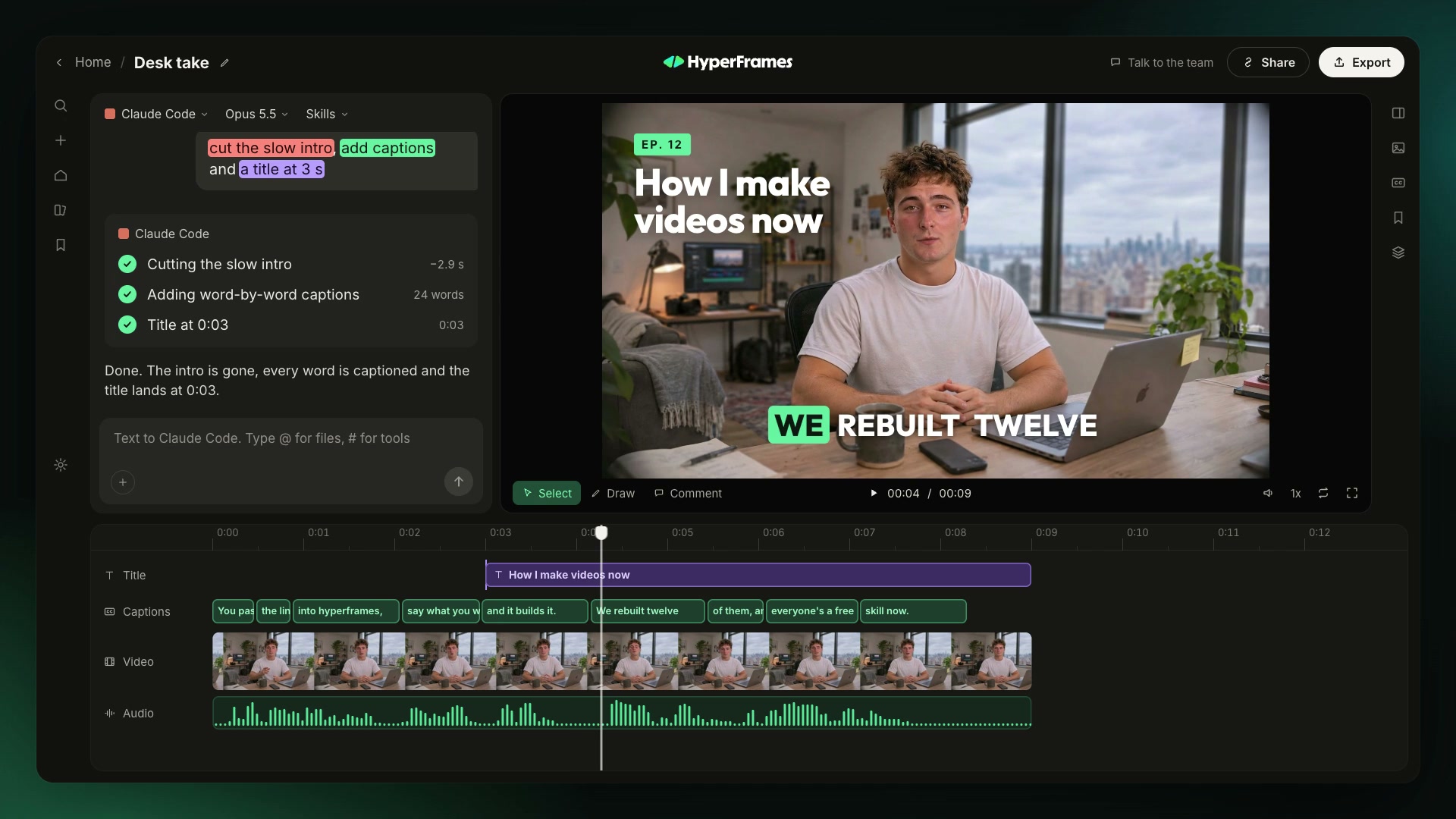
A typed request flies into the timeline and becomes tracks while the preview updates. Made with HyperFrames for this page.
Why look for a Kapwing alternative?
What Kapwing users say when they leave, from its pricing page and Trustpilot:
Credits on failed AI jobs
"Not even the simplest of edits works without glitches and eating tons of credits," one Trustpilot reviewer wrote in July 2026. Another says an AI job "stopped mid way and then asked for 800 more" credits. On a credit plan, every failure costs you.
Refunds and support
One reviewer tried to cancel the same day they subscribed, and "AI support told me it wasn't possible" (October 2026). Another calls support "non existent" (August 2026). When things go wrong, reaching a person is hard.
Free plan limits
Every export carries a watermark, at 720p, with videos capped at 4 minutes and exports at 30 minutes a month, a 2 GB upload limit and 10 AI credits. One reviewer says a project limit was cut from 4 minutes to 1 minute in June 2026.
Browser only
There is no desktop app on Kapwing's homepage or pricing page. Long 4K projects (up to 2 hours on Pro) live in a browser tab, and everything uploads first.
Pricing in two currencies at once
Plans cost money and spend credits: Pro is $24 a month ($16 billed yearly) with 1,000 credits, Business $64 ($50 yearly) with 4,000. If AI is why you pay, the credit count decides the real price.
Quick comparison: the best Kapwing alternatives
Fifteen alternatives at a glance, with Kapwing last for reference.
Tool | Best for | Our rating | Free plan | Starting price |
|---|---|---|---|---|
HyperFrames | Editing by asking, with no watermark on your computer | 4.7/5 | Yes, unlimited local exports | Free to start |
ChatCut | Chat edits on a timeline, with plugins | 4.3/5 | Yes, unlimited local export | $25/mo list |
Palmier Pro | Your coding agent on a desktop timeline | 3.9/5 | Yes, no generation credits | $49/mo list |
Descript | Editing by transcript | 4.2/5 | Yes, 1 hr/mo, 720p | $24/mo |
invideo | Generated footage on an agentic timeline | 3.8/5 | Free manual editor | $20/mo per seat |
Crreo | Long faceless videos from a script | 3.6/5 | Yes, 30-sec, watermark | $15/mo |
Clipchamp | Free browser editing with no watermark | 4.6/5 | Yes, 1080p, no watermark | Free; M365 $9.99/mo |
VEED | The closest like-for-like | 4.3/5 | Yes, watermark | $25/mo per editor |
Canva | Templates and brand kits | 4.3/5 | Yes, limited AI | $18/mo |
Adobe Express | Quick social videos from templates | 4.2/5 | Yes, limited AI | $9.99/mo |
CapCut | Free editing on every device | 4.3/5 | Yes | $19.99/mo |
DaVinci Resolve | Free professional editing | 4.1/5 | Yes, UHD, no watermark | Free; Studio $295 once |
OpusClip | Clips from long videos | 4.2/5 | Yes, 60 credits/mo, watermark | $15/mo |
quso.ai | Clips with a social calendar | 4.1/5 | Yes, 720p, watermark | $29/mo |
Adobe Premiere | Professional editing for teams | 3.6/5 | No, 7-day trial | $22.99/mo (annual) |
Kapwing (for reference) | A browser editor with an AI agent and dubbing | Not rated | Yes, 720p, watermark | $24/mo |
Ratings average our three scores (fit, ease of use, value); see How we checked. Monthly list prices on 26 November 2026; yearly billing is cheaper for most.
Why trust us? HeyGen makes HyperFrames and publishes this page, so we compete with the tools below. Every rival's price, plan and feature comes from its own pricing page, help center or changelog, read on 25 and 26 November 2026. User complaints are quoted from public review sites and linked in How we checked. HyperFrames claims come from its pricing page and from the Studio app's current build. Where a rival is the better pick, we say so.
Create videos by asking, free to start
Best Kapwing alternatives for AI editing, from agents to video generators
If Kai is why you picked Kapwing, these editors put an AI you talk to at the centre.
#1 HyperFrames: Best for editing by asking, with no watermark on your computer
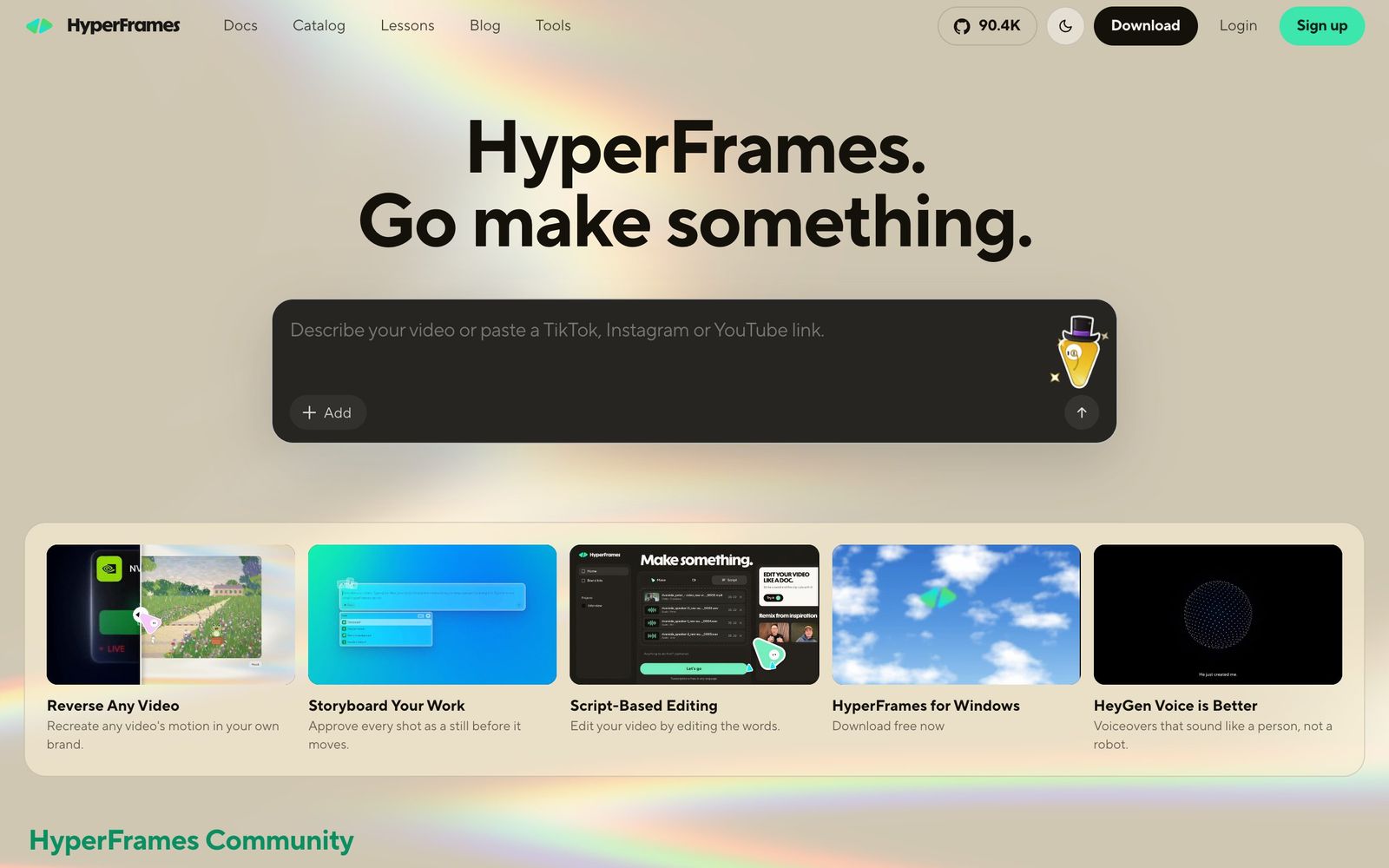
Our rating: 4.7/5. Fit for this job 4.7/5, ease of use 4.5/5, value for money 4.9/5.
Kapwing is a capable team editor in a browser tab, with subtitles and dubbing in 40+ languages. Where it stops is the second request: a failed AI job runs again, and costs credits again. In HyperFrames you see your video as stills in minutes and approve them before it renders, then point at any word, shot or caption and only that changes. A client's notes go in as one round. And when a video works, make twenty versions of it: paste the Reel that is taking off, get its hook, pace and cuts back with your footage, then swap in new hooks or new faces with no reshoot. It is free to start, with no watermark and no 4-minute cap on your computer.
HyperFrames Studio is built around one habit: tell the AI agent what you want ("cut the slow intro", "captions with the keyword in yellow", "make a vertical version for Reels") and watch it land on the timeline. When the agent gets something wrong, you fix that one thing by asking, by pointing at the frame, or by hand on the timeline, and only that piece is redone. That is the direct answer to Kapwing's most common complaint.
Edit my footage cleans up a raw recording in one pass, captions come in dozens of styles, titles, charts and maps come from ready-made effects, and the website to video flow turns your site into a promo with its colours, logo and fonts. Because the desktop app works on the video files on your computer, nothing uploads first, and exports go up to 4K.
Standout feature: When the agent gets one thing wrong, you fix that one thing, and manual edits and local exports cost nothing.
What's the difference between HyperFrames and Kapwing? Kapwing is a browser editor with an AI agent and credits for AI jobs, and its free plan adds a watermark and a 4-minute cap. HyperFrames Studio's AI agent edits by conversation, every change stays editable without a redo, and free exports on your computer have no watermark or length cap.
HyperFrames pros:
- No watermark, no 4-minute cap and no monthly export limit on your computer
- A fix touches one piece instead of re-running a job
- Twenty versions of a video that works, without reshooting
- Desktop app as well as the web
HyperFrames cons:
- No dubbing: you get captions and voiceovers in other languages, not Kapwing's dubbing into 40+
Pricing: Free to start: a free download for Mac, Windows and Linux, or start in your browser, with exports on your computer and no watermark.
Choose HyperFrames if: you want AI to do the editing and want to fix one piece without re-generating the whole video.
What's new in HyperFrames: In November 2026, Edit my footage reached every current Studio app build. Team review now shares a link and brings comments back into Studio, and the aspect-ratio switch reshapes any project for each network.
Available for: Mac, Windows and Linux (the Studio app), the web, and inside Claude, ChatGPT and Grok through the HyperFrames connector
One winner, twenty versions. When a video works, its hook, pace and cuts carry over. Only the footage changes.
Edit a video free in HyperFrames Studio
#2 ChatCut: Best for chat edits on a timeline, with plugins
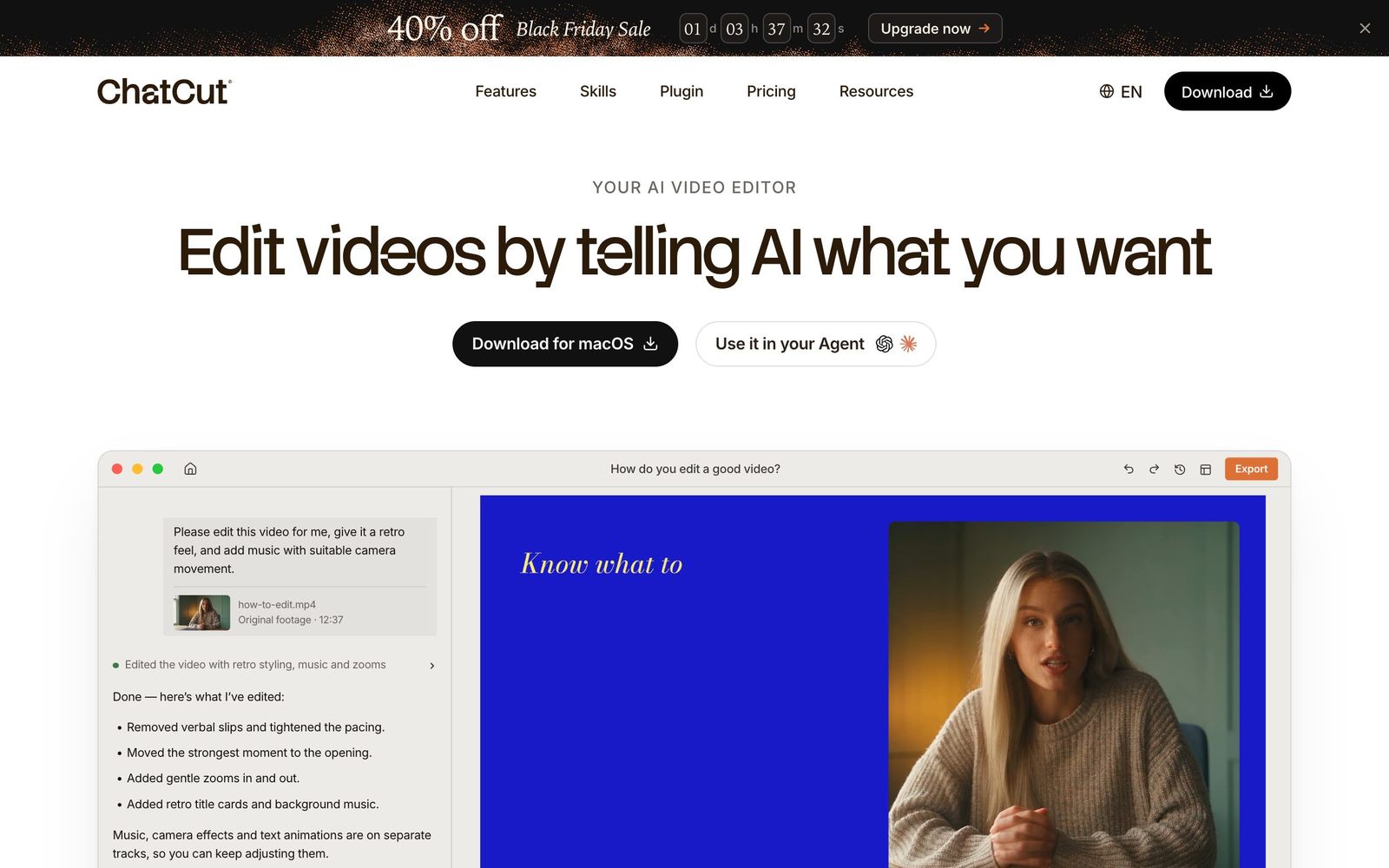
Our rating: 4.3/5. Fit for this job 4.4/5, ease of use 4.4/5, value for money 4.2/5.
ChatCut applies edits you ask for in chat to a real timeline you can change by hand, with built-in generation from Seedance 2.5 and Kling 4.0. It runs on the web, Mac and Windows, and its free plan has unlimited local export, though there is no phone app.
Standout feature: Edits you ask for in chat land on a real timeline you can adjust, and editing through Claude Code or Codex spends no ChatCut credits.
What's the difference between ChatCut and Kapwing? ChatCut is chat-first with desktop apps and agent plugins. Kapwing is a team browser editor with dubbing.
ChatCut pros:
- Chat edits on an editable timeline
- 100+ one-click skills such as speech cleanup, captions and shorts
- XML export to Resolve, Premiere, Final Cut and CapCut
- Plugins for ChatGPT, Codex, Claude Code and Cursor
ChatCut cons:
- Generation spends credits even through outside agents
- One of its 3 Trustpilot reviews (November 2026) says limits keep moving, such as 4K export now needing Plus
Pricing: Free plan with signup credits, the full editor and unlimited local export. Starter lists at $25 a month; a Black Friday sale showed $21 a month billed yearly on 25 November 2026.
Choose ChatCut over Kapwing if: you want chat editing with export to a pro editor.
What's new in ChatCut: ChatCut Desktop launched on Product Hunt on 26 August 2026, after the July launch inside ChatGPT, desktop and web.
Available for: Web, Mac, Windows, and plugins for ChatGPT, Codex, Claude Code and Cursor
#3 Palmier Pro: Best for your coding agent on a desktop timeline
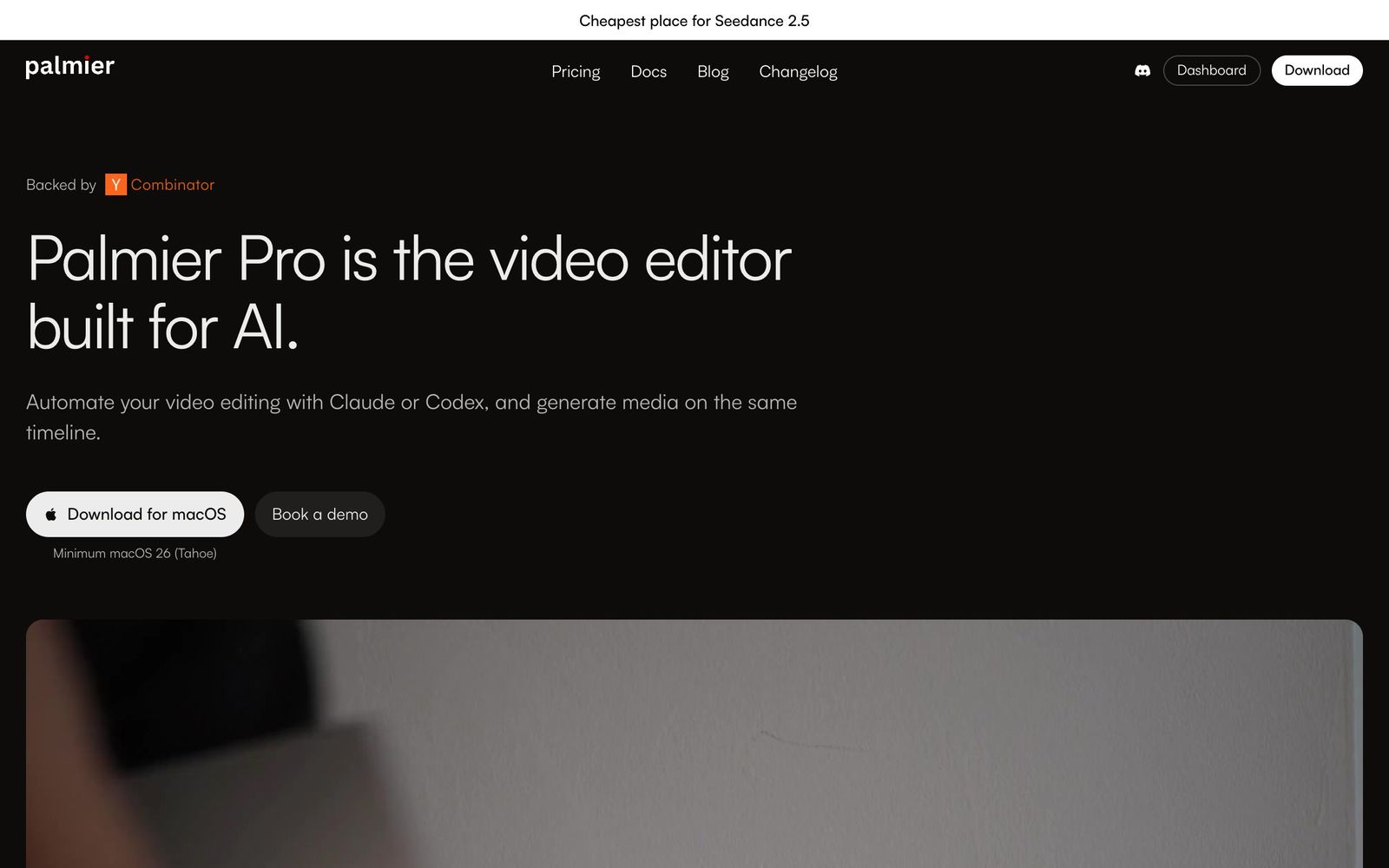
Our rating: 3.9/5. Fit for this job 3.8/5, ease of use 3.7/5, value for money 4.3/5.
Kapwing lets Claude and ChatGPT drive it in the browser. Palmier Pro does the same on your Mac, with the files local: Claude Code, Codex or Cursor edit a multi-track timeline on your computer, and a finished edit saves as a Skill for the next video. It needs macOS 26 or newer and is still pre-1.0.
Standout feature: Your coding agent edits local files on a Mac timeline over MCP.
What's the difference between Palmier Pro and Kapwing? Palmier Pro is a local Mac editor your own agent drives. Kapwing is a browser team editor with its own agent, Kai, and dubbing.
Palmier Pro pros:
- Free, open-source Mac editor (GPL-3.0) with 14,811 GitHub stars
- Your own agent edits the timeline over MCP, with no account needed
- Image, video, voice and music generation lands on the same timeline
- A full editor: multi-track timeline, keyframes, colour grading, masks and multicam
Palmier Pro cons:
- Mac only, and only on macOS 26 (Tahoe) or newer
- AI generation, cloud transcription and the built-in chat need a paid plan
Pricing: Free plan: the full Mac editor, with no account needed and no generation credits. Pro is shown at $29 a month (marked down from $49) with 5,000 credits a month.
Choose Palmier Pro over Kapwing if: you want desktop editing driven by your coding agent.
What's new in Palmier Pro: Version 0.12.0 (29 October 2026) added a headless mode that runs several projects at once, timeline history snapshots, caption presets with per-word styles and Kling V4.
Available for: Mac (macOS 26 or newer), driven by Claude, Codex or Cursor over MCP
#4 Descript: Best for editing by transcript
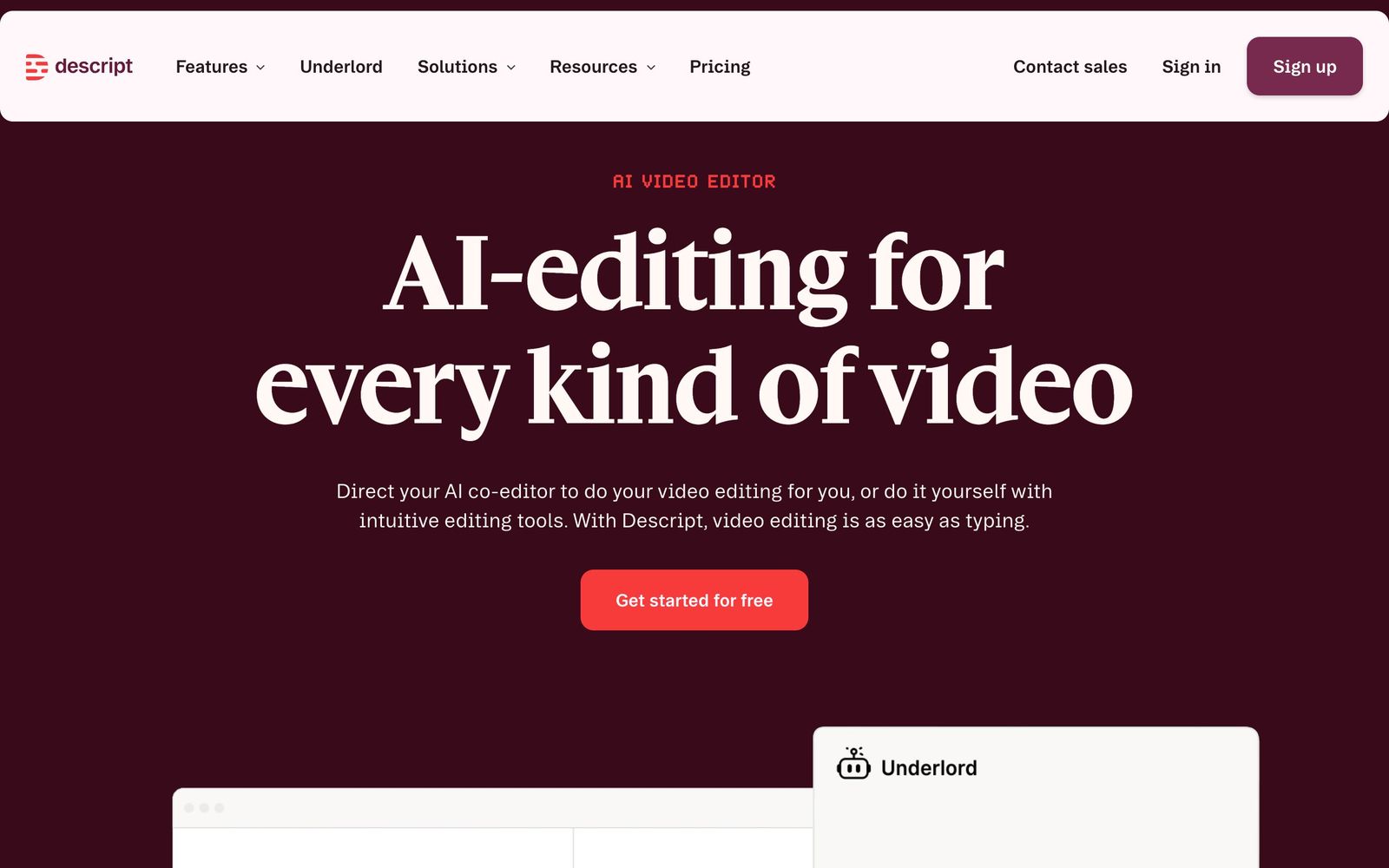
Our rating: 4.2/5. Fit for this job 4.2/5, ease of use 4.2/5, value for money 4.1/5.
Descript edits video by editing its transcript, and Underlord turns raw recordings into tight cuts. It records screens and remote guests in Rooms, and its first paid plan costs the same each month as Kapwing Pro but caps media hours.
Standout feature: The transcript is the timeline: delete words to cut, with Underlord to tighten.
What's the difference between Descript and Kapwing? Descript is built around the transcript and recording. Kapwing is built around a browser timeline and dubbing.
Descript pros:
- Edit the video by editing its transcript
- Screen recording and remote recording (Rooms)
- Timeline export to Premiere, Resolve and Pro Tools
- Underlord skills save your own workflows
Descript cons:
- Paid plans cap media hours (10, 30 or 40 a month)
- Trustpilot score of 2.4 (301 reviews), with bugs and credits spent on weak AI results
Pricing: Free plan with 1 media hour a month and 720p exports. Hobbyist is $24 a month, or $16 a month billed yearly.
Choose Descript over Kapwing if: your videos are talk-driven.
What's new in Descript: November 2026 release: Underlord skills, brand layout packs, Rooms dead-mic warnings and native Premiere export in beta (changelog, 6 November).
Available for: Desktop app and web
#5 invideo: Best for generated footage on an agentic timeline
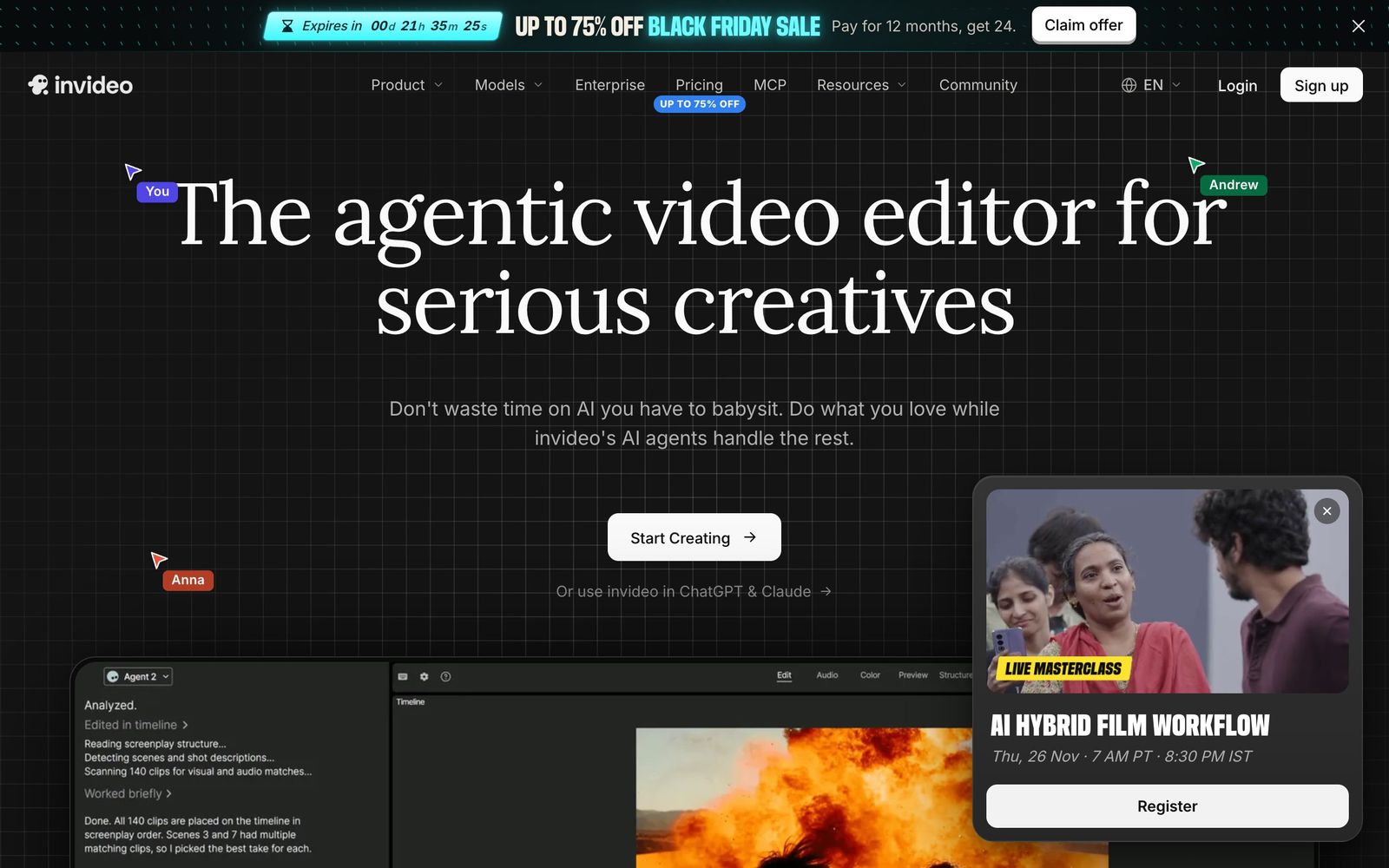
Our rating: 3.8/5. Fit for this job 3.8/5, ease of use 4.2/5, value for money 3.5/5.
invideo is now an agentic video editor built for AI video generation as much as editing: Agent Two applies plain-language edits on a multitrack timeline with live multiplayer cursors. invideo says its manual editor is free with no limit on projects or footage, and Trustpilot shows 1.8 from 1,032 reviews, the same score as Kapwing, with credits the top complaint.
Standout feature: Agent Two and an agentic timeline: plain-language edits and many generative video models in one editor.
What's the difference between invideo and Kapwing? invideo leans on generating footage with many models. Kapwing leans on subtitles, dubbing and team editing.
invideo pros:
- Plain-language edits on a multitrack timeline
- Many generative models (Seedance 2.5, Kling 4.0, Veo 3.1 and more)
- invideo MCP for Claude and ChatGPT
- Exports editable projects to Premiere, Final Cut and Resolve
invideo cons:
- Credits don't roll over, and generation is charged at model prices
- Trustpilot score of 1.8 (1,032 reviews); the low reviews we read mention credits and refunds
Pricing: Starter is $20 per seat a month with 400 credits; the manual editor is free. Credits don't roll over.
Choose invideo over Kapwing if: you need generated shots more than dubbing.
What's new in invideo: Agentic Extend (6 October 2026), after the invideo Editor launch (1 September) and invideo MCP (30 September).
Available for: Web, iPhone and Android
#6 Crreo: Best for long faceless videos from a script
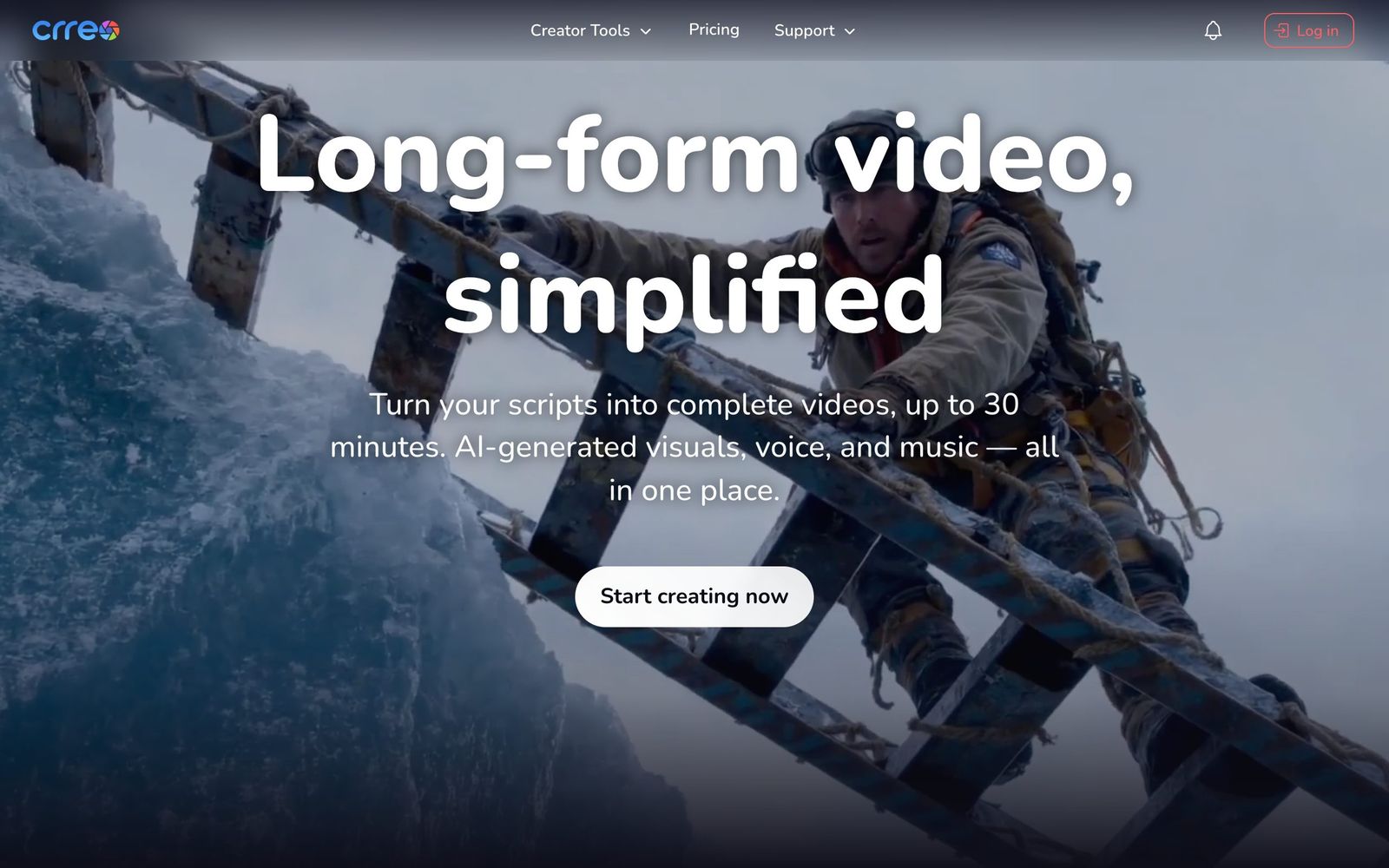
Our rating: 3.6/5. Fit for this job 3.2/5, ease of use 4.2/5, value for money 3.4/5.
If you used Kapwing's AI Video Generator for text-to-video, Crreo specialises in it: a topic or script becomes a complete faceless video with generated visuals, 300+ AI voices and music, in styles from stickman to photo-realistic. Trustpilot shows 2.9 from 6 reviews.
Standout feature: Turns a topic or script into a complete video of up to 30 minutes (on Ultra), with visuals, voiceover, music and a thumbnail.
What's the difference between Crreo and Kapwing? Crreo generates long faceless videos from a script. Kapwing edits your own footage and also generates videos from a prompt.
Crreo pros:
- Long faceless videos from one script
- Consistent characters you can save and reuse
- Edit scenes with text prompts
- 300+ AI voices
Crreo cons:
- Free videos are 30 seconds, watermarked and not yours to own
- Start and Grow export at 720p; 1080p needs Pro at $60 a month
Pricing: Free plan with 400 one-time credits for watermarked 720p videos up to 30 seconds, which you don't own; not every account qualifies. Start is $15 a month, or $12 a month billed yearly, for about 30 minutes of 720p video.
Choose Crreo over Kapwing if: you want whole videos generated from scripts.
What's new in Crreo: No public changelog entry found since May 2026; the pricing page is marked as of October 2026.
Available for: Web
Best all-in-one browser-based Kapwing alternatives
Closest to Kapwing's way of working: open a tab and edit, no install.
#7 Clipchamp: Best for free browser editing with no watermark

Our rating: 4.6/5. Fit for this job 4.3/5, ease of use 4.6/5, value for money 4.8/5.
Clipchamp, from Microsoft, is free with a personal Microsoft account and exports 1080p with no watermark, the clearest answer to Kapwing's watermarked free plan. It has a simple drag and drop timeline for basic video editing in the browser or the Windows app, with royalty-free stock.
Standout feature: Watermark-free 1080p exports on the free plan, with Microsoft's AI editing tools included.
What's the difference between Clipchamp and Kapwing? Clipchamp is free with no watermark at 1080p. Kapwing's free plan has a watermark, 720p and a 4-minute cap, but more AI features and dubbing.
Clipchamp pros:
- Free 1080p exports with no watermark
- Simple timeline in the browser or on Windows
- Copilot video creation and text animations
- Trustpilot 4.8 from 7,616 reviews
Clipchamp cons:
- 4K needs Microsoft 365
- One recent Trustpilot reviewer wants more text options, transitions and a BPM grid
Pricing: Free with a personal Microsoft account, with watermark-free 1080p exports. 4K and premium stock come with Microsoft 365 Personal ($9.99 a month).
Choose Clipchamp over Kapwing if: you want a free, watermark-free browser editor.
What's new in Clipchamp: New text and shape animations launched (September 2026), with Copilot video creation from the Clipchamp start page.
Available for: Web and Windows
#8 VEED: Best for the closest like-for-like
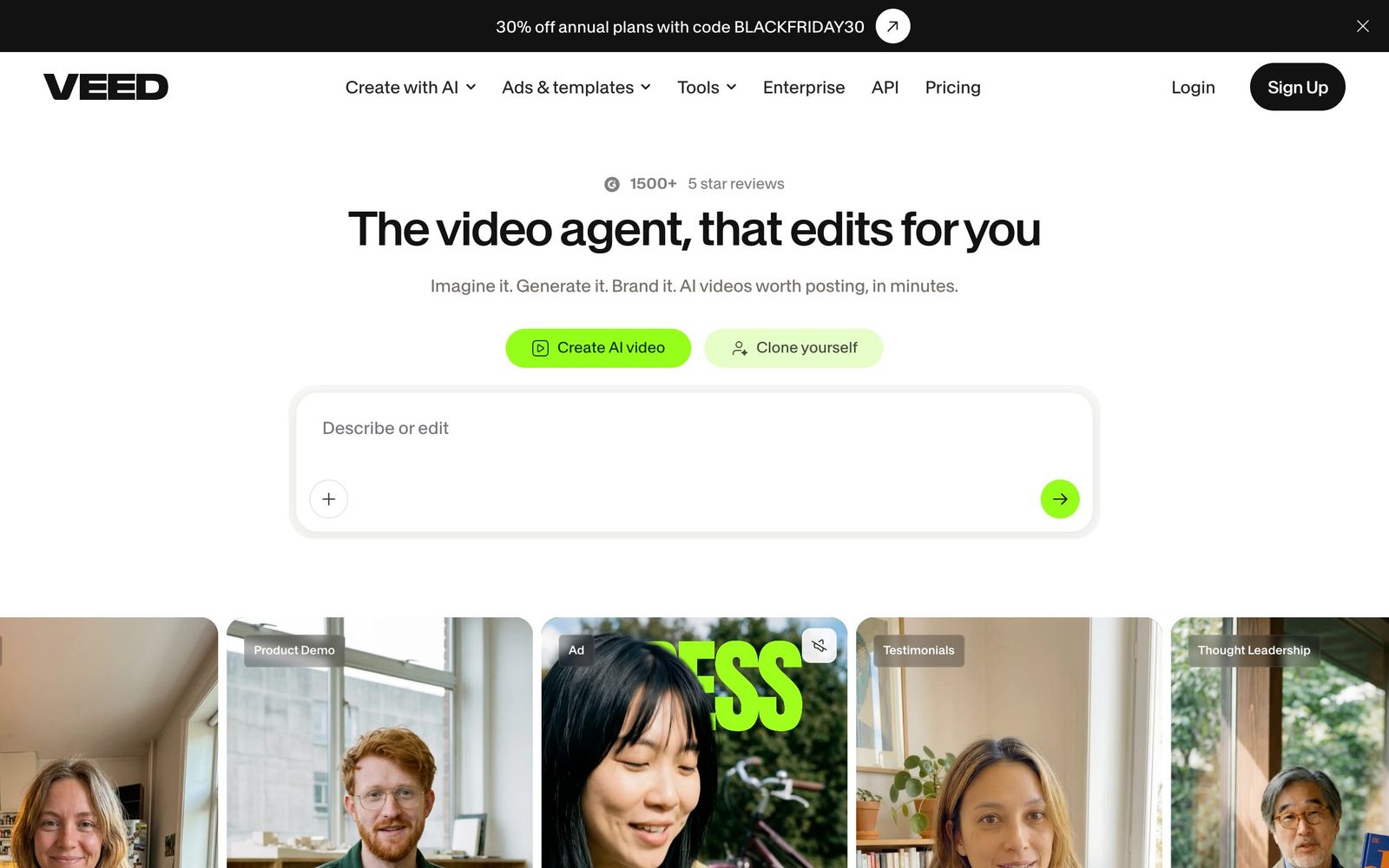
Our rating: 4.3/5. Fit for this job 4.4/5, ease of use 4.5/5, value for money 3.9/5.
Is VEED better than Kapwing? It is the nearest twin, an online video editing tool with better reviews: browser editing, subtitles in a click (unlimited on paid plans), dubbing and translation (50+ languages on Pro), avatars and a new agent, VEED AI. Trustpilot shows 4.2 from 3,961 reviews, against Kapwing's 1.8.
Standout feature: The closest twin to Kapwing, with phone apps and a 4.2 Trustpilot score.
What's the difference between VEED and Kapwing? VEED is very similar, with mobile apps and a 4.2 Trustpilot score. Kapwing has a team timeline and Kai, an agent that runs multi-step jobs.
VEED pros:
- Easy browser editor with strong subtitles
- Avatars, dubbing and eye contact fix
- Brand kits
- iPhone and Android apps
VEED cons:
- Priced per editor, so teams pay per seat
- AI credits and translation minutes don't roll over
Pricing: Free plan with watermarked videos and 50 AI credits a month. Creator is $25 a month, or $12 a month billed yearly, per editor.
Choose VEED over Kapwing if: you want the same kind of tool with better reviews.
What's new in VEED: VEED AI, a video editing agent for social videos, launched on 18 November 2026.
Available for: Web, iPhone and Android
#9 Canva: Best for templates and brand kits
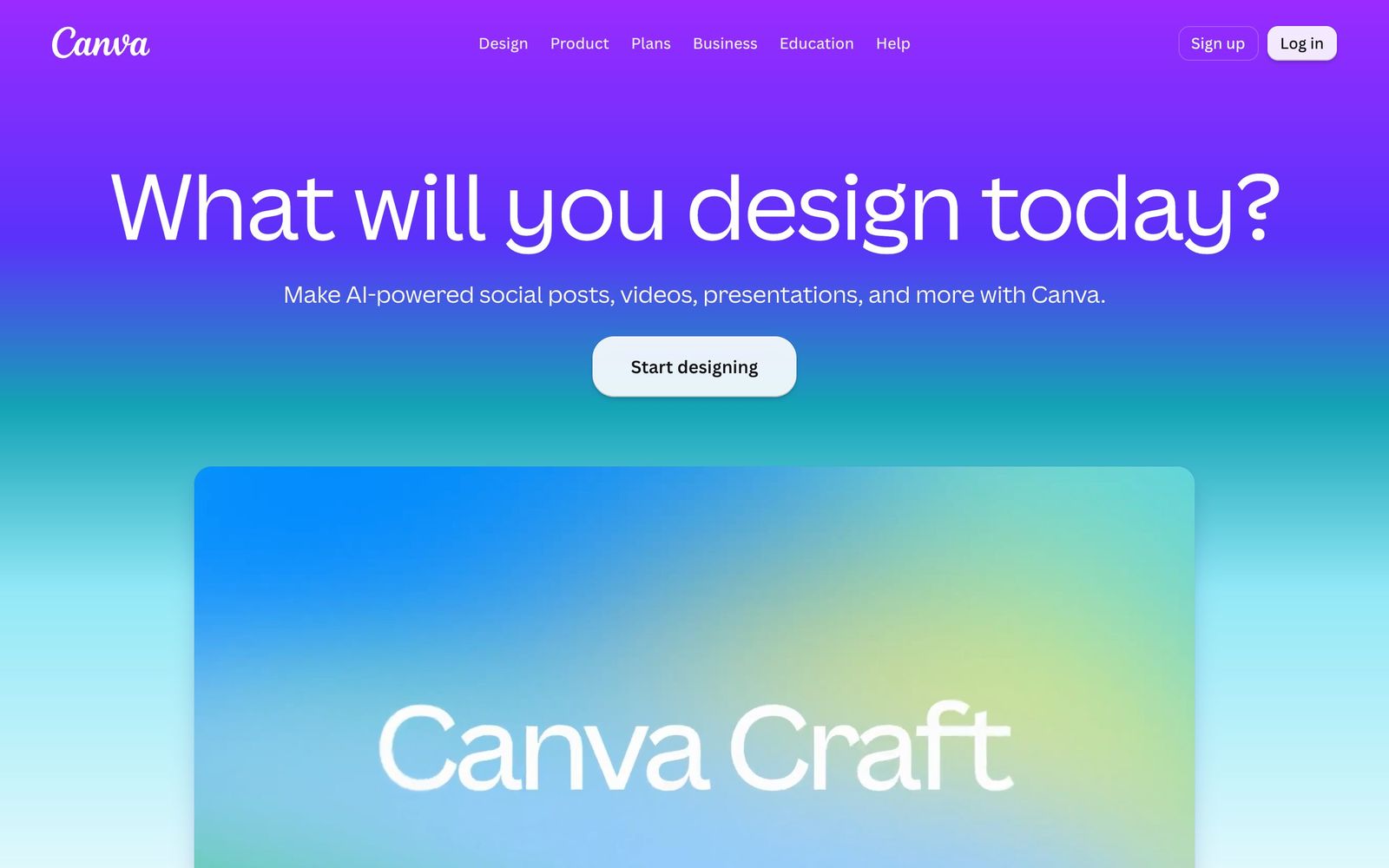
Our rating: 4.3/5. Fit for this job 4.0/5, ease of use 4.7/5, value for money 4.3/5.
Canva's video editor has trending hook templates, one-click captions, Magic Video and Highlights, inside the design tool marketing teams already use for social media content creation. Canva MCP (23 November 2026) builds on-brand videos from a brief in Claude and ChatGPT.
Standout feature: Template-first video with trending hooks, one-click captions and Magic Video, inside the tool teams use for every other design.
What's the difference between Canva and Kapwing? Canva is built on video templates for every format. Kapwing is a deeper video timeline with dubbing.
Canva pros:
- 1.6M+ templates and a huge media library
- One-click captions, Highlights and background remover
- Brand kits and resizing for every channel
- Canva MCP makes editable videos from a brief in Claude and ChatGPT
Canva cons:
- Premium AI tools share a monthly allowance
- Trustpilot reviewers cite surprise renewals and a rigid editor
Pricing: Free plan with templates and a small AI allowance. Canva Pro is $18 a month, or $12 a month billed yearly.
Choose Canva over Kapwing if: your team already designs in Canva.
What's new in Canva: On 23 November 2026, Canva MCP became generally available, with brief-to-video generation inside Claude and ChatGPT.
Available for: Web, and Claude or ChatGPT through Canva MCP
#10 Adobe Express: Best for quick social videos from templates
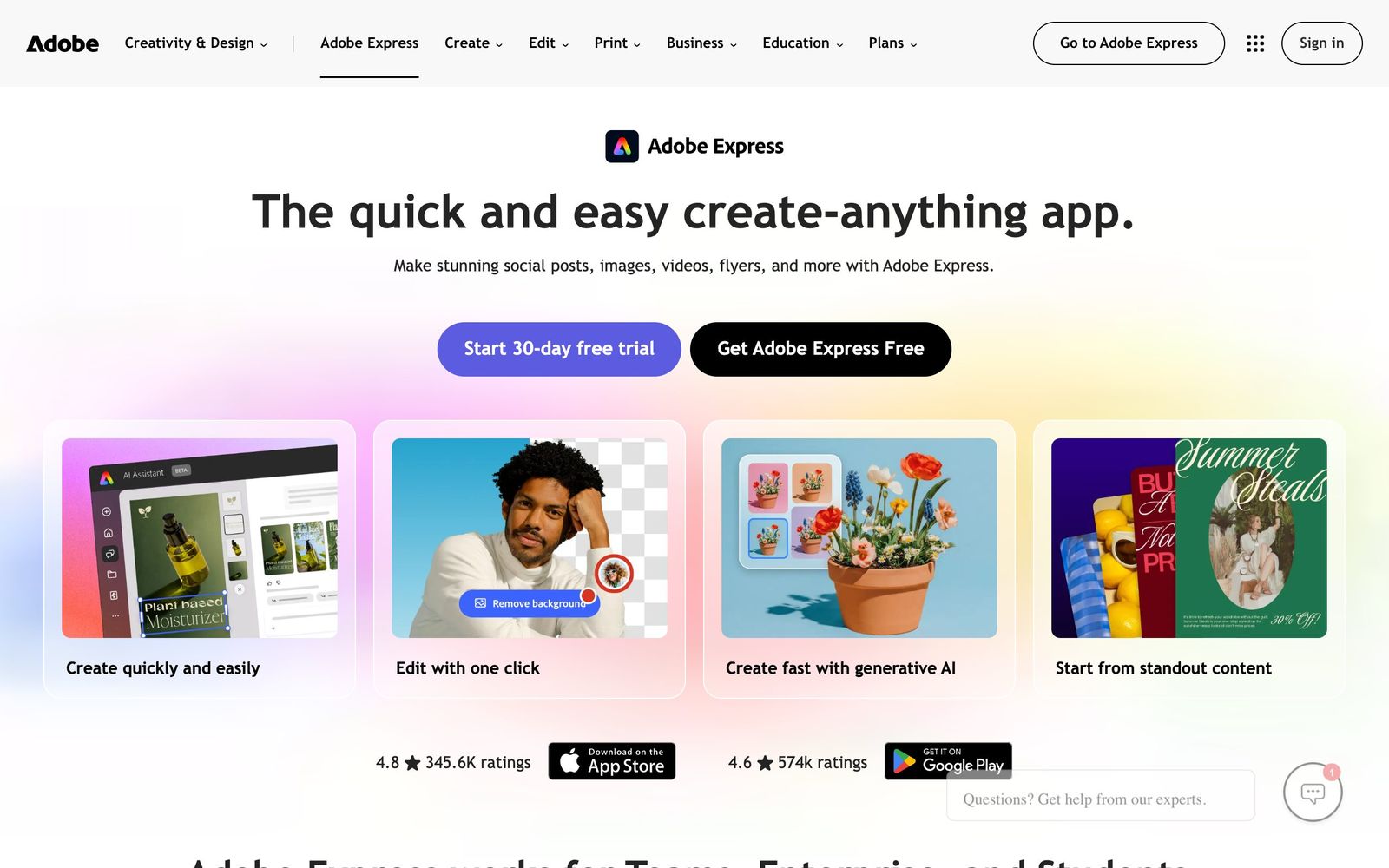
Our rating: 4.2/5. Fit for this job 3.7/5, ease of use 4.6/5, value for money 4.3/5.
Adobe Express has a million-plus Adobe Stock assets and Firefly AI, plus scheduling to social networks. It is template-led rather than a full timeline editor, and Text to Video needs the Firefly Pro plan.
Standout feature: A huge free template and stock library with commercially safe Firefly AI.
What's the difference between Adobe Express and Kapwing? Adobe Express is a template tool with light video editing. Kapwing is a full video editor.
Adobe Express pros:
- 345,000+ free templates
- Commercially safe Firefly AI
- Web, iPhone and Android
- Rated 4.8 from 370,000 US App Store ratings
Adobe Express cons:
- Video editing is basic
- One recent paid App Store reviewer reports daily bugs, lag and crashes
Pricing: Free plan with 345,000+ templates and limited AI credits. Premium is $9.99 a month.
Choose Adobe Express over Kapwing if: you make quick social posts with templates.
What's new in Adobe Express: iOS 31.3.0 shipped on 20 November 2026; no dated 2026 video feature announcement found.
Available for: Web, iPhone and Android
Best free Kapwing alternatives, with no watermark on export
Editors that cost nothing to start and export without Kapwing's 4-minute cap.
#11 CapCut: Best for free editing on every device
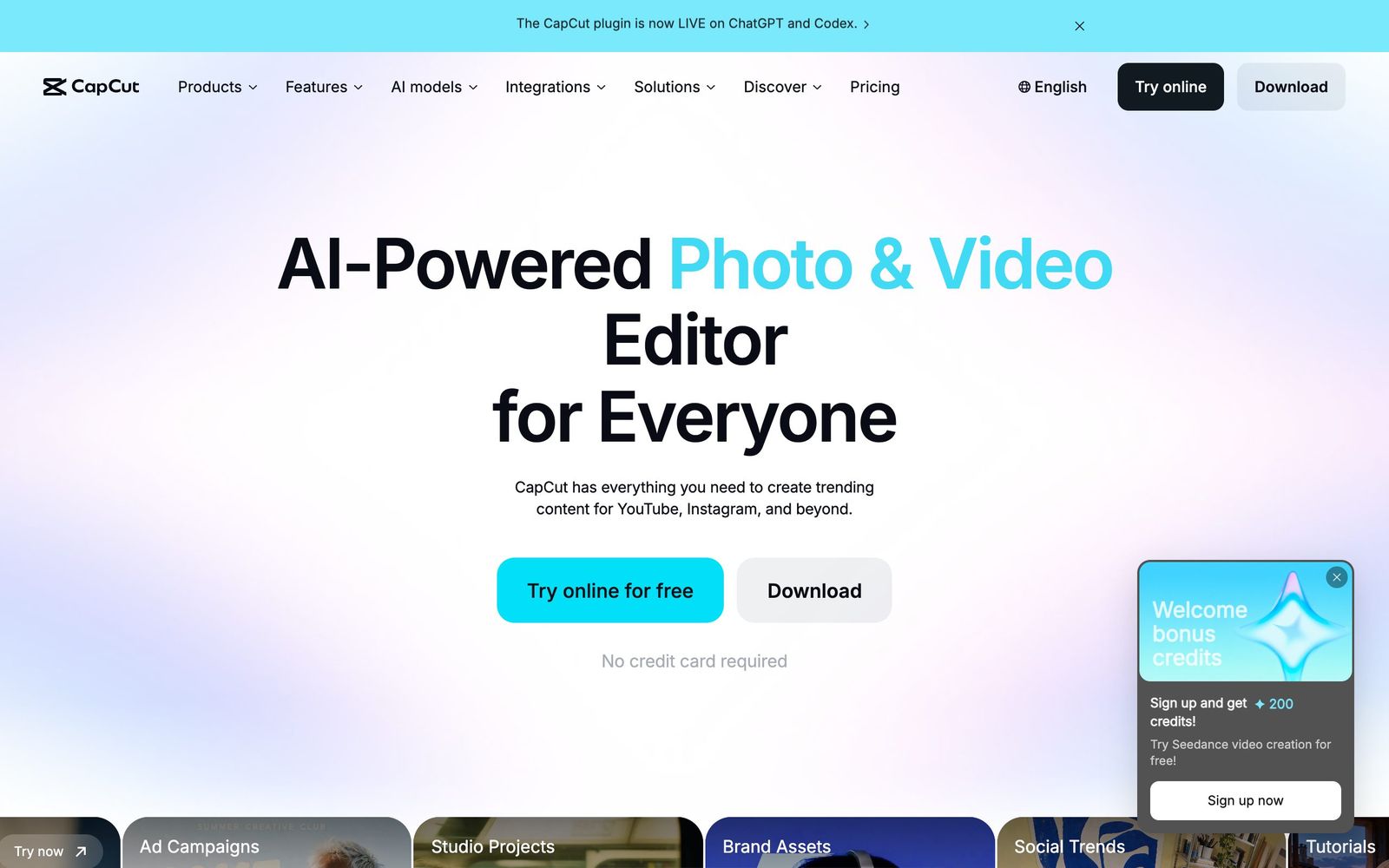
Our rating: 4.3/5. Fit for this job 4.1/5, ease of use 4.6/5, value for money 4.3/5.
Is CapCut better than Kapwing? For free editing on a phone and for templates, yes: CapCut is free on the web, Windows, Mac, iPhone and Android. Kapwing is better for team editing, translation and dubbing.
Standout feature: Free on every device, with templates for every trend.
What's the difference between CapCut and Kapwing? CapCut is a free all-device editor with templates. Kapwing is a browser team editor with dubbing.
CapCut pros:
- Free, fast and familiar on phone and desktop
- Templates for trends
- Auto captions, text to speech and background remover
- Plugin for ChatGPT and Codex
CapCut cons:
- Pro paywalls can appear at the export screen
- Trustpilot score of 1.2 (1,416 reviews); the low reviews we read mention charges after cancelling
Pricing: Free plan with basic editing and free templates. Pro is $19.99 a month on the web; the app stores sell other plans.
Choose CapCut over Kapwing if: you edit on your phone and want templates.
What's new in CapCut: The CapCut plugin is live in ChatGPT and Codex, and iOS 20.3.0 (24 November 2026) improved trimming.
Available for: Web, Windows, Mac, iPhone and Android
#12 DaVinci Resolve: Best for free professional editing

Our rating: 4.1/5. Fit for this job 3.8/5, ease of use 3.4/5, value for money 5.0/5.
DaVinci Resolve's free version is a full professional editor, built for complex video editing, with colour, Fusion effects and Fairlight audio, up to Ultra HD at 60 fps with no watermark. It even includes multi-user collaboration, but free-version support is community forums only.
Standout feature: A full professional editor (edit, colour, Fusion effects, Fairlight audio) free, with no watermark.
What's the difference between DaVinci Resolve and Kapwing? Resolve is a free pro desktop editor. Kapwing is an easy browser editor.
DaVinci Resolve pros:
- A full professional editor, free
- Industry-leading colour grading
- One-time $295 for Studio
- Mac, Windows and Linux
DaVinci Resolve cons:
- Steep learning curve
- Text-based editing and AI tools need Studio
Pricing: Free version with no watermark up to Ultra HD at 60 fps. DaVinci Resolve Studio is $295 once.
Choose DaVinci Resolve over Kapwing if: you are willing to learn a professional tool for free.
What's new in DaVinci Resolve: Resolve 21.2 (4 November 2026) added faster rendering on M5 Pro and M5 Max Macs and new film looks; Resolve 21 added a Photo page and IntelliSearch.
Available for: Mac, Windows and Linux
Best Kapwing alternatives for clips and production workflows
If you mostly used Repurpose Studio, or your edits end up in a professional editor.
#13 OpusClip: Best for clips from long videos
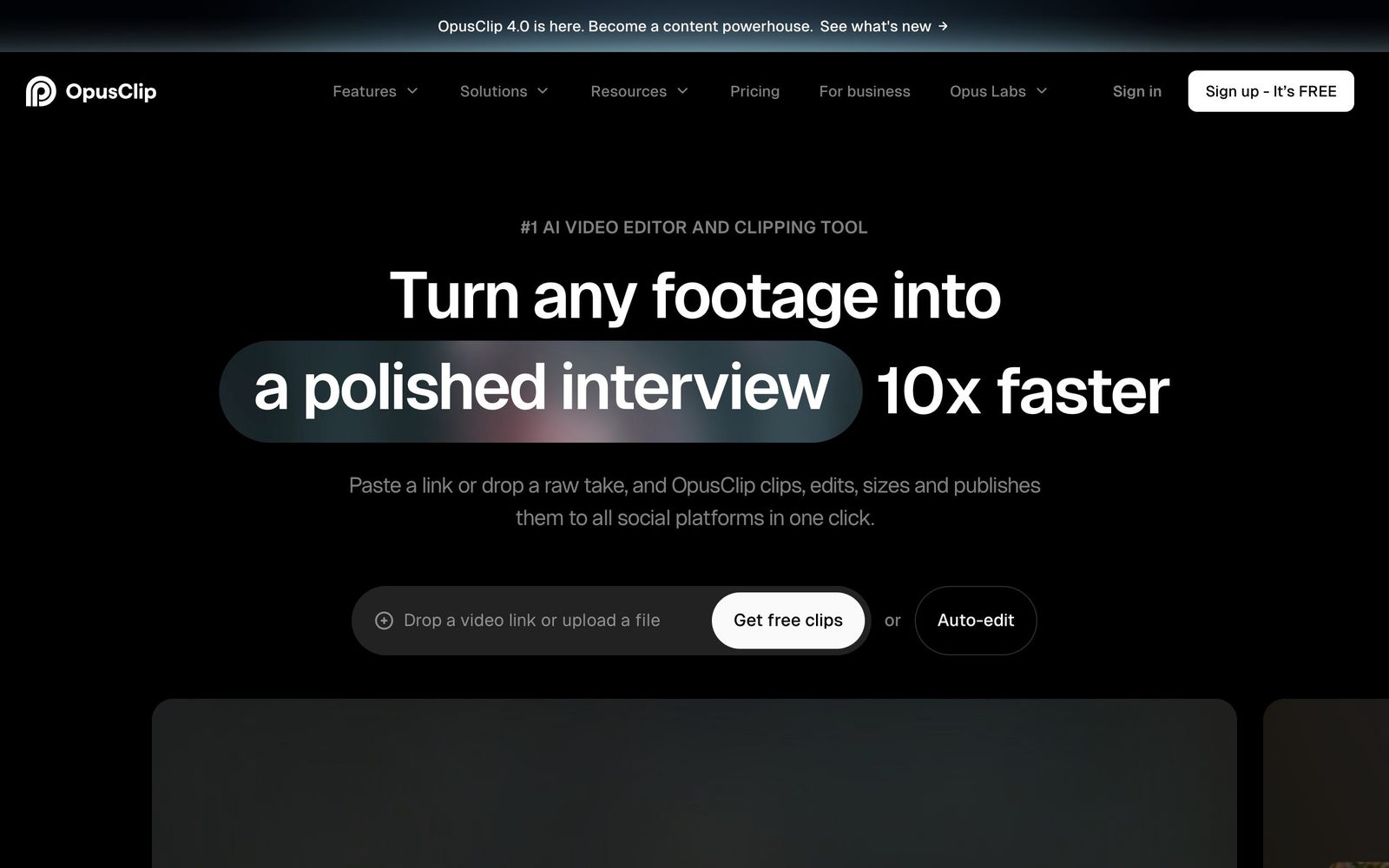
Our rating: 4.2/5. Fit for this job 4.0/5, ease of use 4.5/5, value for money 4.1/5.
OpusClip ranks clips from long videos with a Virality Score, captions them in 20+ languages and reframes the speaker, in place of Kapwing's Repurpose Studio. It suits turning long-form video into short-form clips.
Standout feature: A dedicated clipper with ranking, in place of Repurpose Studio.
What's the difference between OpusClip and Kapwing? OpusClip is a dedicated clip maker. Kapwing's Repurpose Studio is one feature of a larger editor.
OpusClip pros:
- Fast, ranked clips from one upload or link
- Animated captions in 20+ languages
- Exports XML to Premiere Pro and DaVinci Resolve on Pro
- Social scheduler and API on Pro
OpusClip cons:
- Free exports carry a watermark and media expires after 3 days
- One Trustpilot reviewer waited over a day for a human reply; another lost paid credits after cancelling
Pricing: Free plan with 60 credits a month, a watermark and up to 1080p. Starter is $15 a month (monthly only); Pro is $29 a month, or $14.50 a month billed yearly.
Choose OpusClip over Kapwing if: clipping long videos is most of your work.
What's new in OpusClip: OpusClip 4.0 (2 November 2026) added auto-edit for raw talking-head videos, saved edit Recipes, Viral Hook and Motion Graphics.
Available for: Web, plus an API and a Claude connector
#14 quso.ai: Best for clips with a social calendar
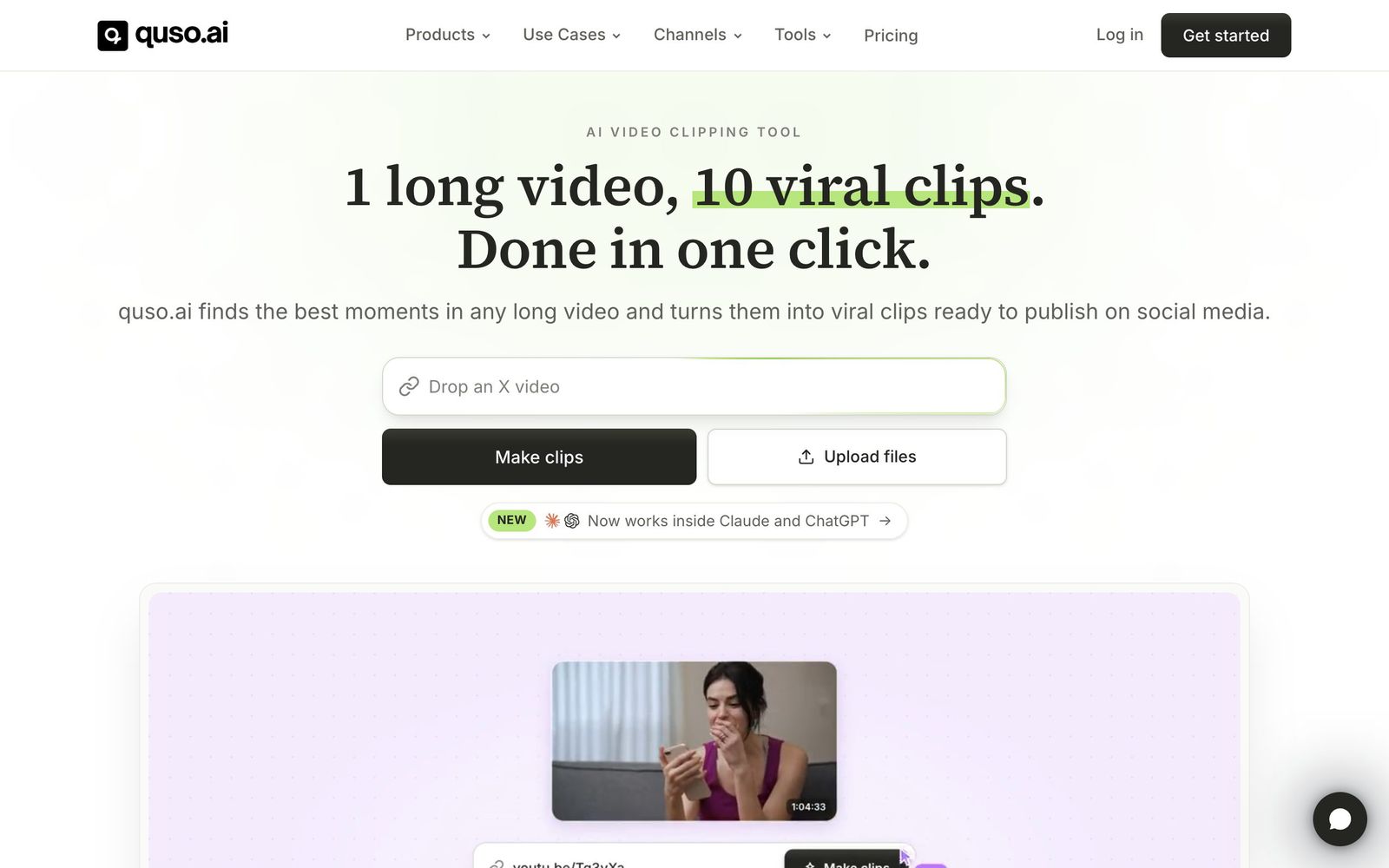
Our rating: 4.1/5. Fit for this job 3.8/5, ease of use 4.3/5, value for money 4.2/5.
quso.ai clips long videos, captions them in 99 languages, and plans and schedules posts, with analytics on its Growth plan. Its connector works inside Claude and ChatGPT on every plan.
Standout feature: Clips, captions, scheduling and analytics in one app, and it works inside Claude and ChatGPT on every plan.
What's the difference between quso.ai and Kapwing? quso.ai schedules and reports on posts. Kapwing centres on editing, subtitles and AI.
quso.ai pros:
- Clip detection with auto-reframe
- Subtitles in 99 languages with SRT export
- Filler word and silence removal on Essential
- Schedules to 7 platforms on Essential
quso.ai cons:
- Free exports are 720p with a watermark, kept 7 days
- Lite publishes to TikTok only
Pricing: Free plan with 75 credits a month, 720p and a watermark. Lite is $29 a month billed monthly; Essential is $39.
Choose quso.ai over Kapwing if: you want clips and a calendar together.
What's new in quso.ai: quso.ai for Claude and ChatGPT, an MCP connector, is marked New on its site (checked 26 November 2026). quso.ai was called Vidyo.ai until January 2025.
Available for: Web and mobile, plus a Claude and ChatGPT connector
#15 Adobe Premiere: Best for professional editing for teams
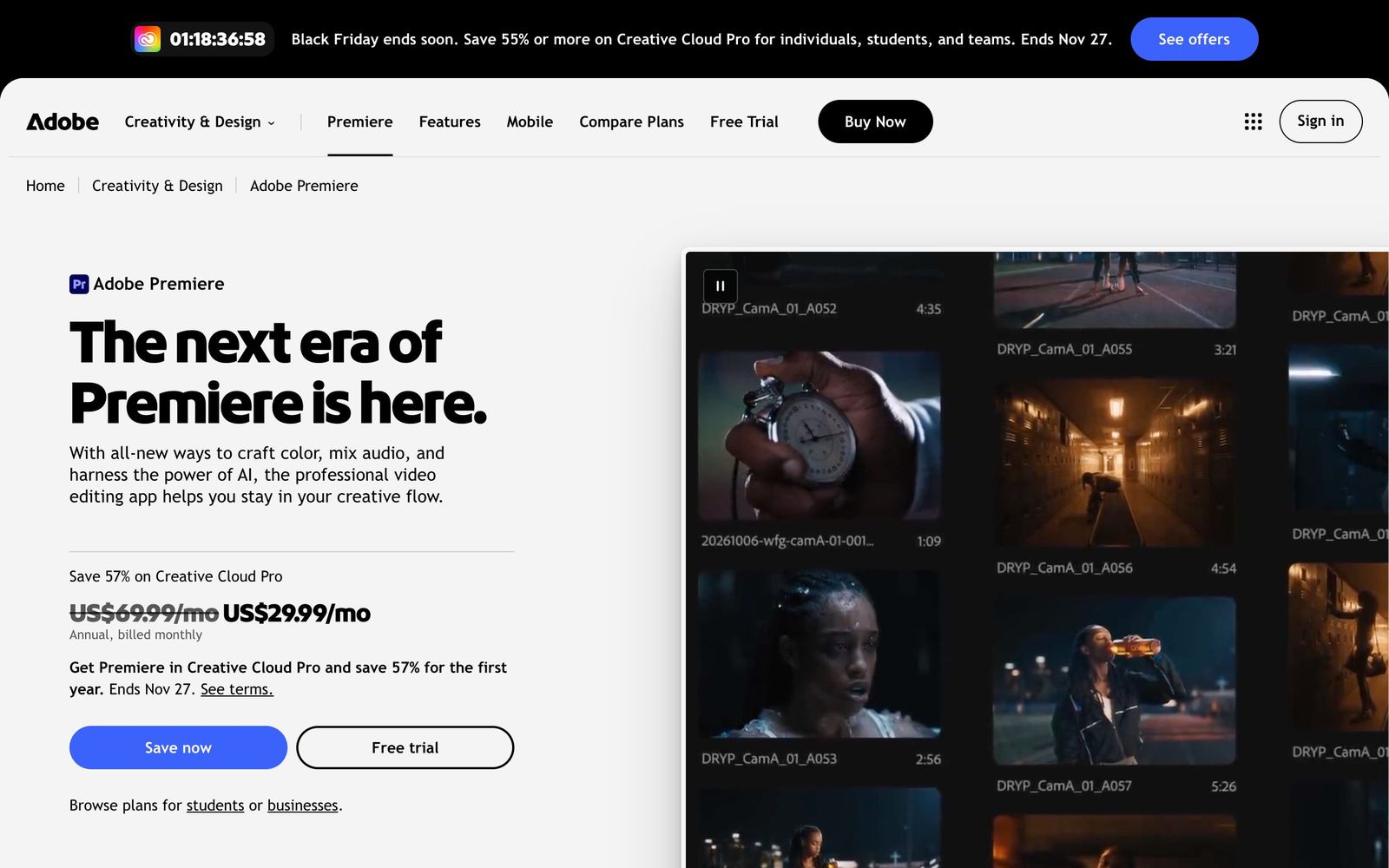
Our rating: 3.6/5. Fit for this job 3.6/5, ease of use 3.6/5, value for money 3.5/5.
Adobe Premiere is where many production teams end up: an AI Assistant panel sorts bins and assembles rough cuts, and text-based editing and captions in 20+ languages are built in. It has no free plan, and one Trustpilot reviewer (Adobe-wide) reports an early termination fee.
Standout feature: The industry-standard timeline, now with Generative Extend, an AI Assistant panel and a Color Mode grading workspace.
What's the difference between Adobe Premiere and Kapwing? Premiere is a desktop pro editor on an annual plan. Kapwing is a browser editor anyone can open.
Adobe Premiere pros:
- Industry standard, with every pro feature
- Text-based editing and captions in 20+ languages
- Color Mode and one-click subject masking
- Generative Extend fills missing frames
Adobe Premiere cons:
- Annual commitment; full refund only within 14 days, and one reviewer reports an early termination fee
- Only 25 generative credits a month on the Premiere plan
Pricing: No free plan, a 7-day trial. The Premiere plan is $22.99 a month on an annual plan; Creative Cloud Pro adds 20+ apps.
Choose Adobe Premiere over Kapwing if: you need industry-standard project files.
What's new in Adobe Premiere: Premiere 27.0 (10 November 2026) added Color Mode, the AI Assistant panel and Separate Crosstalk. Adobe dropped "Pro" from the name in January 2026.
Available for: Windows, Mac and phones
How to choose the best Kapwing alternative
Start with the reason you are leaving and your production workflow: solo content creation, a marketing team, or repurposing long videos. The best Kapwing alternative for one creator is rarely the best for a team, so judge each one on the job you do every week.
Do you need exports without a watermark?
Kapwing's free plan watermarks every export, at 720p and 4 minutes. Free with no watermark: Clipchamp (1080p), DaVinci Resolve and HyperFrames Studio (local exports to 4K); ChatCut's free plan has unlimited local export.
What does an AI fix cost?
If you left because credits vanished on failed jobs, check how each tool bills a retry. In HyperFrames Studio a fix redoes one piece and manual edits are free; ChatCut charges credits only for generation; invideo and Kapwing charge per job.
How does your team work?
Kapwing's shared timeline for collaborative video editing is a real strength. Canva and VEED are the closest for teams in a browser, invideo has live multiplayer cursors, Resolve has multi-user collaboration, and HyperFrames Studio has review links. For translation and dubbing, VEED; for clips, OpusClip or quso.ai; for transcript editing, Descript; for generated footage, invideo or Crreo.
Short-form, long-form or both?
For short-form video under a minute, a browser editor or clipper is enough. For long-form video, check the caps: Kapwing Pro projects run to 2 hours, and Descript caps media hours. HyperFrames Studio's local exports have no length cap.
Browser or desktop?
Kapwing is browser-only and cloud-based. If uploads and long projects slow your editing workflow down, a desktop app works on your local files: HyperFrames Studio, ChatCut, Resolve or Premiere. On a Mac, Palmier Pro does too.
How we compared
Every tool on this list was scored on three things:
- Video editing capabilities. Timeline, subtitles, AI capabilities and how much video content you can create without other tools.
- Reliability and control. Whether AI edits can be fixed without paying for a redo.
- Value. Watermark, export limits, whether the tool offers a free plan, price, and how much editing time it saves content creators and video production teams.
User complaints. We read recent reviews on Trustpilot, Product Hunt and the App Store and say when a complaint comes from a single review, with its date when it is old. Some review sites (G2, Capterra) blocked automated reading, so their scores are not quoted.
Ratings. Each tool gets three scores out of 5: fit for the job this page is about, ease of use, and value for money (free plan, entry price, watermarks and caps). The overall rating is their average. The scores are our judgment from the sources above, not a lab benchmark.
Kapwing's prices default to yearly billing on its pricing page ($16 and $50 a month); we quote the monthly prices ($24 and $64).
Conclusion
For creators who want AI to edit for them, HyperFrames Studio is the best Kapwing alternative: an agent edits by conversation, a fix redoes only the piece you change, and one video that works becomes twenty versions. It is free to start, exporting to 4K on your computer with no watermark or length cap.
If you want a free browser editor, Clipchamp is the easiest win (1080p, no watermark); if you like Kapwing and only want better reviews and phone apps, VEED is its twin; ChatCut suits chat editing with a hand-off to a pro editor. Teams in Canva should edit video there, clippers should look at OpusClip or quso.ai, and production teams at Premiere or Resolve. Keep Kapwing if dubbing into 40+ languages on a shared browser timeline is exactly what you need.
Edit by asking, free to start
Frequently asked questions
What is the best Kapwing alternative?
HyperFrames Studio is the best Kapwing alternative for AI editing, rated 4.7 out of 5 here, because its agent edits by conversation, a fix redoes only the piece you change, and free exports have no watermark. Clipchamp (4.6) is the best free browser editor, and VEED (4.3) the closest like-for-like.
Is there a free version of Kapwing?
Yes. Kapwing's free tier gives 10 credits and unlimited exports, but every export has a watermark, at 720p, with videos up to 4 minutes and 30 minutes of exports a month.
Is there a free Kapwing alternative without a watermark?
Yes. Clipchamp exports 1080p with no watermark for free, and DaVinci Resolve is free with no watermark. HyperFrames Studio is free to start and exports without a watermark on your computer. Kapwing's free plan watermarks every export.
Is CapCut better than Kapwing?
CapCut is better for free editing on a phone and for templates; Kapwing is better for team editing, translation and dubbing in the browser. CapCut's Trustpilot score is 1.2 (complaints about billing and export paywalls) and Kapwing's 1.8 (complaints about credits lost on failed AI jobs and refused refunds).
Is VEED better than Kapwing?
VEED is very similar and has better reviews (4.2 on Trustpilot against 1.8) plus iPhone and Android apps. Kapwing has a shared team timeline and Kai, its multi-step agent.
Is there a 100% free video editor?
Yes. DaVinci Resolve's free version, iMovie and Clipchamp are free with no watermark. HyperFrames is free too: a free download, built on a free, open-source engine.
Which Kapwing alternative has an AI agent?
HyperFrames Studio, ChatCut, Descript (Underlord), invideo (Agent Two) and VEED (VEED AI) all have AI agents that edit for you. In HyperFrames Studio, every change the agent makes stays editable.
Does Kapwing have a desktop app?
No desktop app is listed on Kapwing's homepage or pricing page; it runs in the browser. HyperFrames Studio, ChatCut, DaVinci Resolve and Premiere have desktop apps.
Can I migrate my Kapwing projects?
No editor imports Kapwing projects, so download your finished videos and source files first. Subtitles you exported as files can be reused elsewhere.
Can you schedule videos directly with Kapwing?
Scheduling wasn't among the Kapwing features we recorded from its site, which centre on editing, subtitles and AI. If you need it, quso.ai, OpusClip (on Pro) and Adobe Express schedule posts.
How long can AI-generated videos be?
It depends on the tool. Kapwing Pro projects run up to 2 hours. HyperFrames Studio's local exports have no length cap. Generated footage from models like Seedance is made in short clips and edited together.
How much does it cost to make AI videos?
Plans that include AI start around $15 to $25 a month: Kapwing Pro is $24, VEED Creator $25, Descript Hobbyist $24 and invideo Starter $20 per seat. HyperFrames Studio is free to start.
Is HyperFrames free?
Yes, HyperFrames is free to start: a free download, built on the free, open-source engine with 90,000+ GitHub stars. Pro is $25 a month for more (pricing).

Written by Ular Kimsanov
Ular Kimsanov works on HyperFrames at HeyGen, the free, open-source tool where AI agents make videos, and writes about making videos with AI agents. Prices and plans on this page were checked on 26 November 2026.