Movavi Video Editor is made for beginners: templates you fill with your clips, one-click silence removal, AI auto-captions with 30+ subtitle styles, AI noise removal, upscaling up to 8x, background swap, motion tracking and screen recording, on Windows and Mac. The 2027 edition (version 27.4.0, 23 November 2026) leads with Movavi Templates, pre-edited blocks where you swap in your own clips and text.
The trouble is the buying: a watermarked free trial, an effects trial added at checkout, and a Trustpilot score (3.5 from 22,175 reviews, across all Movavi products) dragged down by charges after cancelling. The 15 editors below range from free and simple to professional, grouped by what a Movavi user usually wants next: easier, free, more effects, or more power.
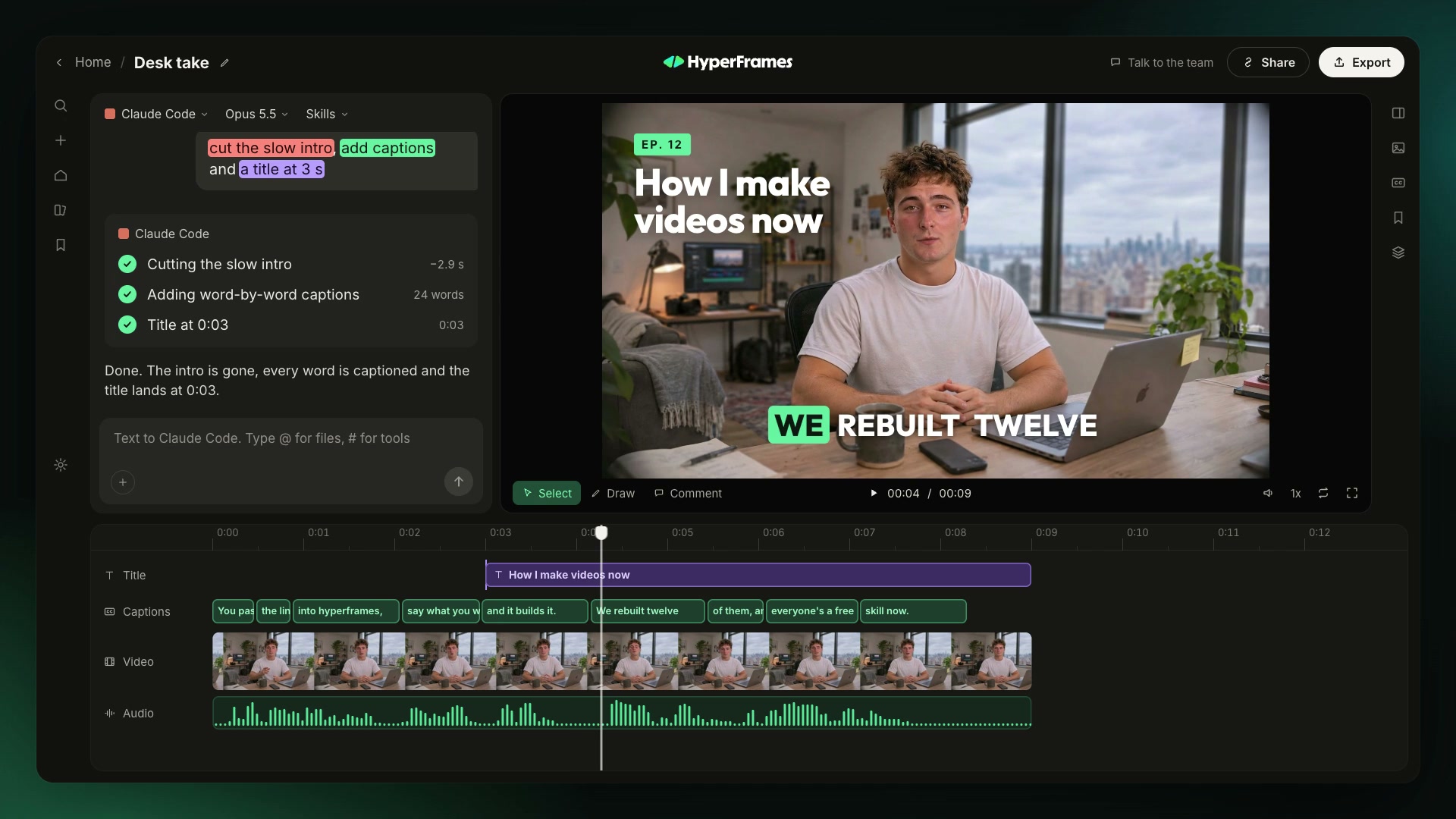
A flat clip is graded through four looks by a sweeping wipe, then a timeline fills with tracks. Made with HyperFrames for this page.
Why look for a Movavi Video Editor alternative?
Why people look for a Movavi Video Editor alternative, from its buy page and recent Trustpilot reviews:
The free version is a trial
Movavi's own page says the free version adds a Movavi watermark, limits videos to 60 seconds (or half the audio length) and locks some export features, and you need to buy after 7 days. One Trustpilot reviewer (November 2026) points out the watermark sits in the very centre of the video.
Add-on subscriptions at checkout
Checkout includes a Movavi Effects trial that renews at $49.95 a month unless you cancel it. One Trustpilot reviewer (November 2026) could not find the cancellation option at all.
Charges after cancelling
One Trustpilot reviewer (November 2026) was charged about $50 three weeks after cancelling, and another says refund requests are refused by default (Movavi replied that a refund was issued).
Confusing prices
The editor alone is $19.95 a month (shown at $9.95 for the first month), Video Editor Plus is $69.95 a year or $149.95 for a lifetime licence, and Video Suite Plus is $99.95 a year. Add the effects store and it's hard to know what a year will cost.
Desktop only
Movavi lists no web or phone editor, so you can't start a video on your phone and finish it on a laptop.
Quick comparison: the best Movavi Video Editor alternatives
Fifteen alternatives at a glance, with Movavi last for reference.
Tool | Best for | Our rating | Free plan | Starting price |
|---|---|---|---|---|
HyperFrames | Editing by asking, no experience needed | 4.7/5 | Yes, unlimited local exports | Free to start |
Clipchamp | Free and simple on Windows | 4.6/5 | Yes, 1080p, no watermark | Free; M365 $9.99/mo |
iMovie | Free and simple on Mac | 4.5/5 | Yes, fully free | Free |
Adobe Express | Templates and simple video for social | 4.3/5 | Yes, limited AI | $9.99/mo |
DaVinci Resolve | A free editor to grow into | 4.1/5 | Yes, UHD, no watermark | Free; Studio $295 once |
Shotcut | A free open-source editor | 4.0/5 | Yes, fully free | Free |
OpenShot | A free, friendly open-source editor | 4.2/5 | Free (open source) | Free |
Kdenlive | A free editor with pro features | 4.0/5 | Free (open source) | Free |
CapCut | Free effects and templates | 4.3/5 | Yes | $19.99/mo |
TimeBolt | One-click silence removal, paid once | 4.0/5 | Yes, watermark | $17/mo or $347 once |
Filmora | Lots of effects on a budget | 4.1/5 | Trial, watermark | $69.99/yr ($49.99 on sale) |
Kapwing | Templates and subtitles in the browser | 3.8/5 | Yes, 720p, watermark | $24/mo |
Final Cut Pro | A one-time pro editor on Mac | 4.0/5 | No, 30-day trial | $299.99 once |
Adobe Premiere | The industry standard | 3.6/5 | No, 7-day trial | $22.99/mo (annual) |
Palmier Pro | A free Mac editor run by an AI agent | 3.7/5 | Yes, no generation credits | $49/mo list |
Movavi Video Editor (for reference) | Beginner desktop editing with templates | Not rated | Trial, watermark, 60 s | $19.95/mo |
Ratings average our three scores (fit, ease of use, value); see How we compared. Prices on 26 November 2026; Movavi showed a first-month discount and Filmora a sale.
Why trust us? HeyGen makes HyperFrames and publishes this page, so we compete with the tools below. Every rival's price, plan and feature comes from its own pricing page, help center or changelog, read on 25 and 26 November 2026. User complaints are quoted from public review sites and linked in How we checked. HyperFrames claims come from its pricing page and from the Studio app's current build. Where a rival is the better pick, we say so.
Edit your first video by asking, free
Easiest Movavi Video Editor alternatives
For people who want a good video with as little editing as possible. All four are easier than Movavi to start with and free to try without a watermark trap.
#1 HyperFrames: Best for editing by asking, no experience needed
Our rating: 4.7/5. Fit for this job 4.6/5, ease of use 4.6/5, value for money 4.9/5.
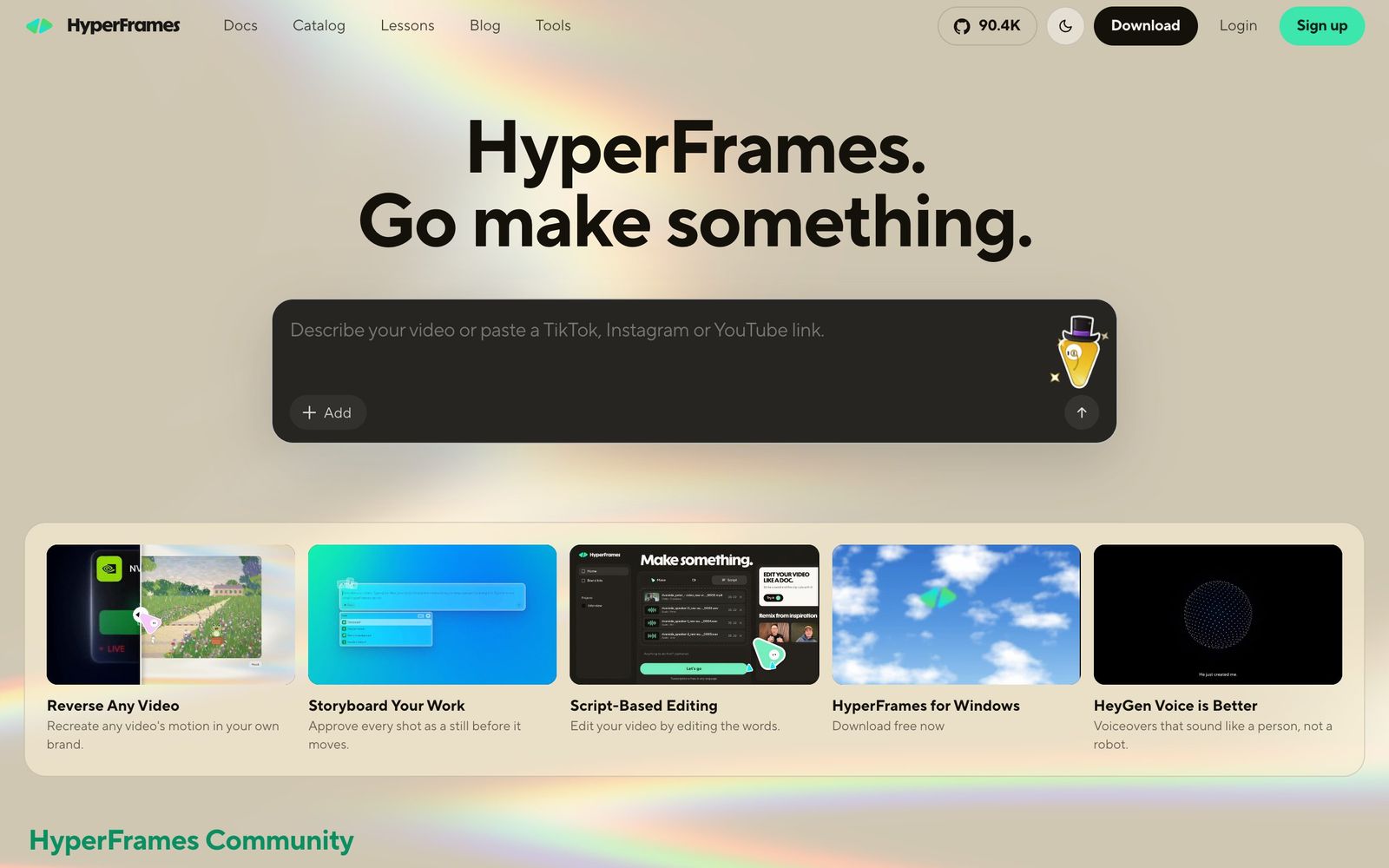
Movavi is friendly for a first video: fill a template with your clips and one click removes the silences. It stops where the template stops, and many of the effects you want sit behind a $49.95-a-month add-on. In HyperFrames Studio you drop in your clip and say what you want: the boring bits and long pauses go, every word gets a caption, and a title and music go on. Saw a video you love? Paste the link and get the same pace and cuts with your clips. Then point at anything you don't like, a title, a caption or a shot, and only that changes. It's free to start, with no watermark and no add-on store on your computer.
HyperFrames Studio lets you edit without learning an editor at all. Drop in your clip and ask: "cut the boring bits and long pauses, add captions, a title at the start, warm up the colour, add gentle music." The AI agent does it, and every change shows up on the timeline as its own piece. Don't like something? Say so, or point at it on the frame: "make the title smaller", "captions lower". The timeline is there when you want to trim clips yourself.
Instead of templates, HyperFrames starts from real videos: an inspiration library of 1,000+, plus "make a video like one you love". Edit my footage removes ums and long pauses and fixes sound and colour in one pass, much like Movavi's one-click silence removal, with dozens of caption styles. AI voiceovers, music, sound effects and brand kits come free. See the AI video editor page and the free lessons.
Standout feature: Change one thing, keep the rest: the agent cuts, captions, titles and colours the video when you ask, and when you point at one title, caption or shot, only that changes.
What's the difference between HyperFrames and Movavi Video Editor? Movavi gives you templates and one-click tools that you apply yourself, with a watermarked trial and add-on subscriptions. HyperFrames Studio's AI agent does the editing when you ask, and free exports on your computer have no watermark.
HyperFrames pros:
- Free to start, with no watermark on local exports
- No editing experience needed: ask and review
- Paste a video you love and get its pace and cuts with your clips
- No effects store: titles, captions and graphics are made when you ask
HyperFrames cons:
- No screen recorder: record with your computer's own tool, then bring the file in
- No phone app
Pricing: Free to start: a free download for Mac, Windows and Linux, or start in your browser, with exports on your computer and no watermark.
Choose HyperFrames if: you want a finished video without learning editing.
What's new in HyperFrames: In November 2026 Edit my footage reached every current Studio app build: drop in one clip and the agent removes ums and long pauses, fixes sound and colour, and makes vertical versions, much like Movavi's one-click silence removal with the rest of the edit included.
Available for: Mac, Windows and Linux (the Studio app), the web, and inside Claude, ChatGPT and Grok through the HyperFrames connector
Shoot it, say it, or show it. HyperFrames makes the video. Bring your footage, describe any motion graphic or format, or paste a video you love.
Edit a video free in HyperFrames Studio
#2 Clipchamp: Best for free and simple on Windows

Our rating: 4.6/5. Fit for this job 4.3/5, ease of use 4.6/5, value for money 4.8/5.
Clipchamp, from Microsoft, is free with a personal Microsoft account and exports up to 1080p with no watermark. It has templates, AI editing tools, free stock video, music and sound effects, filters and colour correction, audio-only export, and new text and shape animations (September 2026).
4K exports, premium stock and a brand kit come with Microsoft 365. It runs in the browser and as a Windows app; there is no Mac app. Trustpilot gives 4.8 from 7,616 reviews, and one recent reviewer wants more text options, transitions and a BPM grid.
Standout feature: Watermark-free 1080p exports on the free plan, with Microsoft's AI editing tools included.
What's the difference between Clipchamp and Movavi Video Editor? Clipchamp is free with no watermark. Movavi's trial watermarks and stops at 60 seconds.
Clipchamp pros:
- Free 1080p exports with no watermark
- Simple timeline in the browser or on Windows
- Copilot video creation and text animations
- Trustpilot 4.8 from 7,616 reviews
Clipchamp cons:
- 4K needs Microsoft 365
- One recent Trustpilot reviewer wants more text options, transitions and a BPM grid
Pricing: Free with a personal Microsoft account, with watermark-free 1080p exports. 4K and premium stock come with Microsoft 365 Personal ($9.99 a month).
Choose Clipchamp over Movavi Video Editor if: you are on Windows and want free.
What's new in Clipchamp: New text and shape animations launched (September 2026), with Copilot video creation from the Clipchamp start page.
Available for: Web and Windows
#3 iMovie: Best for free and simple on Mac
Our rating: 4.5/5. Fit for this job 4.0/5, ease of use 4.6/5, value for money 5.0/5.
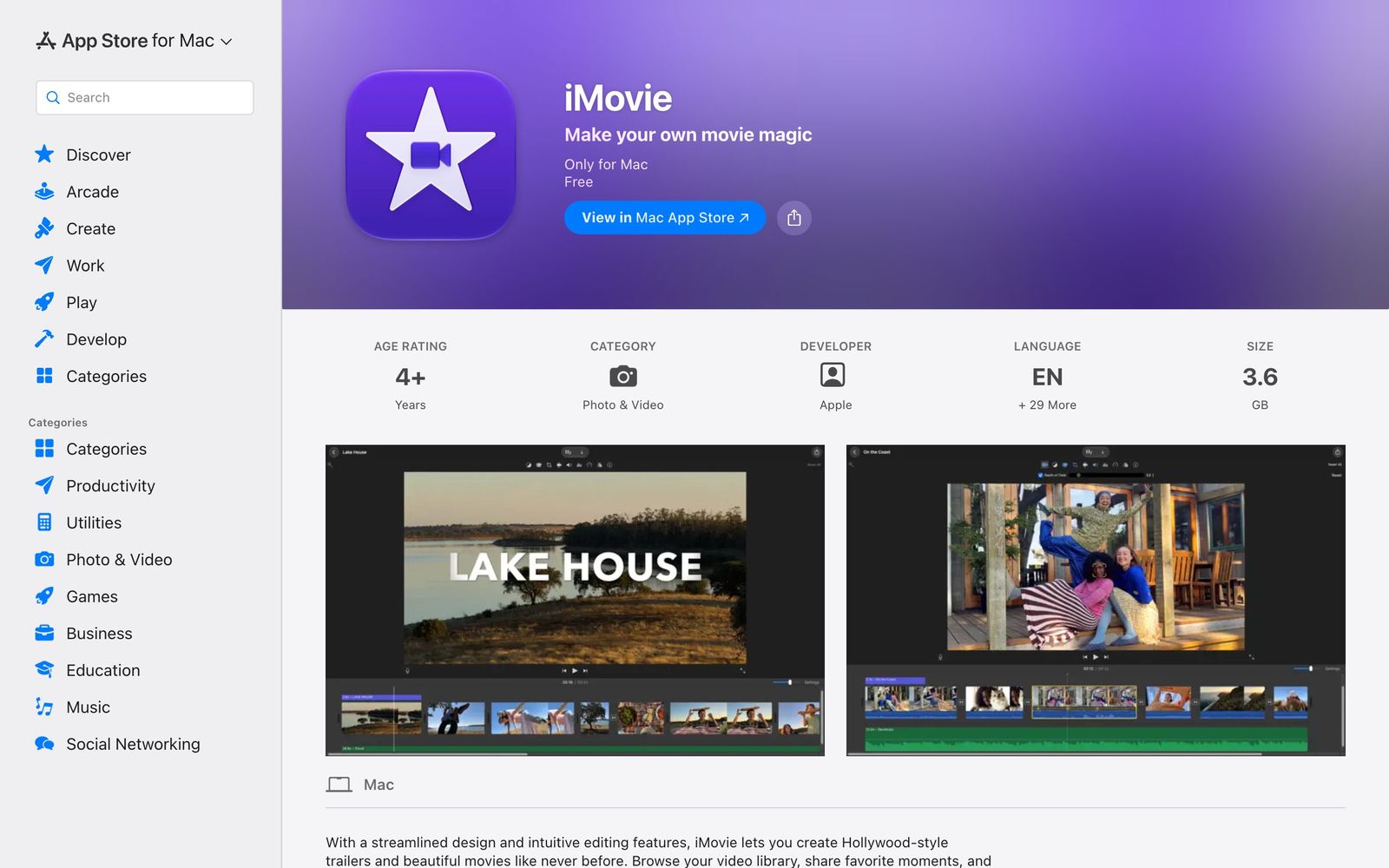
iMovie is Apple's free editor for Mac, iPhone and iPad, with a simple timeline, trailers and themes, and Cinematic mode focus editing for footage from Final Cut Camera (macOS 27). Final Cut Pro is the step up when you outgrow it.
It's Apple only and basic. Recent Mac App Store reviews (October and November 2026) say the redesigned Mac version is harder to use, that an update broke audio recording, and that MP3 import fails.
Standout feature: Free, simple editing on every Apple device.
What's the difference between iMovie and Movavi Video Editor? iMovie is free and simple on Apple devices. Movavi runs on Windows too but charges.
iMovie pros:
- Completely free
- Very easy
- Edits Cinematic mode footage
iMovie cons:
- Apple only
- Basic features
Pricing: Free on Mac, iPhone and iPad.
Choose iMovie over Movavi Video Editor if: you are on a Mac and want free.
What's new in iMovie: iMovie for Mac 10.4.6 (18 November 2026) brought stability fixes.
Available for: Mac, iPhone and iPad
#4 Adobe Express: Best for templates and simple video for social
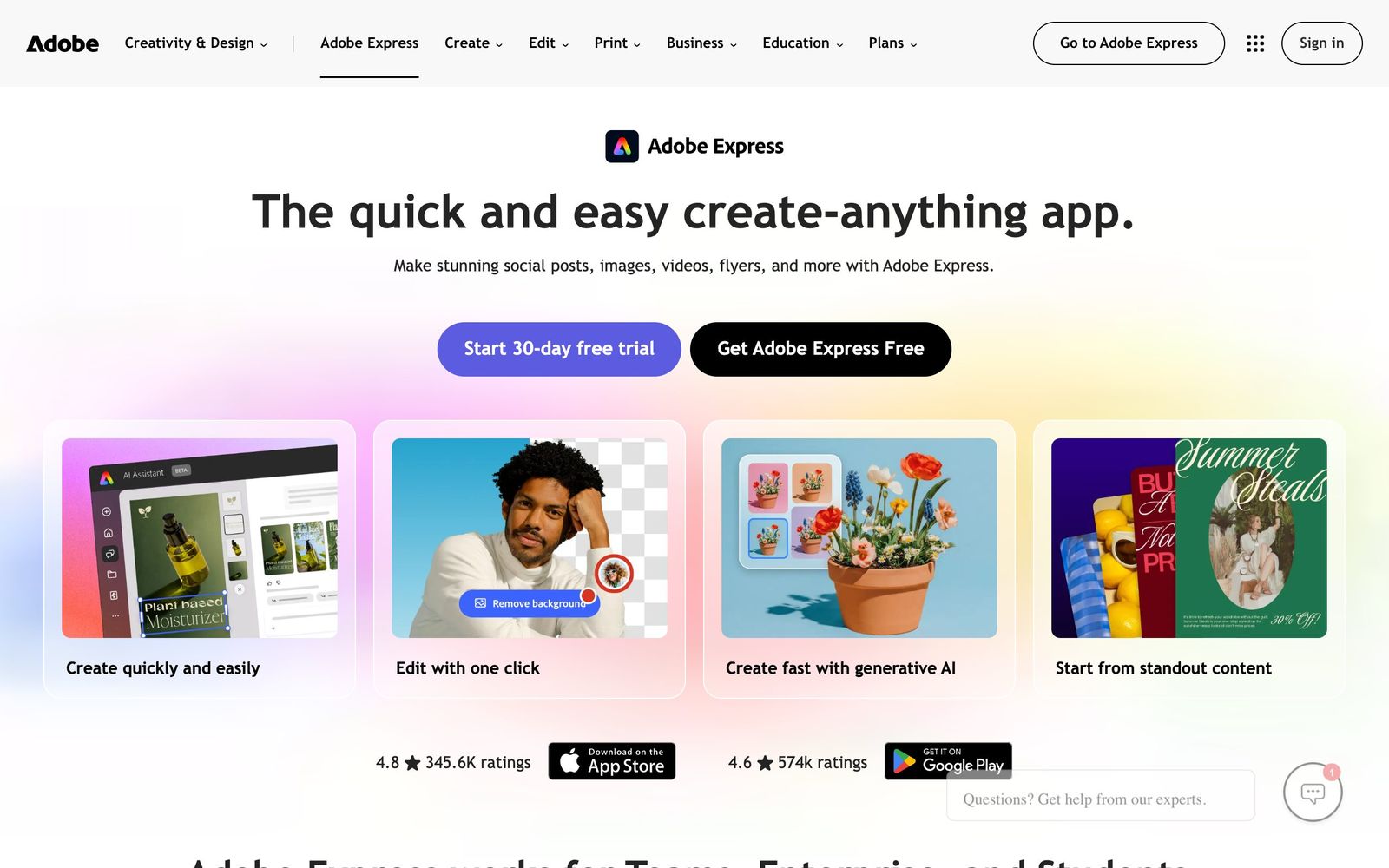
Our rating: 4.3/5. Fit for this job 4.0/5, ease of use 4.6/5, value for money 4.3/5.
Adobe Express is a template-led design and short-video app on the web, iPhone and Android. The free plan includes 345,000+ templates, 1M+ royalty-free Adobe Stock assets and scheduling to one account per social network.
Premium adds all premium templates and Remove Video Background. Its iPhone app rates 4.8 from 370,459 ratings, but one recent App Store reviewer reports lag and crashes, and another says the background remover moved behind the paywall.
Standout feature: A huge free template and stock library with commercially safe Firefly AI.
What's the difference between Adobe Express and Movavi Video Editor? Adobe Express is template-first and runs everywhere. Movavi is a desktop editor with deeper timeline tools.
Adobe Express pros:
- 345,000+ free templates
- Commercially safe Firefly AI
- Web, iPhone and Android
- Rated 4.8 from 370,000 US App Store ratings
Adobe Express cons:
- Video editing is basic
- One recent paid App Store reviewer reports daily bugs, lag and crashes
Pricing: Free plan with 345,000+ templates and limited AI credits. Premium is $9.99 a month.
Choose Adobe Express over Movavi Video Editor if: you want templates and a phone app more than a desktop timeline.
What's new in Adobe Express: iOS 31.3.0 shipped on 20 November 2026; no dated 2026 video feature announcement found.
Available for: Web, iPhone and Android
Best free and pay-once Movavi alternatives
For people who want to stop paying a subscription for basic editing. Shotcut, OpenShot and Kdenlive are open source with no watermark; see our open-source AI video editors list.
#5 DaVinci Resolve: Best for a free editor to grow into
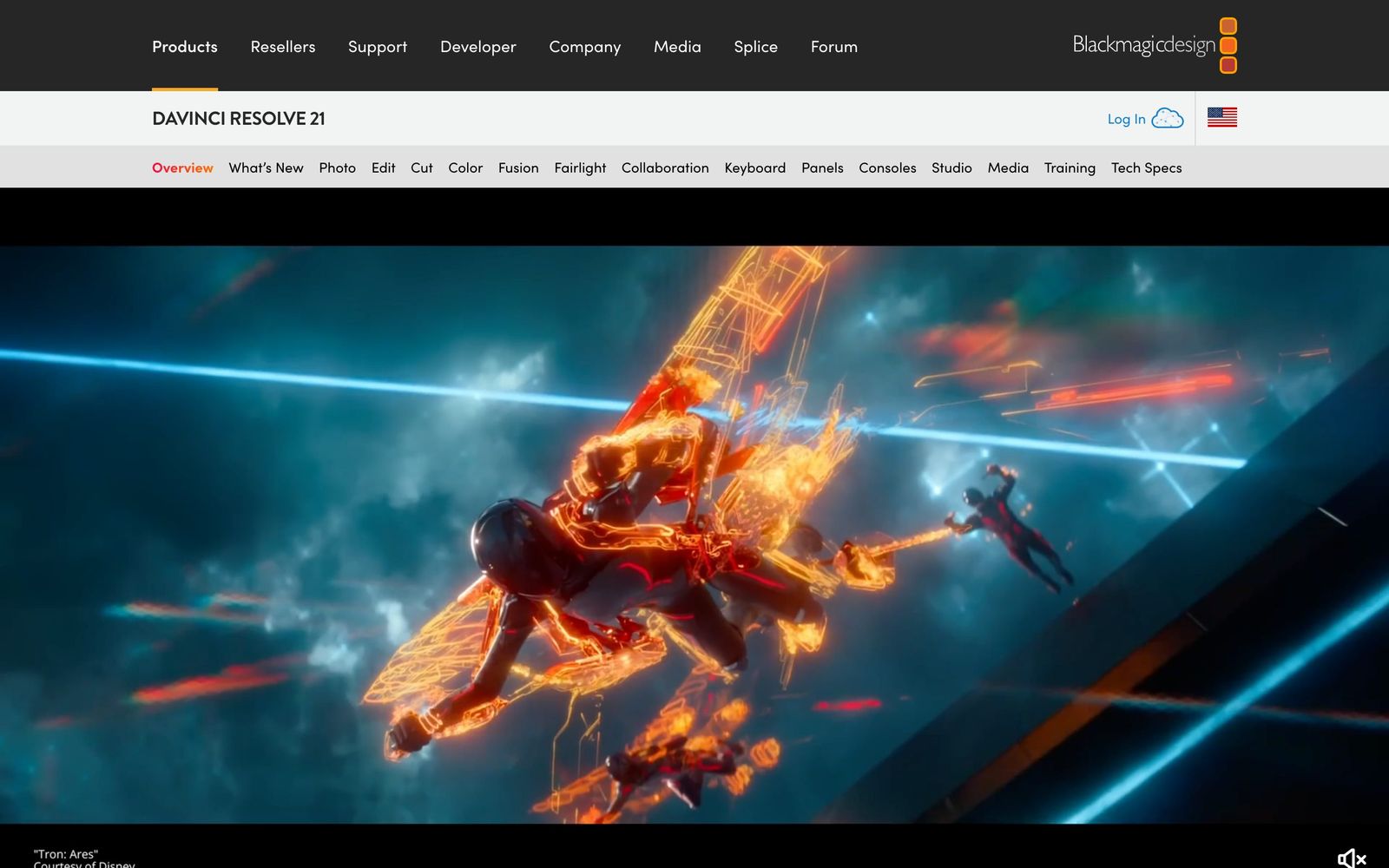
Our rating: 4.1/5. Fit for this job 4.0/5, ease of use 3.4/5, value for money 5.0/5.
DaVinci Resolve's free version is a full professional editor: edit and cut pages, what Blackmagic calls Hollywood-grade colour correction and grading, Fusion effects and Fairlight audio, up to Ultra HD 60 fps, with no watermark and no time limit. It is the answer to "can free software handle 4K footage?": yes, up to 3840 x 2160.
It is harder to learn than Movavi and heavy on slower computers. AI tools, text-based editing and Magic Mask need the paid Studio version, with no subscription.
Standout feature: A full professional editor (edit, colour, Fusion effects, Fairlight audio) free, with no watermark.
What's the difference between DaVinci Resolve and Movavi Video Editor? Resolve is free and far more powerful, but harder to learn. Movavi is simpler but watermarked until you pay.
DaVinci Resolve pros:
- A full professional editor, free
- Industry-leading colour grading
- One-time $295 for Studio
- Mac, Windows and Linux
DaVinci Resolve cons:
- Steep learning curve
- Text-based editing and AI tools need Studio
Pricing: Free version with no watermark up to Ultra HD at 60 fps. DaVinci Resolve Studio is $295 once.
Choose DaVinci Resolve over Movavi Video Editor if: you plan to get serious about editing.
What's new in DaVinci Resolve: Resolve 21.2 (4 November 2026) added faster rendering on M5 Pro and M5 Max Macs and new film looks; Resolve 21 added a Photo page and IntelliSearch.
Available for: Mac, Windows and Linux
#6 Shotcut: Best for a free open-source editor
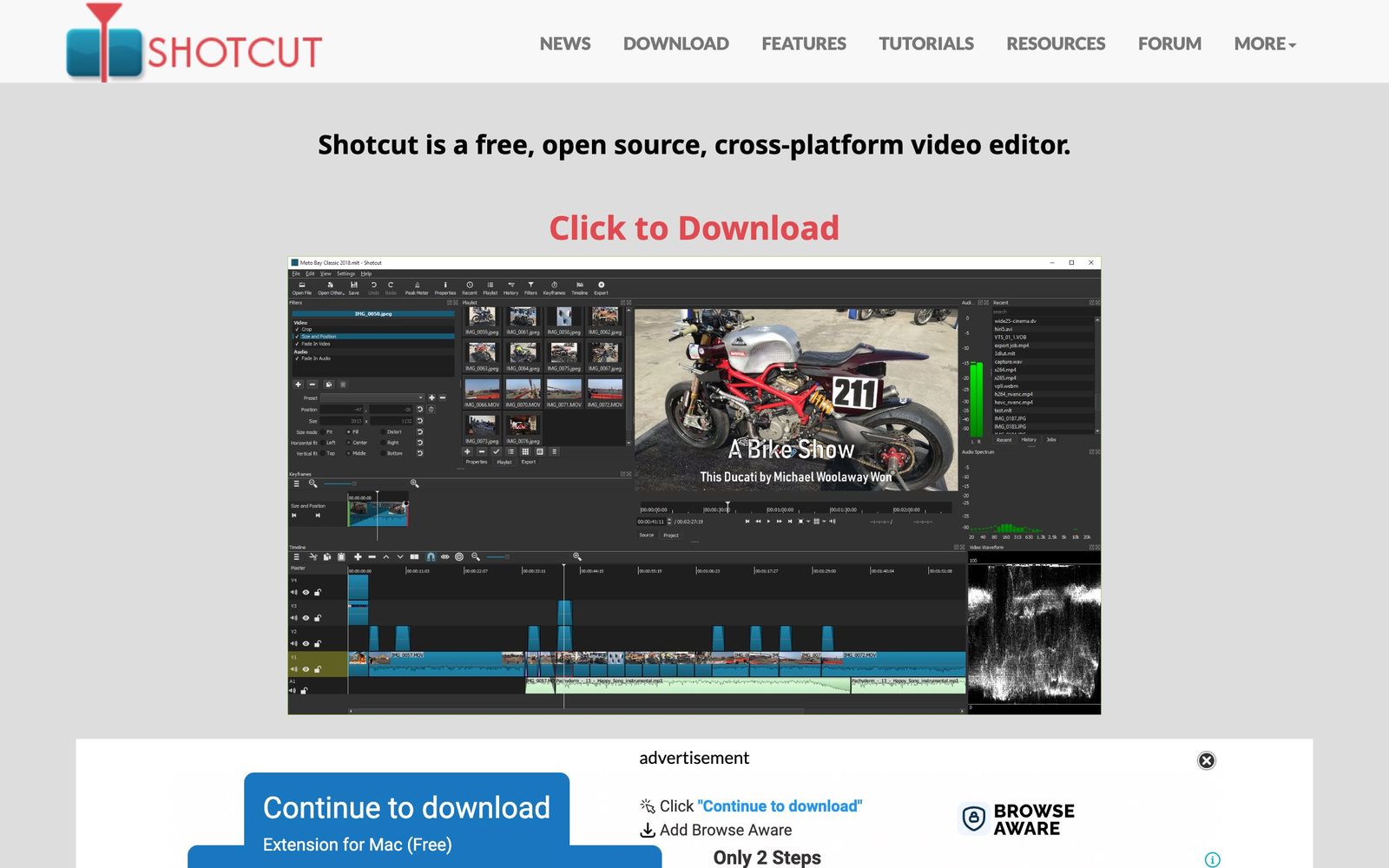
Our rating: 4.0/5. Fit for this job 3.8/5, ease of use 3.3/5, value for money 5.0/5.
Shotcut is completely free and open source on Windows, Mac and Linux. It edits hundreds of formats natively through FFmpeg with no import step, up to 4K, captures screen, webcam and audio, and added Auto Duck and an Audio Mixing Assistant in 2026.
It has no AI editing, no templates and a plain, technical interface, so it's for people willing to learn a little. There is no watermark, no trial and nothing to cancel. SourceForge reviewers rate it 4.9 from 21 reviews.
Standout feature: A free, open-source desktop editor that handles hundreds of formats up to 4K.
What's the difference between Shotcut and Movavi Video Editor? Shotcut is free forever with no watermark but no templates. Movavi has templates and AI tools but charges.
Shotcut pros:
- Completely free and open source
- Windows, Mac and Linux
- Auto duck and an audio mixing assistant (2026)
Shotcut cons:
- No AI editing
- A traditional editor with no templates
Pricing: Free and open source.
Choose Shotcut over Movavi Video Editor if: you want open source and never want to pay.
What's new in Shotcut: Version 26.11.15 (15 November 2026) added an Audio Mixing Assistant.
Available for: Windows, Mac and Linux
#7 OpenShot: Best for a free, friendly open-source editor
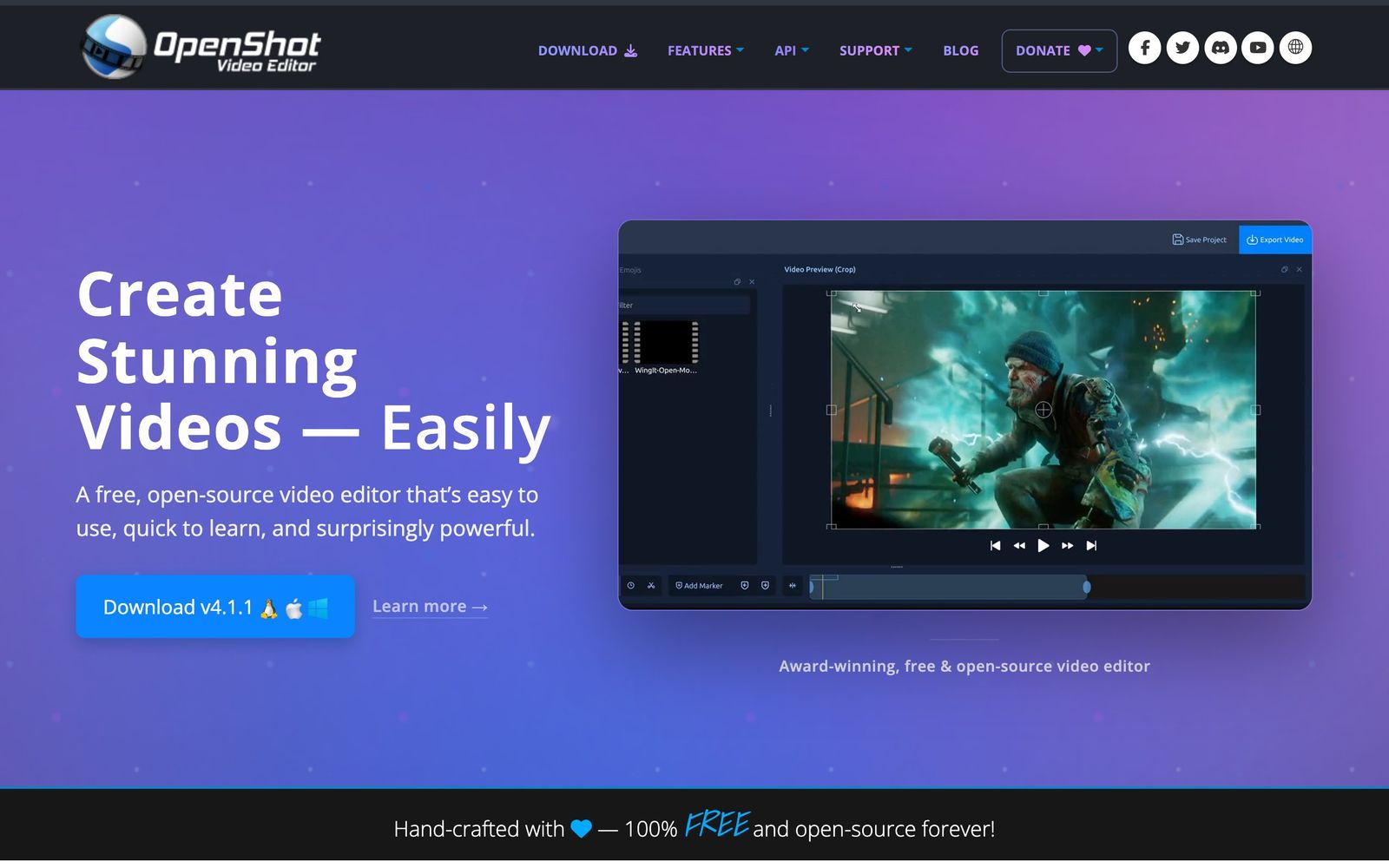
Our rating: 4.2/5. Fit for this job 3.9/5, ease of use 3.8/5, value for money 5.0/5.
OpenShot is a free open-source editor aimed at beginners: unlimited tracks, drag-and-drop trimming, 400+ transitions, keyframe animation, colour grading with LUTs and scopes, chroma key, 3D titles through Blender, and screen, webcam and mic recording. It runs on Windows, Mac, Linux and Chrome OS, with no subscription, watermark or project limit.
OpenShot 4.1 (25 October 2026) added on-video text editing and proxies for heavy 4K footage. It has no AI captions or transcription, the Mac download is an Intel build, and some Trustpilot reviewers (4.0 from 27 reviews) report crashes and lag.
Standout feature: OpenShot 4.1 added a command-line interface, so you or an AI agent like Claude Code or Codex can build whole videos.
What's the difference between OpenShot and Movavi Video Editor? OpenShot is free forever with transitions and titles. Movavi has AI tools and templates but watermarks until you pay.
OpenShot pros:
- Completely free, with no watermark
- Windows, Mac, Linux and Chrome OS
- Keyframes, colour grading with scopes, 400+ transitions and masks
- 3D titles through Blender
OpenShot cons:
- No AI captions, transcription or AI editing in the desktop editor
- The Mac download is an Intel build; no native Apple Silicon build is listed
Pricing: Free and open source (GPL v3), with no subscriptions, watermarks or project limits. A paid Microsoft Store version supports the project; OpenShot Cloud API is a separate pay-as-you-go product.
Choose OpenShot over Movavi Video Editor if: you want a free editor that feels as simple as Movavi.
What's new in OpenShot: OpenShot 4.1 (25 October 2026) added on-video text editing, Auto-Optimize proxies for 4K footage, a command-line mode for scripts and AI agents, and ARM64 Linux builds.
Available for: Windows, Mac (Intel build), Linux and Chrome OS
#8 Kdenlive: Best for a free editor with pro features
Our rating: 4.0/5. Fit for this job 3.8/5, ease of use 3.3/5, value for money 5.0/5.
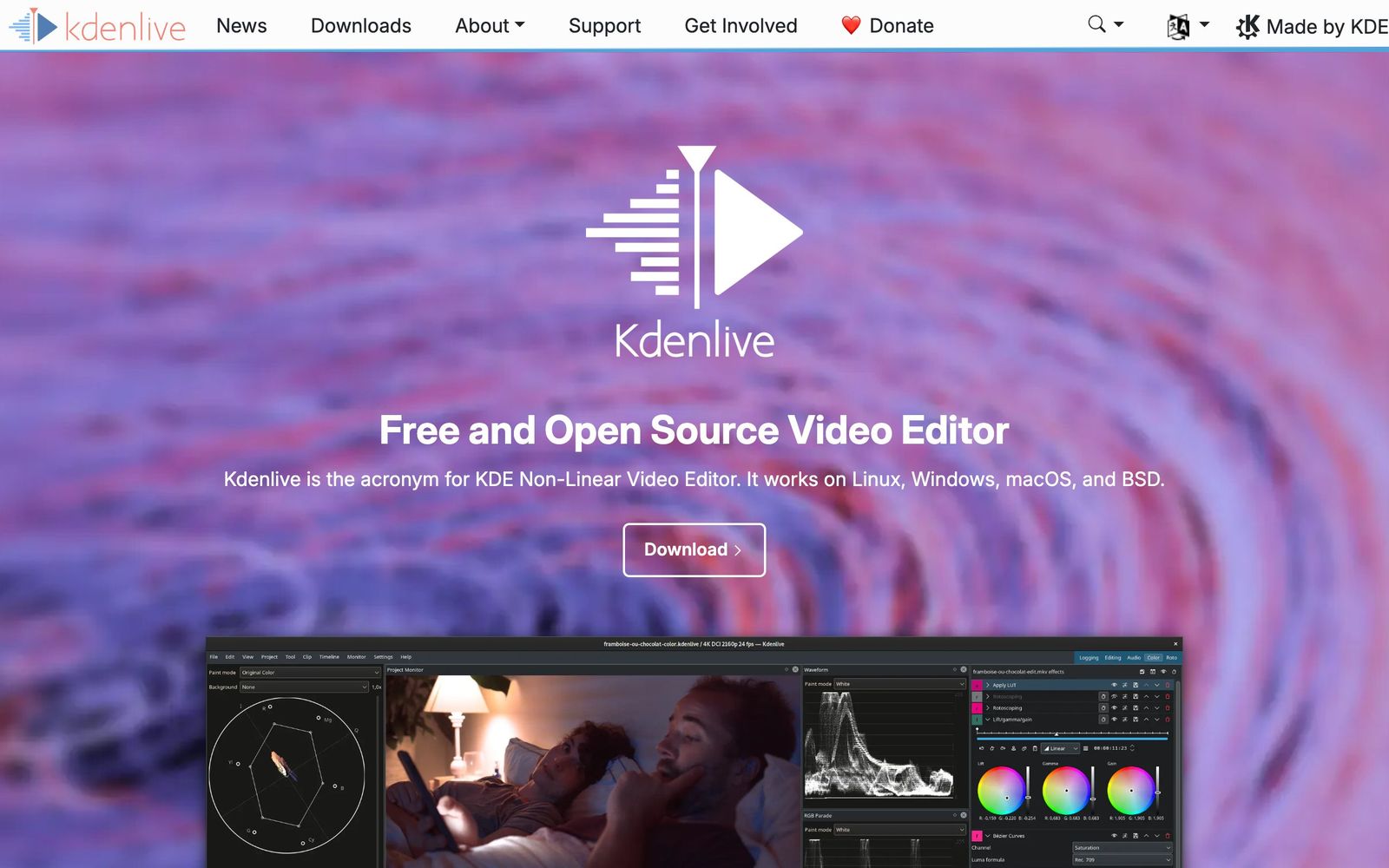
Kdenlive, from the KDE community, is free and open source on Windows, Mac (Apple silicon and Intel), Linux and BSD. It goes further than Movavi on editing: multicam, nested sequences, proxies for slower computers, colour tools with LUTs and scopes, and subtitles with automatic transcription, which covers Movavi's auto-captions for free.
A small, mostly volunteer team builds it, and complex motion graphics need a separate app, Glaxnimate.
Standout feature: A full free editor with multicam and 3-point editing, nested sequences, proxies, scopes and subtitles with automatic transcription.
What's the difference between Kdenlive and Movavi Video Editor? Kdenlive is free with automatic subtitles and pro features. Movavi is simpler but charges.
Kdenlive pros:
- Completely free, from the KDE community
- Windows, Mac (Apple Silicon and Intel), Linux and BSD
- Automatic transcription for subtitles
- Colour tools with LUTs and scopes
Kdenlive cons:
- Built by a small, mostly volunteer team
- Motion graphics beyond simple titles need a separate app, Glaxnimate
Pricing: Free and open source, with no paid tiers; the project asks for donations.
Choose Kdenlive over Movavi Video Editor if: you want free automatic subtitles and room to grow.
What's new in Kdenlive: Kdenlive 26.08.3 (7 November 2026) improved recovery of corrupted projects and fixed crashes and freezes; 26.08.0 (31 August) added track reordering and multi-clip speed changes.
Available for: Windows, Mac, Linux and BSD
#9 CapCut: Best for free effects and templates
Our rating: 4.3/5. Fit for this job 4.1/5, ease of use 4.6/5, value for money 4.3/5.
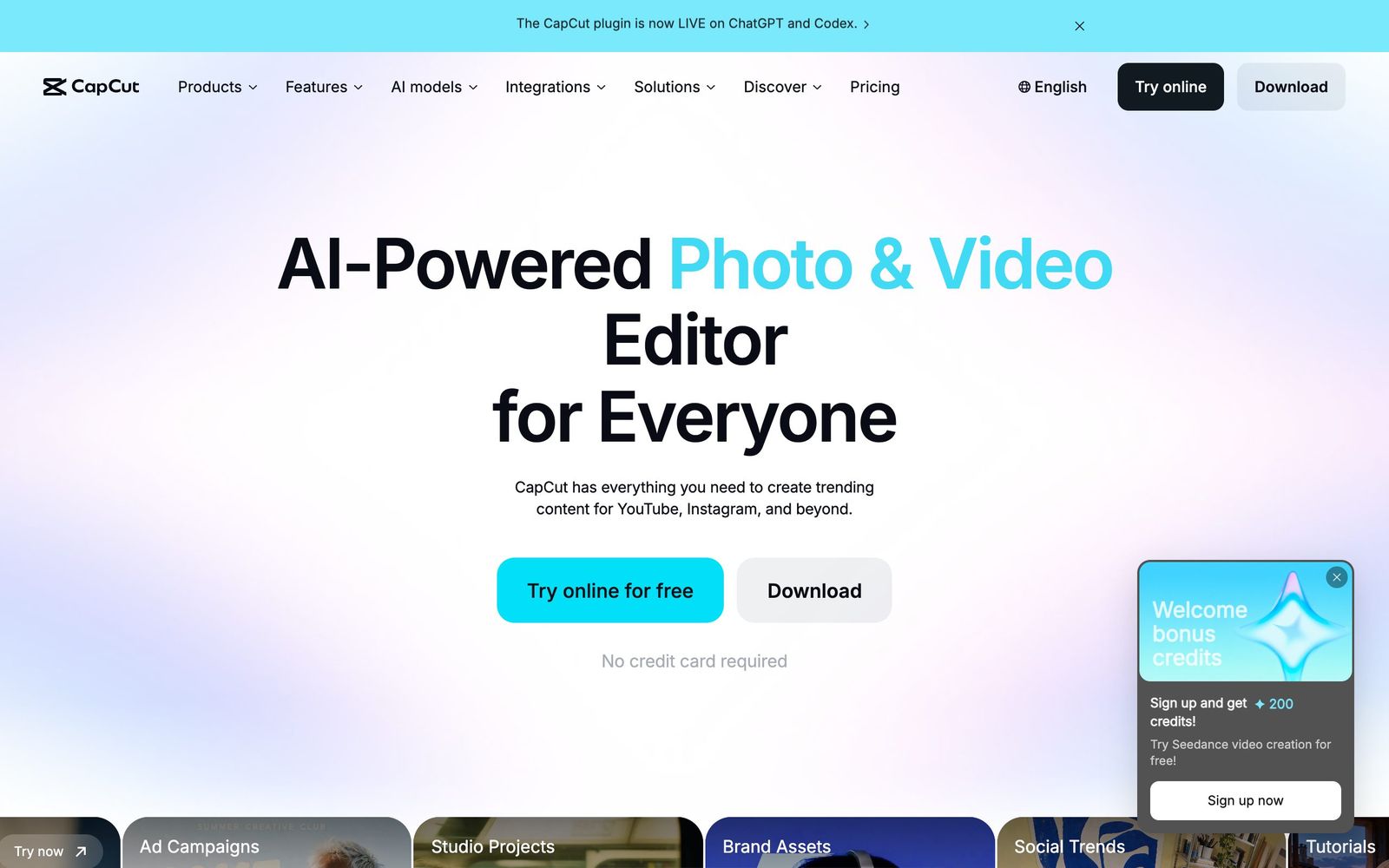
CapCut is free on the web, Windows, Mac, iPhone and Android, with a huge template library, effects, auto captions, text to speech, a background remover and Seedance AI video generation. For beginners making social videos it is built around trends and templates.
Its Trustpilot score is 1.2 from 1,416 reviews, mostly about charges after cancelling and Pro paywalls that appear at the export screen, a similar billing complaint to Movavi's.
Standout feature: Templates and ByteDance's own AI models, with Seedance generation included in Pro credits.
What's the difference between CapCut and Movavi Video Editor? CapCut is free with more templates and runs on phones. Movavi is a desktop editor.
CapCut pros:
- Free, fast and familiar on phone and desktop
- Templates for trends
- Auto captions, text to speech and background remover
- Plugin for ChatGPT and Codex
CapCut cons:
- Pro paywalls can appear at the export screen
- Trustpilot score of 1.2 (1,416 reviews); the low reviews we read mention charges after cancelling
Pricing: Free plan with basic editing and free templates. Pro is $19.99 a month on the web; the app stores sell other plans.
Choose CapCut over Movavi Video Editor if: you make social videos.
What's new in CapCut: The CapCut plugin is live in ChatGPT and Codex, and iOS 20.3.0 (24 November 2026) improved trimming.
Available for: Web, Windows, Mac, iPhone and Android
#10 TimeBolt: Best for one-click silence removal, paid once
Our rating: 4.0/5. Fit for this job 3.5/5, ease of use 4.3/5, value for money 4.3/5.
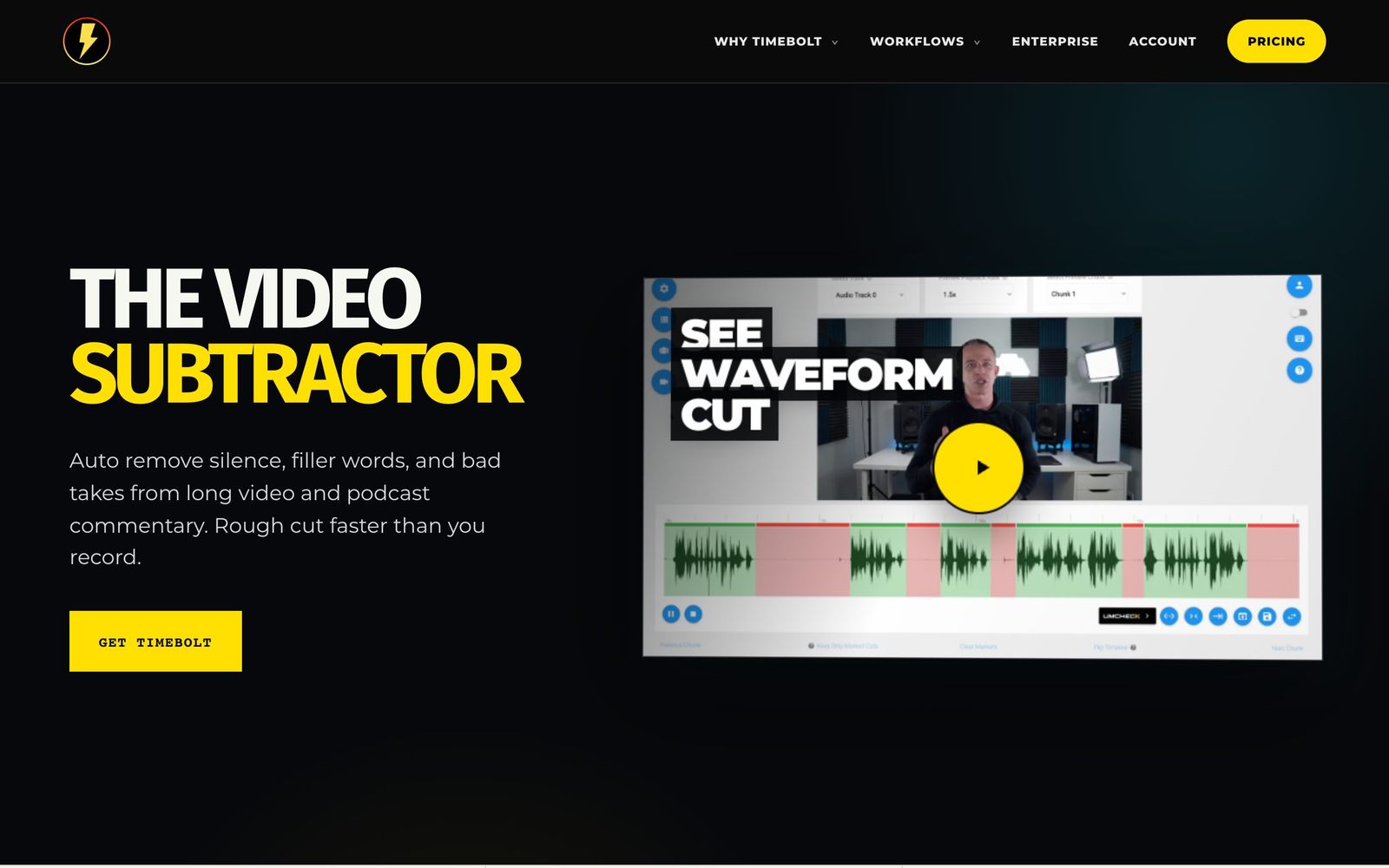
If Movavi's one-click silence removal is the feature you use most, TimeBolt is built for that job: it removes silences, filler words, repeats and bad takes on Mac or Windows, with on-device transcription and no credits, and claims to jump-cut an hour of video in 13 seconds. A free 4K screen and camera recorder comes with it.
Lifetime comes with a 30-day money-back guarantee. It is a cutting tool, not a full editor with effects.
Standout feature: Fast jump cuts with free on-device transcription: no per-minute fees or credits.
What's the difference between TimeBolt and Movavi Video Editor? TimeBolt only cuts, and goes beyond silences to filler words, repeats and bad takes. Movavi is a full beginner editor.
TimeBolt pros:
- Very fast silence and filler removal
- Local transcription with no credits
- Lifetime licence option
- Free 4K screen and camera recorder
TimeBolt cons:
- Free exports are watermarked
- One licence covers 2 machines
Pricing: Free forever with watermarked exports. Pro is $17 a month, or $97 a year; Lifetime is $347 once.
Choose TimeBolt over Movavi Video Editor if: silence removal is the job and you want to pay once.
What's new in TimeBolt: Version 8.1.1 (November 2026) redesigned the multi-track editor, after on-device transcription for filler removal in 8.0 (October).
Available for: Mac and Windows, plus a local connector for AI agents
Best Movavi alternatives with effects and templates
For people who like Movavi's effects and templates and want them without the effects store.
#11 Filmora: Best for lots of effects on a budget
Our rating: 4.1/5. Fit for this job 4.2/5, ease of use 4.3/5, value for money 3.8/5.
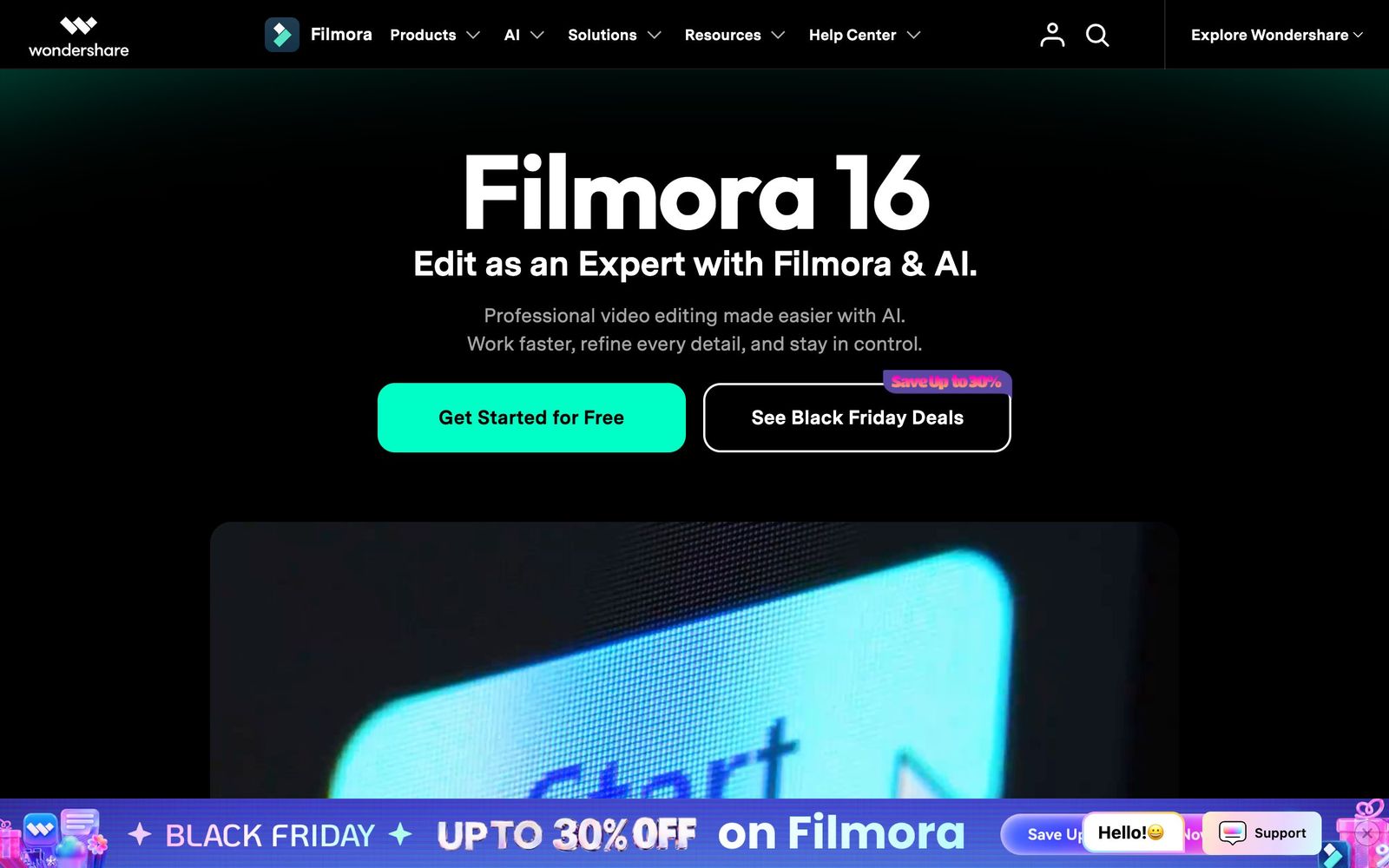
Filmora, from Wondershare, is Movavi's closest rival: a beginner desktop and mobile editor with a big effects and template library. Version 16.0 (September 2026) added camera tracking, colour masks, Smart Text Correction for captions and multi-source recording.
A perpetual licence covers one version only. Like Movavi, checkout offers an effects add-on trial (US$20.99 a month), free exports are watermarked, and stickers, transitions and AI features use credits. Trustpilot gives 4.0 from 15,743 reviews.
Standout feature: A large effects and template library with AI tools like an Idea to Video agent.
What's the difference between Filmora and Movavi Video Editor? Filmora adds phone apps, with a similar upsell model. Movavi has one-click silence removal; both sell a one-time licence (Filmora's covers one version only).
Filmora pros:
- Big effects library
- AI tools and camera tracking
- Desktop and mobile
- Trustpilot 4.0 from 15,743 reviews
Filmora cons:
- Free exports carry a watermark (one reviewer says it covers the whole screen)
- Effects and AI features cost extra credits
Pricing: Free to download with a watermark on exports. The annual plan is $49.99 a year (sale price; $69.99 regular).
Choose Filmora over Movavi Video Editor if: effects and transitions matter most.
What's new in Filmora: Filmora 16.0 (September 2026) added camera tracking, colour masks and AI media analysis.
Available for: Windows, Mac, iPhone and Android
#12 Kapwing: Best for templates and subtitles in the browser
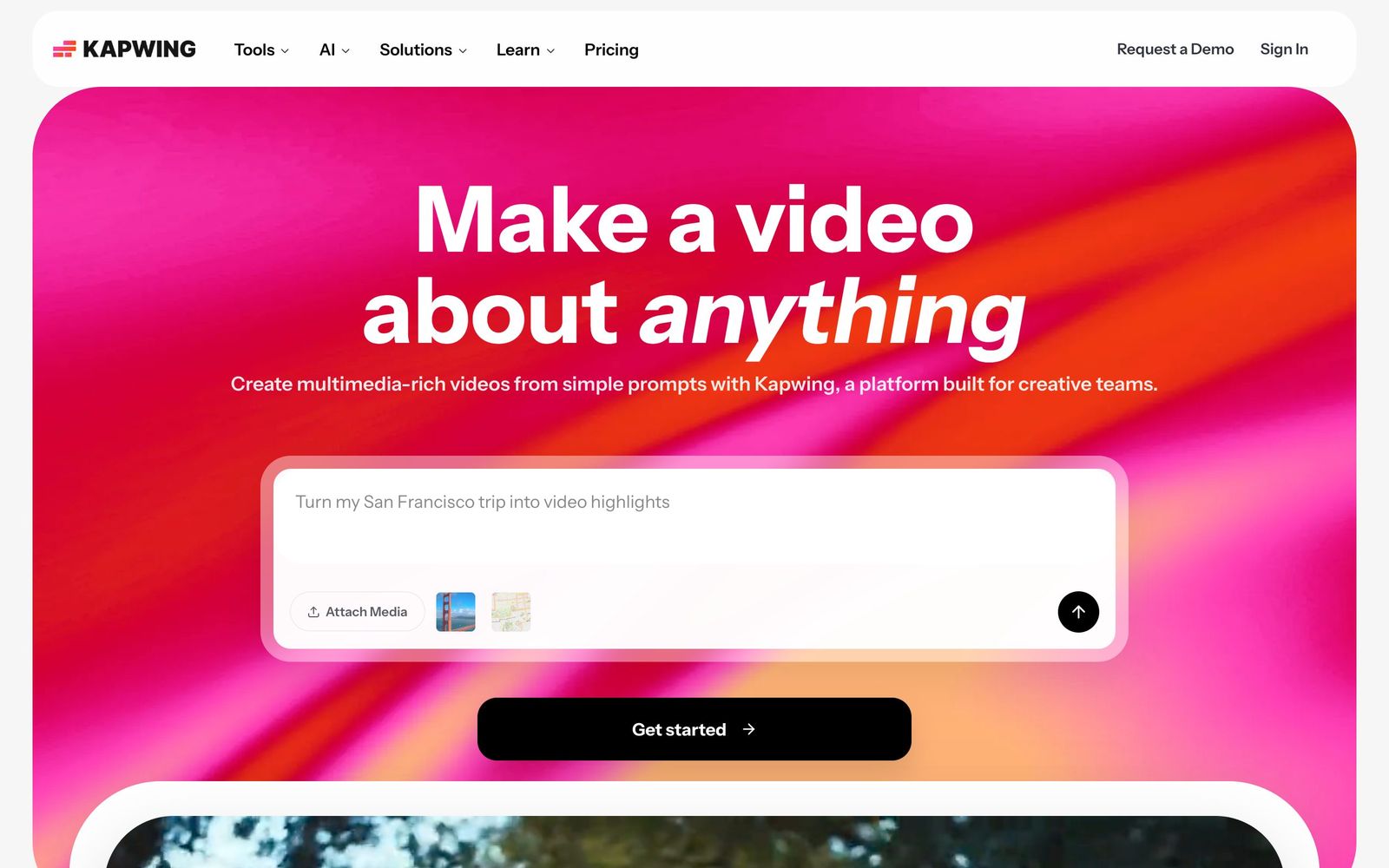
Our rating: 3.8/5. Fit for this job 3.6/5, ease of use 4.3/5, value for money 3.6/5.
Kapwing is a browser editor with templates, auto subtitles, translation and dubbing into 40+ languages, and Kai, an AI agent that runs multi-step edits on its own. Nothing to install, and teams can edit the same project.
Trustpilot gives 1.8 from 1,375 reviews, mostly about AI credits and refunds.
Standout feature: Kai, an AI agent inside the browser editor that runs multi-step jobs, plus an MCP connection for Claude and ChatGPT.
What's the difference between Kapwing and Movavi Video Editor? Kapwing runs in any browser. Movavi needs a Windows or Mac install.
Kapwing pros:
- Full browser timeline with team collaboration
- Subtitles, translation and dubbing into 40+ languages
- Repurpose Studio for social clips
- Kai agent and MCP connector
Kapwing cons:
- Free exports are watermarked, 720p and 4 minutes at most
- Trustpilot score of 1.8 (1,375 reviews); the low reviews we read mention credits lost on failed AI jobs and refused refunds
Pricing: Free plan with a watermark, 720p and videos up to 4 minutes. Pro is $24 a month, or $16 a month billed yearly.
Choose Kapwing over Movavi Video Editor if: you want to edit in a browser.
What's new in Kapwing: Kapwing MCP 1.1.0 (27 October 2026) lets Kai generate images and video with reference media; August added Kai autonomous mode and Seedance 2.5.
Available for: Web
Best Movavi alternatives for growing into pro editing
If you've outgrown beginner tools and want a professional editor.
#13 Final Cut Pro: Best for a one-time pro editor on Mac
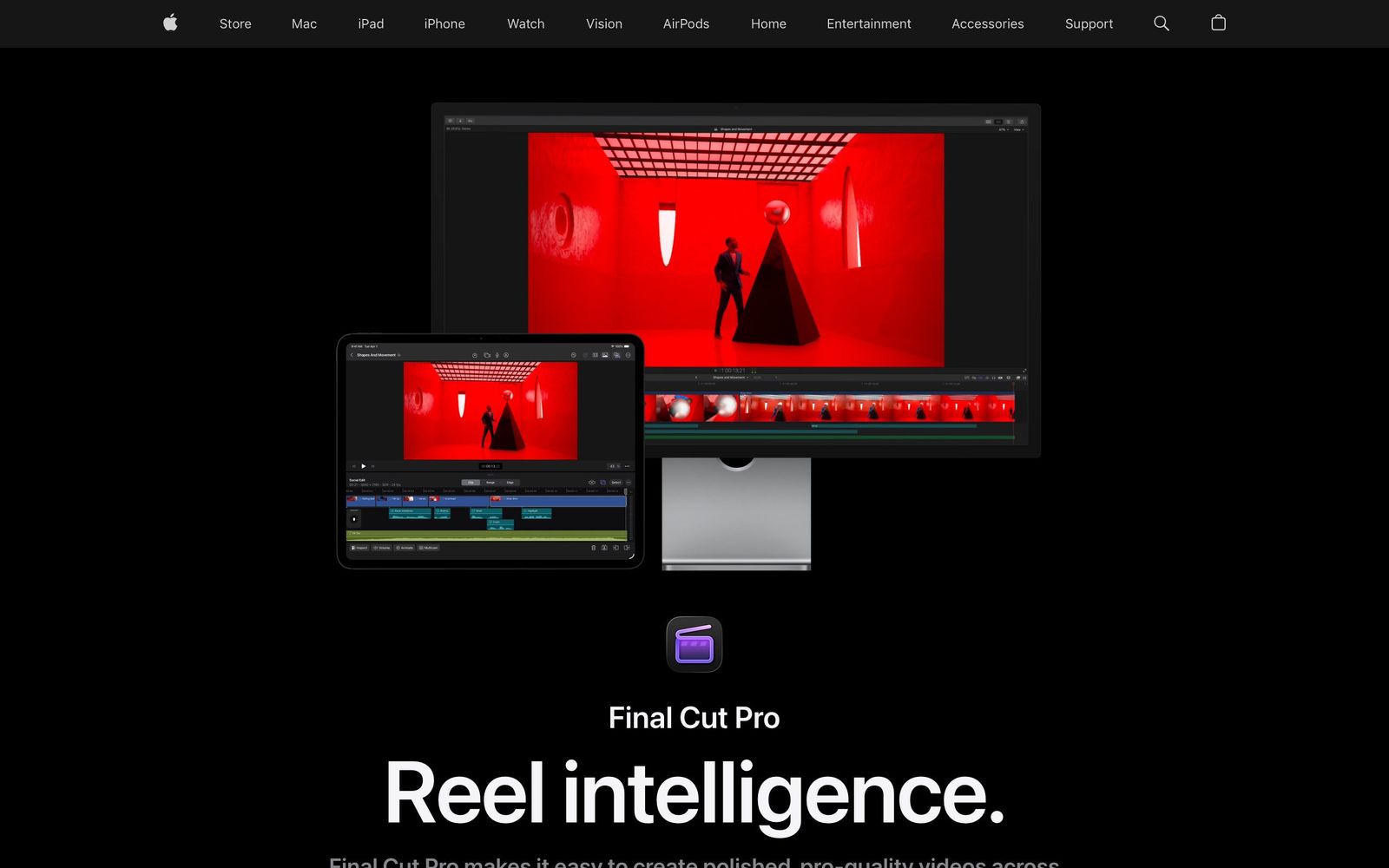
Our rating: 4.0/5. Fit for this job 3.8/5, ease of use 3.9/5, value for money 4.4/5.
Final Cut Pro is a one-time purchase on the Mac App Store, fast on Apple silicon, with a magnetic timeline. Version 13.0 (18 November 2026) adds captions and transcript search in 23 more languages and finer keyframe easing.
It is Mac and iPad only, and a November 2026 Mac App Store reviewer reports crashes after 13.0.
Standout feature: The magnetic timeline, tuned for Apple silicon, with transcript search and beat detection.
What's the difference between Final Cut Pro and Movavi Video Editor? Final Cut Pro is a pro editor you buy once. Movavi is a beginner editor with add-ons.
Final Cut Pro pros:
- One-time price
- Fast on Apple silicon
- Transcript search in 23 more languages (v13)
- Mac and iPad
Final Cut Pro cons:
- Apple only
- Mac An iOS App Store reviewer (November 2026) reports crashes after an update (12.4 and 13.0)
Pricing: $299.99 once on the Mac App Store, or inside Apple Creator Studio at $12.99 a month.
Choose Final Cut Pro over Movavi Video Editor if: you are on a Mac and ready for pro editing.
What's new in Final Cut Pro: Final Cut Pro 13.0 (18 November 2026) added finer keyframe easing and transcript search in 23 new languages.
Available for: Mac and iPad
#14 Adobe Premiere: Best for the industry standard
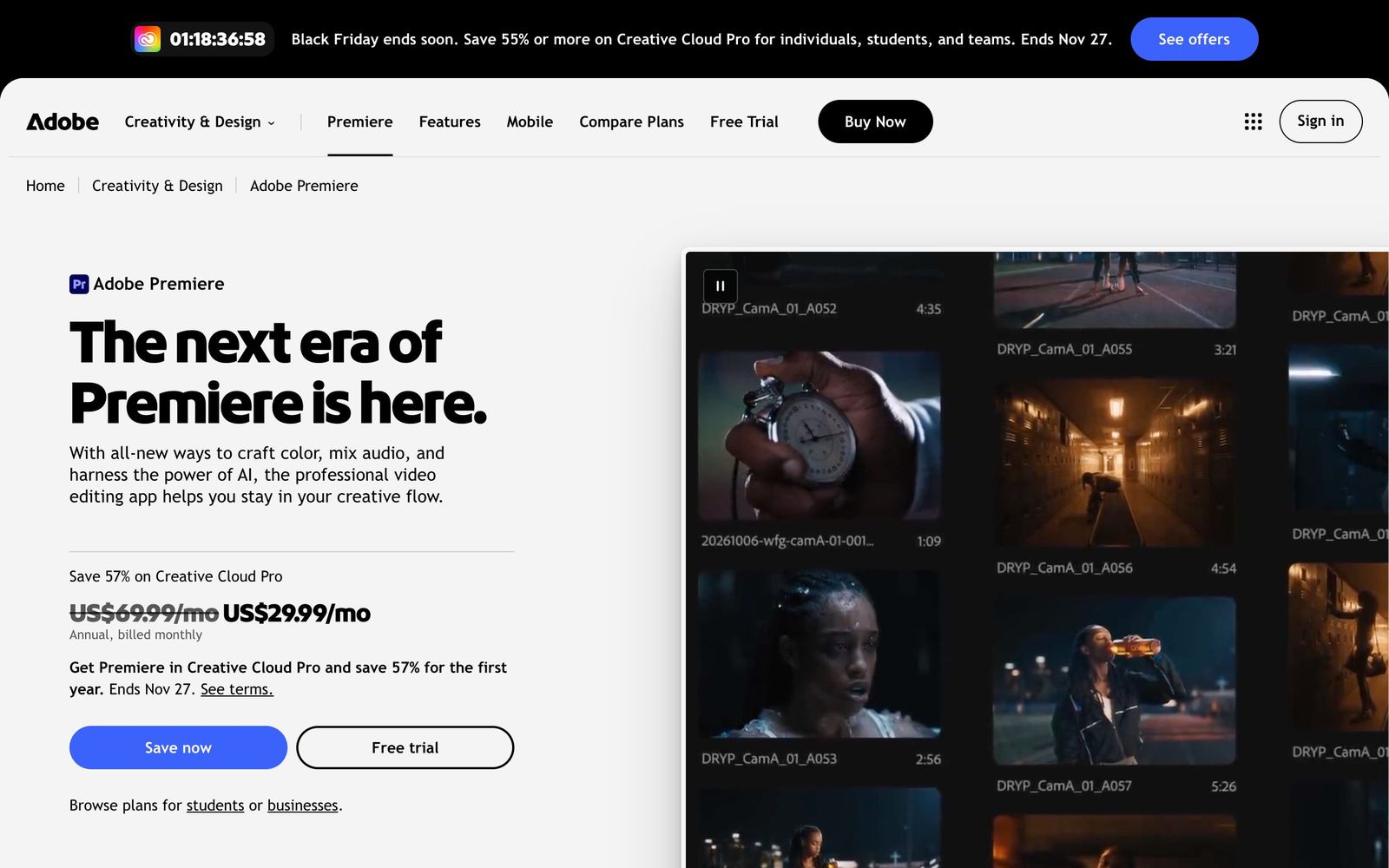
Our rating: 3.6/5. Fit for this job 3.6/5, ease of use 3.6/5, value for money 3.7/5.
Adobe Premiere (formerly Premiere Pro) is the industry standard, with Text-Based Editing, captions in 20+ languages, Color Mode and AI tools such as Generative Extend and an AI Assistant panel in version 27.0.
The annual plan has an early termination fee if you cancel, and it takes real time to learn.
Standout feature: The industry-standard timeline, now with Generative Extend, an AI Assistant panel and a Color Mode grading workspace.
What's the difference between Adobe Premiere and Movavi Video Editor? Premiere is a professional tool with a subscription. Movavi is for beginners.
Adobe Premiere pros:
- Industry standard, with every pro feature
- Text-based editing and captions in 20+ languages
- Color Mode and one-click subject masking
- Generative Extend fills missing frames
Adobe Premiere cons:
- Annual commitment; full refund only within 14 days, and one reviewer reports an early termination fee
- Only 25 generative credits a month on the Premiere plan
Pricing: No free plan, a 7-day trial. The Premiere plan is $22.99 a month on an annual plan; Creative Cloud Pro adds 20+ apps.
Choose Adobe Premiere over Movavi Video Editor if: you plan to edit professionally.
What's new in Adobe Premiere: Premiere 27.0 (10 November 2026) added Color Mode, the AI Assistant panel and Separate Crosstalk. Adobe dropped "Pro" from the name in January 2026.
Available for: Windows, Mac and phones
#15 Palmier Pro: Best for a free Mac editor run by an AI agent
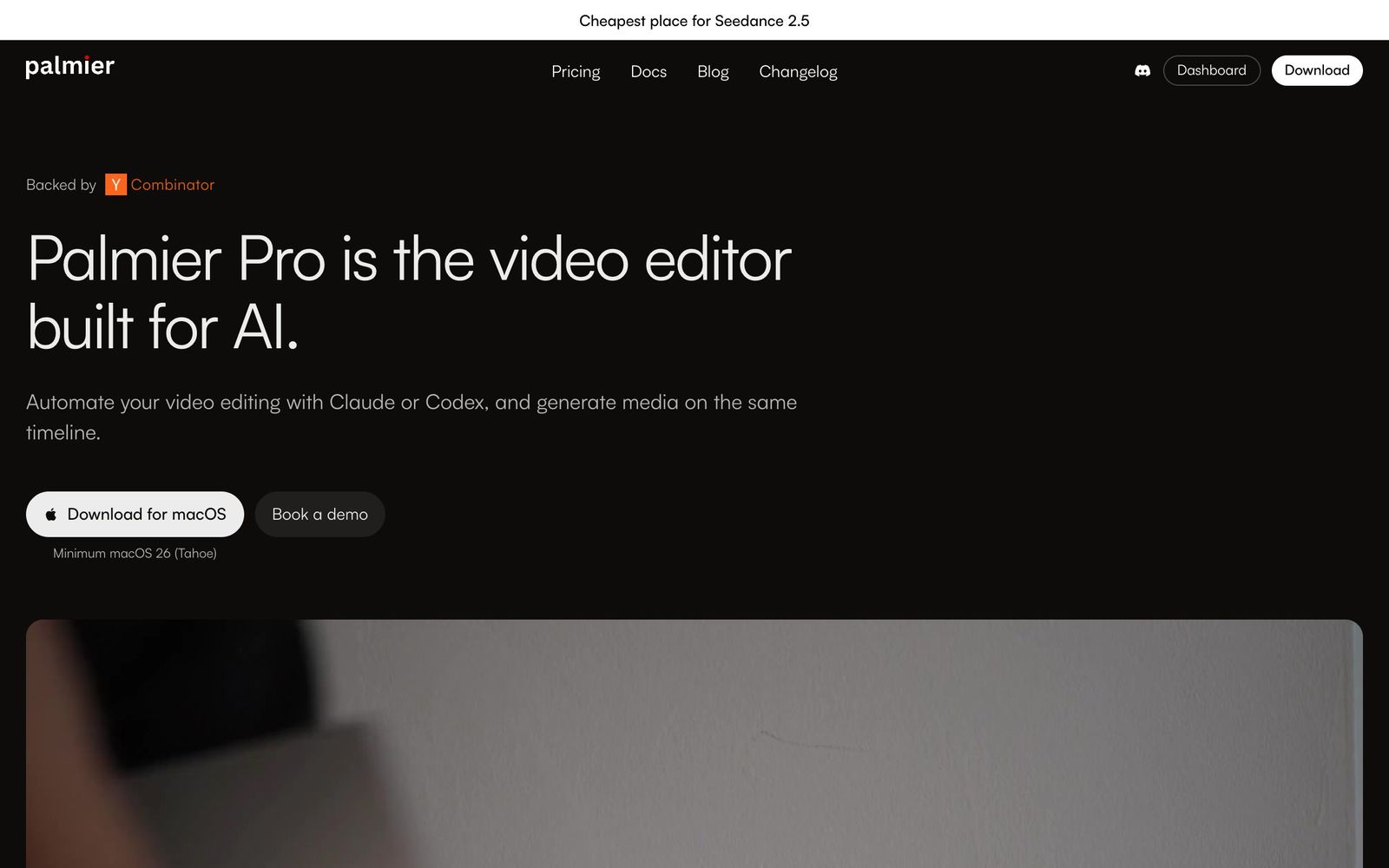
Our rating: 3.7/5. Fit for this job 3.3/5, ease of use 3.4/5, value for money 4.4/5.
Palmier Pro is a free, open-source Mac editor with a full timeline (keyframes, colour grading, masks, multicam, captions and remove silence) that AI agents like Claude Code, Codex or Cursor can drive. If you already use one of those agents, it can do Movavi's one-click jobs and much more by request; if you don't, it's a capable free editor with a learning curve.
It only runs on macOS 26 or newer and is pre-1.0, so it isn't for Windows users or first-time editors.
Standout feature: Claude, Codex or Cursor edit the timeline through a local connector, and a finished edit can be saved as a reusable Skill for the next video.
What's the difference between Palmier Pro and Movavi Video Editor? Palmier Pro is a free pro-style Mac editor an agent can run. Movavi is a beginner editor for Windows and Mac.
Palmier Pro pros:
- Free, open-source Mac editor (GPL-3.0) with 14,811 GitHub stars
- Your own agent edits the timeline over MCP, with no account needed
- Image, video, voice and music generation lands on the same timeline
- A full editor: multi-track timeline, keyframes, colour grading, masks and multicam
Palmier Pro cons:
- Mac only, and only on macOS 26 (Tahoe) or newer
- AI generation, cloud transcription and the built-in chat need a paid plan
Pricing: Free plan: the full Mac editor, with no account needed and no generation credits. Pro is shown at $29 a month (marked down from $49) with 5,000 credits a month.
Choose Palmier Pro over Movavi Video Editor if: you are on a recent Mac and want an AI agent to run a full editor.
What's new in Palmier Pro: Version 0.12.0 (29 October 2026) added a headless mode that runs several projects at once, timeline history snapshots, caption presets with per-word styles and Kling V4.
Available for: Mac (macOS 26 or newer), driven by Claude, Codex or Cursor over MCP
How to choose the best Movavi Video Editor alternative
Most people leave Movavi for one of three reasons: the watermarked trial, the add-on billing, or outgrowing it. If you are also weighing a pro editor, we compared the Premiere Pro alternatives the same way.
Do you want to learn editing, or skip it?
If you want the video without learning a timeline, HyperFrames Studio's agent does the edit when you ask. If you want to learn, start with Clipchamp or iMovie and move to DaVinci Resolve or Final Cut Pro later.
What do you edit on?
On Windows: Clipchamp, DaVinci Resolve, Shotcut, OpenShot, Kdenlive, HyperFrames Studio and Filmora. On a Mac: HyperFrames Studio, iMovie, DaVinci Resolve, Shotcut and Kdenlive, plus the Mac-only Final Cut Pro. On a phone or several devices: CapCut, Adobe Express, Filmora, or Kapwing in a browser.
Free, one-time or subscription?
Truly free with no watermark: Clipchamp (1080p), iMovie, DaVinci Resolve, Shotcut, OpenShot, Kdenlive and HyperFrames Studio's local exports. One-time: Final Cut Pro, Resolve Studio, TimeBolt Lifetime, or Movavi's own lifetime licence. Watch for add-on trials at checkout; Movavi and Filmora both offer them.
Do you need templates and effects?
Templates make a beginner's video look finished fast. CapCut, Adobe Express (345,000+ templates) and Filmora have large template and effects libraries. HyperFrames Studio builds titles and graphics when you ask, with inspirations to start from.
Will you edit 4K or long videos?
DaVinci Resolve's free version handles Ultra HD at 60 fps; Shotcut edits up to 4K; HyperFrames Studio exports up to 4K. Clipchamp's free plan stops at 1080p, and Kapwing's free plan at 720p and 4 minutes.
How we compared
Every tool on this list was scored on three things:
- Ease for beginners. How quickly a first-timer gets a good-looking video, and how much the tool does for you.
- Features. Captions and subtitles, effects and transitions, colour correction, silence removal, templates and 4K export.
- Honest pricing. Free plan, watermark, one-time or subscription, and add-ons sold at checkout.
User complaints. We read recent reviews on Trustpilot, Product Hunt and the App Store and say when a complaint comes from a single review, with its date when it is old. Some review sites (G2, Capterra) blocked automated reading, so their scores are not quoted.
Ratings. Each tool gets three scores out of 5: fit for the job this page is about, ease of use, and value for money (free plan, entry price, watermarks and caps). The overall rating is their average. The scores are our judgment from the sources above, not a lab benchmark.
Movavi's ratings. Its Trustpilot score covers all Movavi products, not only Video Editor. Its lifetime price was read after selecting the Lifetime tab on the buy page.
Conclusion
For beginners who want the video, not the editing lesson, HyperFrames Studio is the strongest Movavi alternative: you ask and the agent cuts, captions, titles and colours, and free exports on your computer have no watermark and no add-on store.
If you'd rather edit by hand for free, Clipchamp (Windows and browser) and iMovie (Apple) are the simplest, OpenShot, Kdenlive and Shotcut are open source, and DaVinci Resolve is the free editor you won't outgrow. For effects and templates, Filmora and CapCut beat Movavi on variety, and for pro work Final Cut Pro is a one-time purchase on a Mac. Whichever you choose, read the checkout page for add-on trials, or start with HyperFrames Studio free.
Edit your first video by asking, free
Frequently asked questions
What is the best Movavi Video Editor alternative?
HyperFrames Studio is the best Movavi alternative for beginners, because an AI agent edits for you and free exports on your computer have no watermark. Clipchamp is the best simple free editor, and DaVinci Resolve the best free editor to grow into.
Is Movavi Video Editor really free?
No. The free version is a trial: it adds a watermark in the centre of the video, limits exports to 60 seconds, locks some export features, and asks you to buy after 7 days.
What is the best 100% free video editor?
DaVinci Resolve is the most capable, with no watermark up to Ultra HD. Shotcut is free and open source, Clipchamp exports 1080p free with no watermark, and iMovie is free on Apple devices. HyperFrames Studio is free to start, with unlimited local exports and an AI agent that edits by asking.
Is Movavi or CapCut better?
CapCut is better for free social videos, with more templates and phone apps. Movavi is better for desktop editing with one-click silence removal and a lifetime licence. Both have billing complaints on Trustpilot.
Is DaVinci or Movavi better?
DaVinci Resolve is far more powerful and free with no watermark, but harder to learn. Movavi is easier for a first video but watermarked until you pay.
Which Movavi alternatives are open source?
Shotcut, OpenShot and Kdenlive are free, open-source desktop editors, and Palmier Pro is an open-source Mac editor. HyperFrames is open source too (Apache 2.0). See our open-source AI video editors list.
Is there a Movavi alternative without a watermark?
Yes. Clipchamp (1080p), iMovie, DaVinci Resolve, Shotcut, OpenShot, Kdenlive and HyperFrames Studio's local exports are all free with no watermark.
How do I cancel Movavi's effects subscription?
The Movavi Effects trial added at checkout renews at $49.95 a month unless you cancel it before the 7 days end. Check your account and payment emails after buying, as one Trustpilot reviewer (November 2026) says the option is hard to find.
Which Movavi alternative is best for beginners?
HyperFrames Studio if you want to edit by asking; Clipchamp or iMovie if you want a simple manual editor; CapCut for social videos.
Can free video editing software handle 4K footage?
Yes. DaVinci Resolve's free version edits up to Ultra HD 60 fps, Shotcut edits up to 4K, and HyperFrames Studio exports up to 4K. Clipchamp's free plan exports 1080p; 4K needs Microsoft 365.
Is there a Movavi alternative with a lifetime licence?
Yes. Final Cut Pro is $299.99 once on Mac, DaVinci Resolve Studio is $295 once, and TimeBolt has a $347 lifetime licence. Movavi itself sells a lifetime licence for $149.95.
Can I make a YouTube channel with a free editor?
Yes. Every editor here exports MP4 files YouTube accepts. HyperFrames Studio also cuts pauses, adds captions and makes vertical versions for Shorts by asking.
Can I open my Movavi projects in another editor?
Movavi lists no project export to other editors on the pages we read, so export finished videos before you cancel and keep your original clips to re-edit elsewhere.
Is HyperFrames free?
Yes, free to start: HyperFrames Studio is a free download, and the open-source engine behind it is free, with 90,000+ GitHub stars. Pro is $25 a month for more (pricing).

Written by Ular Kimsanov
Ular Kimsanov works on HyperFrames at HeyGen, the free, open-source tool where AI agents make videos, and writes about making videos with AI agents. Prices and plans on this page were checked on 26 November 2026.